Bullet Point Formatting: Master Your Lists
You're probably looking at a list right now that almost works.
The ideas are there. The bullets are there. But the list feels uneven, harder to scan than it should be, or oddly messy once you paste it into Word, Google Docs, Notion, Slack, or a CMS. One item is a full sentence. The next is a fragment. A sub-point drifts left. A code block sticks to the wrong bullet. In a meeting note or project update, that small formatting wobble can turn into real confusion.
Good bullet point formatting fixes that. It helps readers sort ideas fast, spot priorities, and act without rereading. It also has a long history. The first recorded use of bullet points as typographical marks appeared in the 15th century as decorative symbols in manuscripts, and the modern meaning of “bullet point” took hold in the early 1980s with digital text, as noted in this history of bullet points.
Table of Contents
- Why Mastering Bullet Points Matters
- The Core Principles of Bullet Point Formatting
- Structuring Lists for Maximum Readability
- Mastering Nested Lists and Hierarchy
- Practical Formatting Across Digital Tools
- Avoiding Common Mistakes and Ensuring Accessibility
- Conclusion Automating Clean Lists with AI
Why Mastering Bullet Points Matters
A project manager sends a Monday update to the team. Under “Action items,” the list looks harmless:
- review mockups
- Finance approves budget.
- Scheduling vendor call by Thursday
- Alex: final QA
By noon, two people think the budget is already approved, one person doesn't know whether “Thursday” applies to the call or the scheduling, and Alex isn't sure whether QA is a task or a status label. The problem isn't the team. The problem is the list.
Bullet points look simple because they're small. But they carry a heavy job. They compress meaning, signal priority, and tell a reader how to move through information. When the formatting is sloppy, the reader has to do the sorting work you should have done for them.
Good lists are like good road signs. People shouldn't have to slow down to decode them.
That matters in more places than email. Product managers use lists in specs. Developers use them in pull requests and documentation. Support teams use them in macros. Teachers use them in lesson plans. Hiring managers judge them in resumes. A list is often the fastest route between thought and action.
There's also a reason bulleted lists feel modern even though the marks themselves are old. Decorative bullet-like symbols existed centuries ago, but the modern “bullet point” became part of everyday written English much later, after digital writing tools made list formatting routine. That shift turned bullets from decoration into a practical tool for work.
When you master bullet point formatting, you're not polishing trivia. You're making your writing easier to trust.
The Core Principles of Bullet Point Formatting
Most bullet point formatting problems come from three broken rules: parallel structure, consistent punctuation, and concise wording.
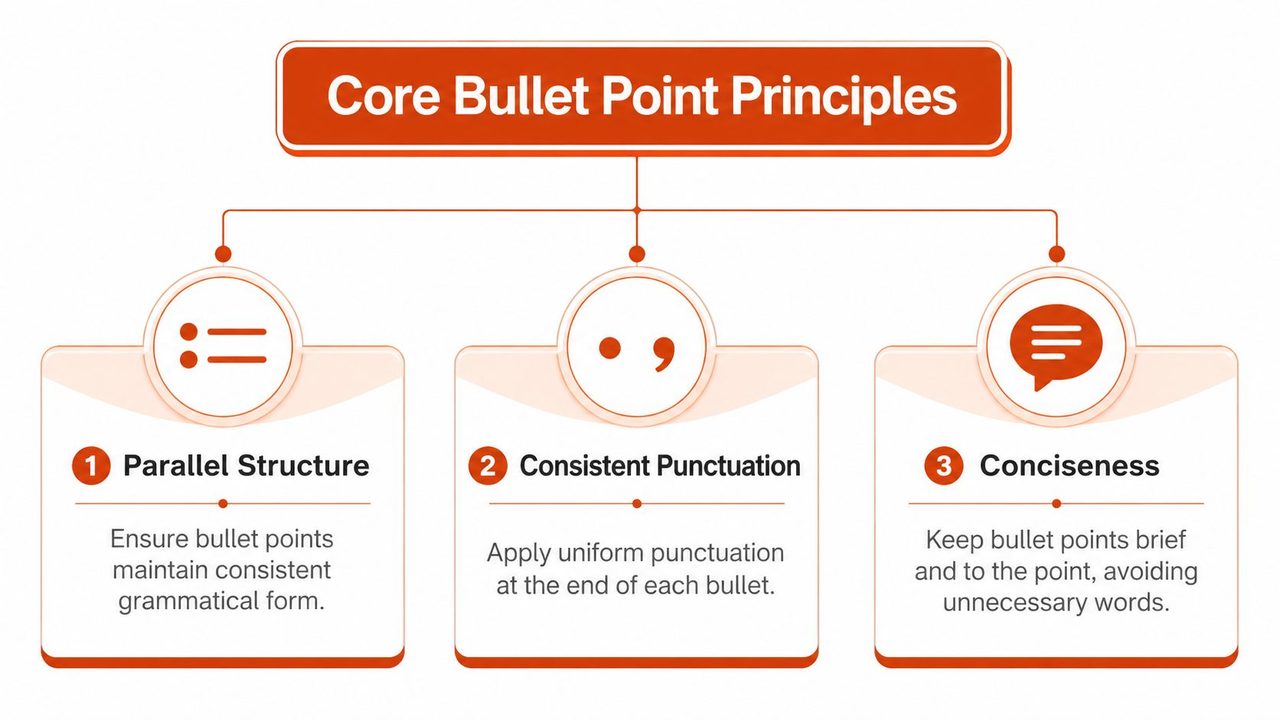
Parallel Structure Keeps Lists Predictable
Parallel structure means each bullet follows the same grammatical pattern. If the first bullet starts with a verb, the others should too. If the first bullet is a noun phrase, keep the rest as noun phrases.
That consistency isn't just stylistic. The NLR communication standards note that bulleted lists should use parallel grammatical construction, and that omitting parallelism increases cognitive load by approximately 15% while non-parallel lists require 40% more time to parse in usability benchmarks, according to their guidance on bullet construction.
Compare these two versions:
Uneven list
- Draft the release note
- Marketing review of homepage copy
- The sales team should update the deck
Parallel list
- Draft the release note
- Review the homepage copy
- Update the sales deck
The second list feels easier because the reader learns the pattern once, then rides it through the whole list. This process is akin to a marching rhythm. When one step changes for no reason, everyone notices.
Capitalization and Punctuation Need a Rule
Readers get confused when lists mix styles without a reason. One bullet starts with a capital letter, the next doesn't. One ends with a period, another ends with nothing.
Use a simple decision rule:
- If each bullet is a complete sentence, capitalize the first word and end with a period.
- If each bullet is a short phrase or fragment, you can omit end punctuation.
- Don't mix sentence bullets and fragment bullets in the same list unless you have a strong editorial reason.
The AP-style guidance summarized in the verified material supports that approach: complete-sentence bullets should begin with a capital letter and end with a period, while fragments may omit ending punctuation if you stay consistent.
Here's the clean contrast.
Sentence list
- The design team will finalize the landing page by Friday.
- The support team will review the updated FAQ.
- The product team will confirm the rollout plan.
Fragment list
- Final landing page
- Updated FAQ review
- Rollout plan confirmation
If you write resumes often, the same discipline matters there too. StoryCV has a useful piece on optimizing resume bullet points for ATS because hiring systems and human readers both benefit from consistent structure.
A Quick Table You Can Reuse
| Item Type | Punctuation Rule | Example |
|---|---|---|
| Short phrase | Usually no end punctuation | Finalize launch copy |
| Sentence fragment list with all items matching | Keep punctuation style consistent across all bullets | Reviewing legal terms |
| Complete sentence | Capitalize first word and end with a period | Legal reviewed the contract on Tuesday. |
| Mixed list | Best avoided unless rewritten for one style | Avoid mixing fragments with sentences |
Practical rule: Pick one grammatical shape and one punctuation style before you write the first bullet.
Conciseness also matters here. A bullet isn't a paragraph with a dot in front of it. Trim filler, cut repeated words, and keep each point focused on one idea.
Structuring Lists for Maximum Readability
A clean list starts before the first bullet. It starts with the sentence that introduces it.
Start with a Lead-in That Sets the Job of the List
A lead-in sentence tells readers what the bullets represent. Without it, bullets can feel dropped onto the page with no frame.
Weak version:
- Draft copy
- Review design
- Send invoice
Better version:
The launch checklist includes these final tasks:
- Draft copy
- Review design
- Send invoice
That small lead-in gives the list a role. It turns three loose notes into one unit.
List length matters too. Technical writing guidance says effective bulleted lists should contain between 5 and 7 points, and recommends approximately 1.25 line spacing for readability, as summarized in these usage notes on bullet list clarity. If your list runs longer, split it by theme, owner, or stage.
A useful habit is to ask one question before you hit return: What should the reader understand after scanning this list once? That answer becomes your lead-in.
For teams managing action-heavy work, a system for list framing helps beyond writing. This article on boost productivity with effective task tracking is useful because it shows how action items become clearer when ownership and next steps are explicit.
Choose Bullets Only When Bullets Are the Right Tool
Not every chunk of information belongs in bullet points.
Use this quick test:
- Use bullet points when items are related but not sequential.
- Use a numbered list when order matters.
- Use a paragraph when one idea needs explanation, not segmentation.
- Use a table when readers need to compare categories side by side.
A short example makes the difference clear.
Bullet list
- Login issue
- Billing issue
- Shipping delay
Numbered list
- Open the dashboard
- Export the report
- Send it to finance
Table Best when comparing plans, roles, or options.
If you want a close look at grammar choices when lists appear inside running prose, this guide on punctuating lists in sentences is a practical companion.
Mastering Nested Lists and Hierarchy
Nested lists confuse writers because they ask one page to show two jobs at once: the main categories and the details under them.
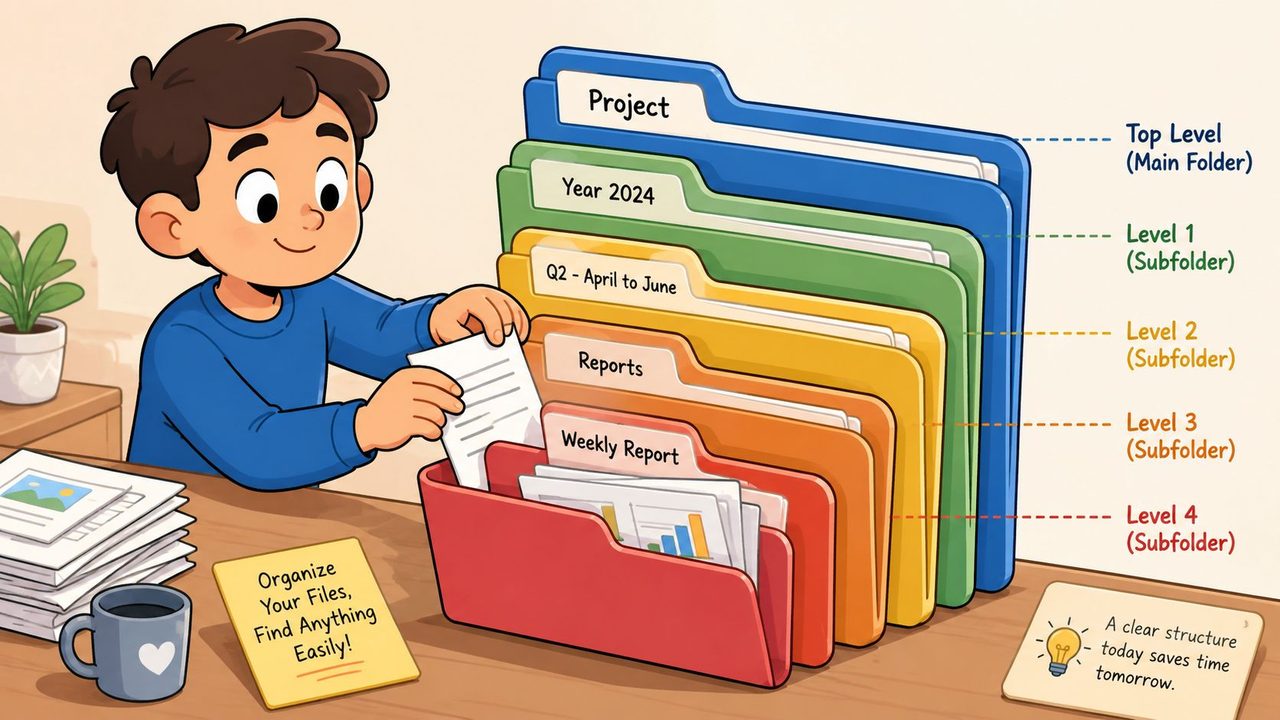
Think Like Folders Inside Folders
The easiest way to understand nested bullet point formatting is to think about file folders.
A top-level bullet is the main folder. A nested bullet is a document inside it. The child item should always answer or support the parent item. If it doesn't, it probably belongs at the top level.
Here's a clean example:
- Product launch
- Finalize release notes
- Confirm customer email
- Review support macros
- Sales enablement
- Update demo script
- Refresh pricing slide
- Share objection handling notes
Here's a messy version:
- Product launch
- Finalize release notes
- Sales enablement
- Update demo script
- Refresh pricing slide
The second version breaks the family tree. One child loses its parent. Another parent has no children even though the visual spacing suggests more is coming.
A Simple Pattern for Multi-level Lists
When you build a hierarchy, stay consistent in three places:
- Indentation: Each child level should align exactly under its parent.
- Category logic: Parent bullets should be broad enough to contain the children.
- Symbol choice: If your tool lets you change symbols, use a predictable progression rather than random icons.
A practical style might look like this:
- Main category
- Supporting point
- Supporting point
- Fine detail only if needed
Don't nest just because you can. Deep nesting often signals that a section wants a subheading, a table, or a separate document.
This short demonstration is useful if you want to see list hierarchy built visually in a document editor:
A nested list should feel like a guided outline, not a stairwell with no labels.
Practical Formatting Across Digital Tools
The same list can behave differently depending on where you write it. Markdown, HTML, Word, Gmail, Outlook, Notion, and Google Docs all have their own habits.
Markdown Recipe
Standard unordered list:
- First item
- Second item
- Third item
Nested Markdown list:
- Main item
- Child item
- Child item
Markdown gets tricky when you place an indented code block after a bullet list. Standard rendering engines can absorb the code block into the last list item. A documented workaround is to insert an empty HTML comment to break the list context before the code block, as explained in this Meta Stack Overflow discussion of the Markdown bug.
Example pattern:
- Step one
- Step two
code block starts here
That invisible comment looks odd, but it works because it tells the renderer the list has ended.
If you draft in Google Docs before moving content into Markdown tools, voice input can speed up the rough version. This walkthrough on using voice recognition in Google Docs is handy if you want to dictate the content first and clean the syntax afterward.
HTML Recipe
For web content, use real list tags:
<ul>
  <li>Review the draft</li>
  <li>Approve the budget</li>
  <li>Send the update</li>
</ul>
Nested HTML list:
<ul>
  <li>Design
    <ul>
      <li>Hero image</li>
      <li>CTA button</li>
    </ul>
  </li>
</ul>
The key point is semantic structure. Don't fake bullets with symbols and line breaks if the content is a list.
Word and Rich Text Recipe
In Microsoft Word, Outlook, and Gmail, the safest method is usually:
- Write the items first.
- Select them together.
- Apply bullets once to the full set.
- Adjust indentation after the list exists, not item by item.
That reduces the odds of uneven spacing and mixed styles. It also keeps copied lists more stable when they move between apps.
For richer documents, save a list style if your tool supports it. That way you don't have to rebuild spacing, indentation, and punctuation choices every time.
Avoiding Common Mistakes and Ensuring Accessibility
A list can be grammatically correct and still be hard to use. That's where the common mistakes hide.
Mistakes That Make Lists Harder to Read
Check your own lists for these problems:
- Mixed grammar: One bullet starts with a verb, another with a noun phrase, and a third with a full sentence.
- Orphaned bullets: A single bullet under a heading often means the idea should be a sentence, not a list.
- Overstuffed bullets: If one item contains several clauses, it may really be two or three separate points.
- No lead-in: Readers see items, but don't know what those items are meant to represent.
A fast edit often fixes all four. Read only the first two or three words of each bullet in sequence. If they don't sound like siblings, revise.
Screen a list the way a rushed reader would. Scan the openings first. If the pattern breaks, the list breaks.
Accessibility Starts with Real List Structure
Accessibility is not an add-on. It's part of correct bullet point formatting.
Screen readers rely on structure to tell users they've entered a list, how many items it contains, and when the list ends. That works well when you use proper semantic HTML such as <ul> and <li>, or when you apply actual list formatting in a word processor or editor.
It works poorly when writers fake bullets by typing hyphens, asterisks, or decorative symbols manually. A sighted reader may still understand the page, but assistive technology may not present the content as a coherent list.
That means the accessible choice is usually the professional choice too:
- Use real list tools: Apply bullets through the editor, not by typing symbols.
- Keep hierarchy honest: Nest only when a parent-child relationship exists.
- Write informative lead-ins: Context helps all readers, including those navigating by structure.
- Avoid symbol-only meaning: Don't rely on a special bullet shape or color alone to signal importance.
For a broader accessibility lens on speech, writing, and inclusive workflows, this article on voice-to-text accessibility adds useful context.
The Word and Google Docs Spacing Problem
One frustrating issue has little to do with your paragraph settings. Some users find that the default bullet glyph in Word or Google Docs is scaled larger than the surrounding text, creating extra vertical spacing. Standard advice to adjust paragraph spacing often doesn't solve it. A more effective fix is to define a new bullet character that matches the text size, as discussed in this user-reported formatting problem.
If your list looks too loose, try this before changing the whole paragraph style:
- Check the bullet glyph itself: The symbol may be larger than the body text.
- Create a custom bullet: Choose a character with matching scaling.
- Test a square or alternate symbol: Some glyphs behave better than the default filled circle.
- Reapply the list style: Old formatting can linger after multiple edits.
That's a technical detail most style guides skip, but it explains why spacing sometimes feels “wrong” even when your settings look normal.
Conclusion Automating Clean Lists with AI
Bullet point formatting looks minor until you have to do it all day.
You have to choose the right list type, keep the grammar parallel, apply one punctuation rule, build hierarchy cleanly, avoid platform quirks, and make sure the result still works for screen readers. None of that is hard in isolation. It becomes hard when you're moving fast.
That's where AI-assisted cleanup becomes useful. A rough dictated note often starts like this:
- call legal maybe tuesday
- finance approved budget i think
- review onboarding page and support article
- alex qa
A cleaned version can become this:
- Confirm the legal review date.
- Verify budget approval with finance.
- Review the onboarding page and support article.
- Ask Alex to complete QA.
That shift matters because the ideas stay the same while the structure becomes trustworthy.
If you're learning how to guide AI to produce cleaner structured writing, a short guide to prompt engineering helps you think about how instructions shape output.
The best use of automation isn't replacing judgment. It's removing repetitive cleanup so you can focus on meaning, order, and audience.
If you want a faster way to turn rough speech into clean bullets, polished notes, and ready-to-send writing on your Mac, try AIDictation. It helps you capture ideas by voice, then cleans up grammar, punctuation, and structure so your lists come out readable from the start.
Frequently Asked Questions
What does Bullet Point Formatting: Master Your Lists cover?
You're probably looking at a list right now that almost works. The ideas are there.
Who should read Bullet Point Formatting: Master Your Lists?
Bullet Point Formatting: Master Your Lists is most useful for readers who want clear, practical guidance and a faster path to the main takeaways without guessing what matters most.
What are the main takeaways from Bullet Point Formatting: Master Your Lists?
Key topics include Table of Contents, Why Mastering Bullet Points Matters, The Core Principles of Bullet Point Formatting.
Ready to try AI Dictation?
Experience fast voice-to-text on your device. Free to download.
Download FreeRelated Posts
Software Code Documentation: The Practical Developer Guide
Master software code documentation with expert best practices for API docs, inline comments, and READMEs. Boost team velocity with proven workflows.
Onboarding Documentation: Types, Examples, and Tools
Learn what effective onboarding documentation looks like with real examples, types, and tools to streamline employee training and retention.
10 Technical Writing Best Practices for 2026
Master technical writing best practices with actionable guidance on clarity, structure, code, reviews, accessibility, localization, metrics, and dictation.