Don't Type: How to Start Dictating Step by Step
You've finished the meeting, but the follow-up is still an empty email. You know what changed, who owns the next action, and which deadline needs explaining. Turning those thoughts into polished sentences is the part you keep putting off.
Don't type is useful advice when it means speaking your own draft, then editing it deliberately. It's bad advice when it means trusting every recognized word. The practical approach is to test dictation against your accent, vocabulary, working environment, and privacy requirements before moving important writing to voice.
Table of Contents
- Why Dictation Beats Typing for Long Drafts
- Choose Local or Cloud Dictation for Sensitive Text
- How to Set Up Dictation in Ten Minutes
- Train Your Voice and Vocabulary for Better Accuracy
- Say Punctuation and Editing Commands Out Loud
- Fix the Problems That Stop Dictation Cold
- Test Dictation on Your Own Work This Week
Why Dictation Beats Typing for Long Drafts
A stakeholder update can take longer to compose than the conversation it summarizes. You type a sentence, revise its opening, check a name, and lose the thread. Dictation lets you explain the whole point before getting pulled into sentence-level editing.
The potential saving comes from separating drafting from correction, not from eliminating correction. Speak the argument, capture the supporting details, then check whether the text says what you meant. That works particularly well when you already understand the subject.
Which writing tasks suit dictation
| Task | Better input | Reason |
|---|---|---|
| Long email or stakeholder update | Dictation | Capture connected prose without stopping to polish each sentence |
| Product requirements document | Dictation | Explain requirements aloud and add recurring product terms to a custom dictionary |
| Clinical or medical notes | Dictation in local mode, within an approved workflow | Keep sensitive drafts on-device and review clinical meaning before use |
| Code comments | Mixed | Dictate explanations, but type symbols and exact identifiers |
| One-line chat reply | Typing | Switching input methods can cost more effort than it saves |
For a requirements document, speak the user problem, expected behavior, and acceptance criteria as distinct thoughts. Don't try to dictate a perfectly formatted document from the first word. For code comments, explain why the code exists, then type the function or variable names exactly.
Blog drafting benefits from the same division of labor. VeloCMS's guide to tools for editing blog content with AI is useful context for treating automation as an editing aid rather than a replacement for your ideas.
Practical rule: Dictate substantial explanations. Type short replies, symbol-heavy text, and exact identifiers.
Judge the workflow by the finished draft, including review. A fast transcript that needs extensive repair isn't a productivity gain.
Choose Local or Cloud Dictation for Sensitive Text
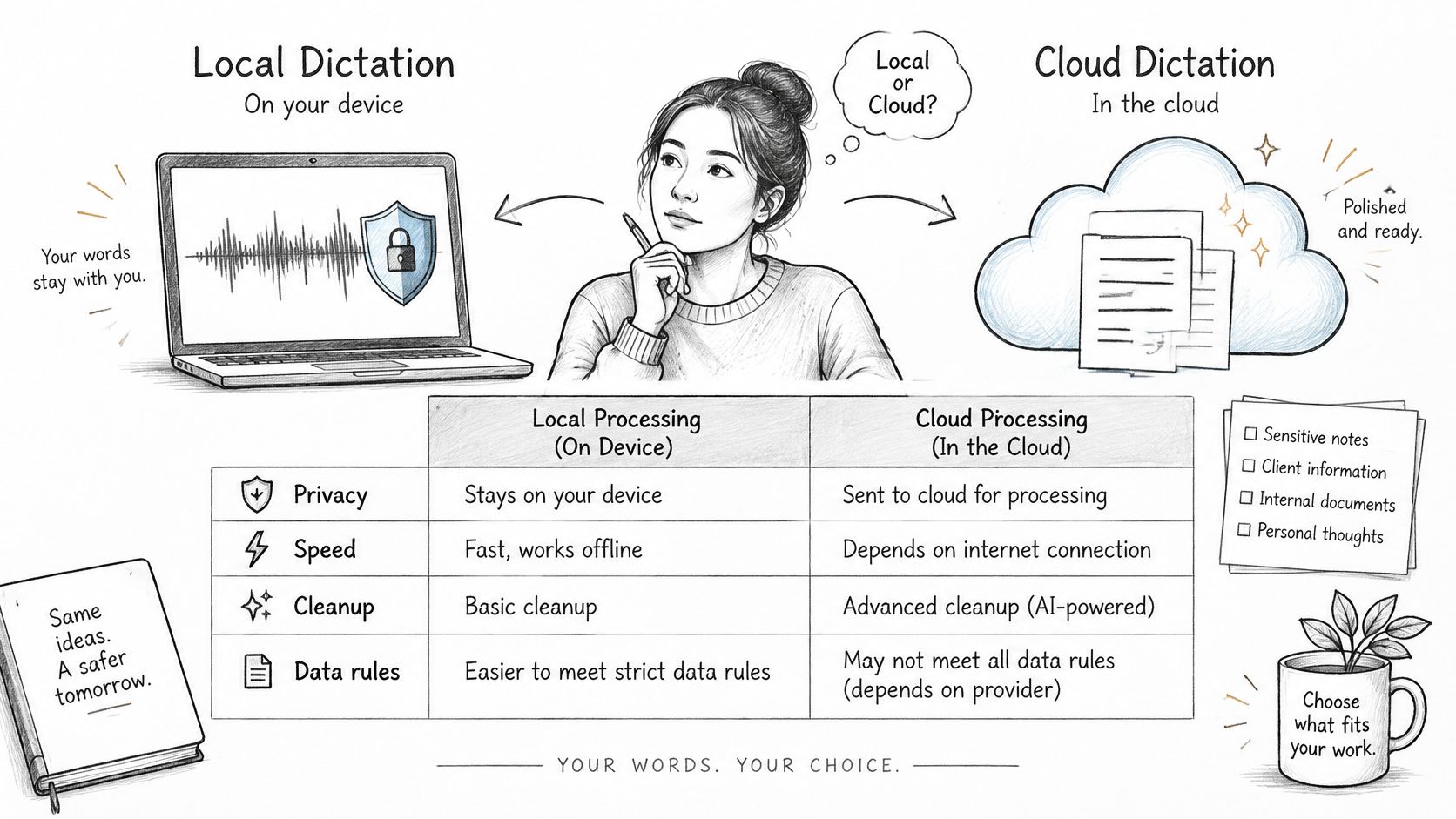
Use cloud processing only when its cleanup is useful and you accept the service's data rules. Privacy, recognition accuracy, and review burden are separate decisions. A polished paragraph doesn't prove that a workflow is appropriate for confidential information.
Local versus cloud dictation
| Factor | Local processing | Cloud processing |
|---|---|---|
| Where audio is processed | On your Mac | On a remote service |
| Works without internet | Yes, with an installed local engine | No |
| Cleanup and self-correction | Basic recognition, engine-dependent | Can offer stronger cleanup and formatting |
| Data leaving the device | Minimized | Requires explicit data rules |
| Best use | Sensitive drafts and offline work | Lower-risk polished text |
This comparison helps identify what to approve before recording confidential speech.
Don't assume a strong benchmark result applies to your specialty. An ASR evaluation published through the ACL Anthology reports error rates 5–10 times higher in some African-accented or domain-specific conditions. Test the terminology and speakers your workflow involves.
What local mode doesn't establish
HIPAA readiness isn't established by encryption alone. Healthcare teams must evaluate retention, access controls, auditability, and business-associate arrangements. Local transcription also doesn't prevent a destination app from syncing the resulting text elsewhere.
Our cloud-versus-local guide explains the processing choice. In AIDictation, Auto Mode selects the engine; Local Mode runs Parakeet v3 on Apple Silicon without internet; Cloud Mode adds connected AI cleanup. Our local option supports sensitive drafts, but we're not built for teams requiring admin controls or for work that cannot send text to the cloud.
We don't use your audio or transcript content to train our own AI models, and we don't sell your recordings, transcripts, or personal information. Those policies don't replace organizational approval: keep sensitive drafts within an approved local workflow, and require human review before sending clinical or technical output.
How to Set Up Dictation in Ten Minutes
Start with the application where you write. A successful test in a demonstration box doesn't establish that your email editor, documentation tool, or chat app will handle insertion and formatting correctly.
Use this visual as a quick orientation, then configure the controls deliberately.
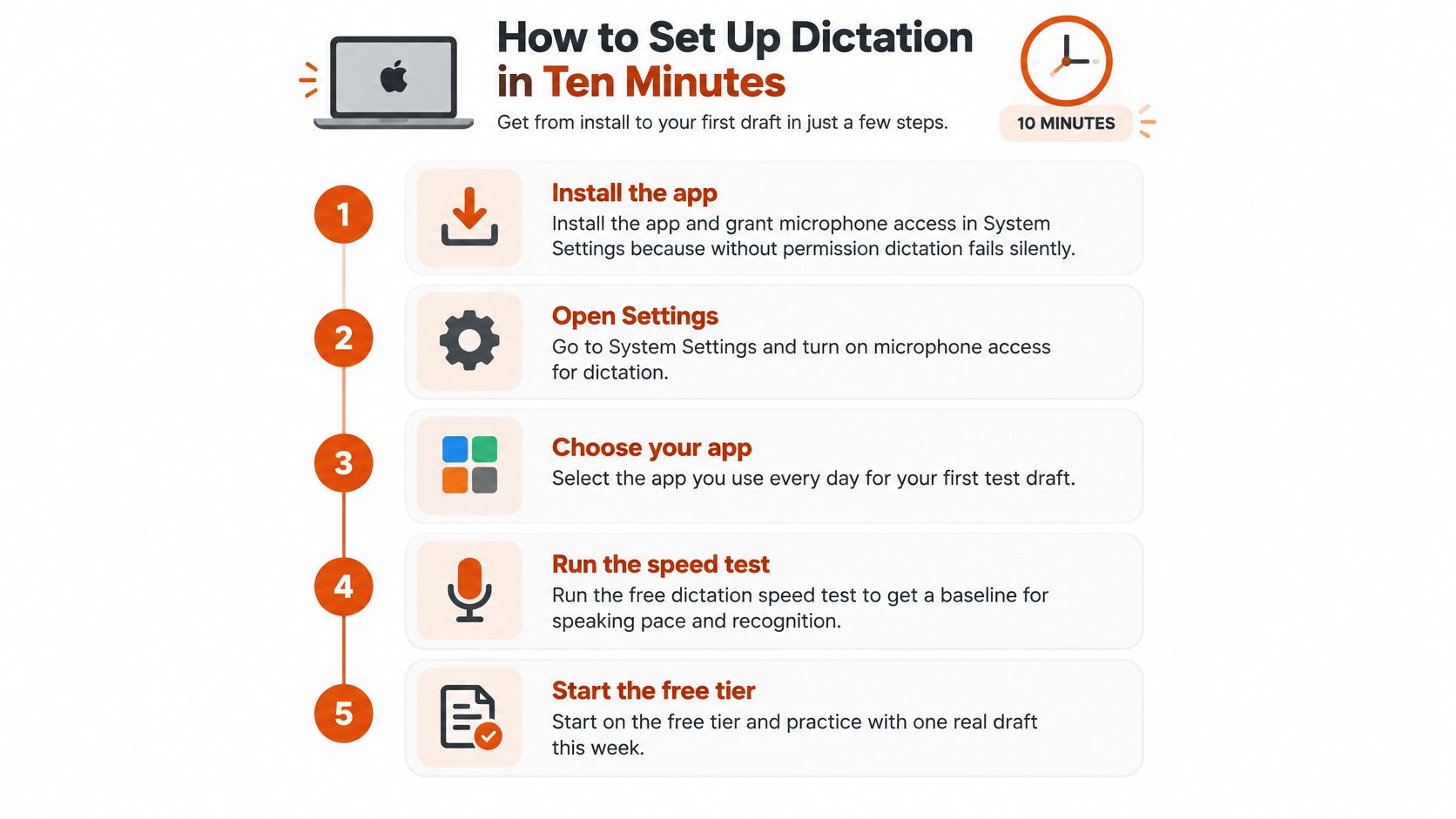
Configure the Mac before drafting
-
Install the app and grant microphone access. Open System Settings → Privacy & Security → Microphone and enable access for your dictation app. If it requests an additional permission for inserting text into other apps, read that request and enable it only if you accept its purpose.
-
Select the input device explicitly. Choose your headset or built-in microphone in the app or system sound settings. Don't assume connecting headphones also selected their microphone.
-
Choose the processing mode. Select local recognition for your initial private test, or a cloud engine for approved, nonsensitive content. Avoid automatic switching when you need a predictable processing location.
-
Set a start-and-stop shortcut. Pick a combination that doesn't conflict with your editor's existing commands. Test both starting and stopping before speaking a full draft.
-
Dictate a representative passage in your working app. Include a greeting, a product name, an action item, and a correction you'd naturally make while speaking. Place the cursor in the intended field first, especially in apps with several editable panels.
-
Check microphone level and placement. Watch the input meter while speaking normally. If the opening words disappear, check activation timing; if audio is faint, move closer before increasing gain and amplifying room noise.
-
Read back the entire result. Mark missing words, wrong names, punctuation problems, and unexpected formatting separately. Save that passage so later tests compare the same material.
Verify the complete workflow
A usable setup captures complete sentences, inserts them in the right place, and stops reliably. Don't judge it only by how quickly the first words appear. Check whether corrections overwrite selected text or append to it, and whether switching apps changes the destination unexpectedly.
This walkthrough provides a visual reference for the setup process.
On Windows and mobile devices, apply the same permission, microphone, engine, activation, and read-back checks, using the controls your operating system supports. Mobile keyboards may use a microphone button rather than a configurable shortcut. Translate AI's instructions to enable voice typing on iPhone are a useful starting point for that device-specific setup.
Train Your Voice and Vocabulary for Better Accuracy
A benchmark average doesn't predict how well an engine recognizes you. Accent, language, specialist terminology, and spontaneous corrections all belong in your test. Reading a polished English paragraph isn't enough if your actual work involves mixed-language discussions and unfamiliar surnames.
A 2025 evaluation discussed in the Soria et al. paper covered 3,038 recordings across 293 linguistic groups and found that even the strongest model had word-error rates 15–20 percentage points higher for groups such as Sylheti and Haitian Creole than for better-represented English and French groups. That's a reason to evaluate engines individually, not a reason to blame your voice.
Build a test that resembles your work
Read a short passage repeatedly at your normal pace, then dictate an unscripted explanation of the same subject. The comparison helps distinguish difficulties with particular words from difficulties handling hesitations and sentence changes.
Include these categories:
- People and organizations: Colleagues' surnames, client names, and unfamiliar place names.
- Specialist vocabulary: Drug names, software libraries, product labels, and internal abbreviations.
- Meaning-sensitive phrases: Negatives, quantities, dates, and statements of uncertainty.
- Mixed-language speech: Sentences that switch languages while retaining English technical terms.
Build your dictionary from actual failures, not an enormous vocabulary list assembled in advance. Our custom dictionary guide explains how to approach recurring terms. Retest each addition inside a sentence, because recognizing an isolated name doesn't establish reliable recognition in context.
Adjust delivery without disguising your accent
Speak steadily, finish the ends of words, and pause briefly between thoughts. Don't force an unfamiliar accent or stretch every syllable. You need a sustainable working voice, not a special performance you can't maintain during ordinary drafting.
Test the voice you actually use at work, including uncertainty, corrections, and language switching.
Keep a small set of representative sentences and annotate substitutions, omissions, and unwanted insertions. Repeat the check after dictionary changes or engine updates. A general-purpose dictionary may help a recurring product name, but it won't necessarily fix broader accent-related recognition failures.
Finally, inspect cleanup separately from transcription. A grammatical sentence can still reverse a negative, remove a qualification, or turn a tentative recommendation into a firm instruction. For medical, legal, and technical writing, meaning matters more than fluency.
Say Punctuation and Editing Commands Out Loud
Spoken commands for punctuation and edits
| Say | Produces | When to use it |
|---|---|---|
| period | . | Ending a sentence |
| comma | , | Separating items in a list |
| question mark | – | Ending a direct question |
| new line | line break | Starting a list item |
| new paragraph | blank line | Changing topic |
| scratch that | Deletes the last phrase, when supported | Correcting yourself |
Treat these as commands to test, not universal promises. Names and behavior differ between apps, operating systems, and processing modes. An engine may recognize punctuation commands while treating an editing instruction as ordinary text.
Try a disposable passage containing a question, a list, and a deliberate correction. Check whether new line inserts a line break or submits the message. In a chat app, that difference matters more than elegant punctuation.
Choose control or automatic cleanup
Explicit commands suit structured notes where the boundaries matter. Automatic punctuation is convenient for ordinary prose, but it may divide a sentence differently from what you intended. Pause briefly before a command and check whether your chosen engine interprets it consistently.
Our Mac dictation commands guide provides a useful reference while testing. Keep your own short command list beside the keyboard until the supported behavior feels predictable.
Be especially cautious with scratch that. Test exactly how much text it removes before using it in a valuable draft. If deletion is inconsistent, stop dictation and correct the text with the keyboard instead of repeating increasingly complicated spoken instructions.
Starter set: Learn period, new paragraph, and scratch that, but keep only the commands your app handles reliably.
You don't need to narrate every comma. Start with clear sentence endings and deliberate paragraph changes, then add commands only where they reduce editing rather than interrupt your train of thought.
Fix the Problems That Stop Dictation Cold
If an error survives reasonable microphone and vocabulary fixes, compare engines before endlessly adjusting your delivery. Start with the observable symptom, change a relevant setting, and retest the same passage. Changing everything together makes a successful fix difficult to identify.
Missing sentence endings deserve particular attention. Don't stop recording as you finish the last syllable. Complete the word, leave a brief quiet pause, and then release the shortcut.
Dictation symptoms, causes and fixes
| Symptom | Likely cause | Fix |
|---|---|---|
| Last words of each sentence missing | Recording stops before the ending is captured | Finish the word and pause before stopping |
| Names or jargon transcribed wrong | Terms absent from the custom dictionary | Add the term and retest it in context |
| Random words from room noise | Microphone captures nearby speech or noise | Use a headset or move the microphone closer |
| Accent words misheard | Engine poorly matched to your speech | Compare recognition engines using the same passage |
| Nothing transcribes offline | Cloud-only engine selected | Select an installed local engine |
| Plain text with no structure | Cleanup disabled or context rules unsuitable | Check cleanup and the destination app's formatting rules |
Separate capture failures from recognition failures
If nothing appears, check microphone permission, the selected device, recording state, and cursor position before modifying your dictionary. Speak while watching the input meter. No meter movement suggests an audio-path problem; visible activity without usable text points you toward recognition, connectivity, or insertion settings.
If the transcript contains someone else's conversation, increasing gain is the wrong response. Reduce room pickup instead. A closer microphone gives you a more useful test than speaking louder across a noisy desk.
Keep evidence, not guesses
Record the symptom, the setting changed, and the retest result in a short troubleshooting note. For an accent-related problem, compare spontaneous speech as well as your saved passage. Repeating a sentence until you unconsciously accommodate the engine can make the test misleading.
Don't assume using an engine for longer will automatically train it to your accent. Unless it explicitly supports personal adaptation, repeated sessions are opportunities to evaluate consistency, not a guaranteed route to improvement.
Once a change works, preserve it. Note the microphone name and processing mode so a device switch or settings reset doesn't send you back through the same diagnosis.
Test Dictation on Your Own Work This Week
Choose a real draft you've been postponing: a project update, a requirements explanation, or an interview follow-up. Use a subject you understand well enough to explain without reading a script.
Make the test resemble ordinary work, not a microphone demonstration.
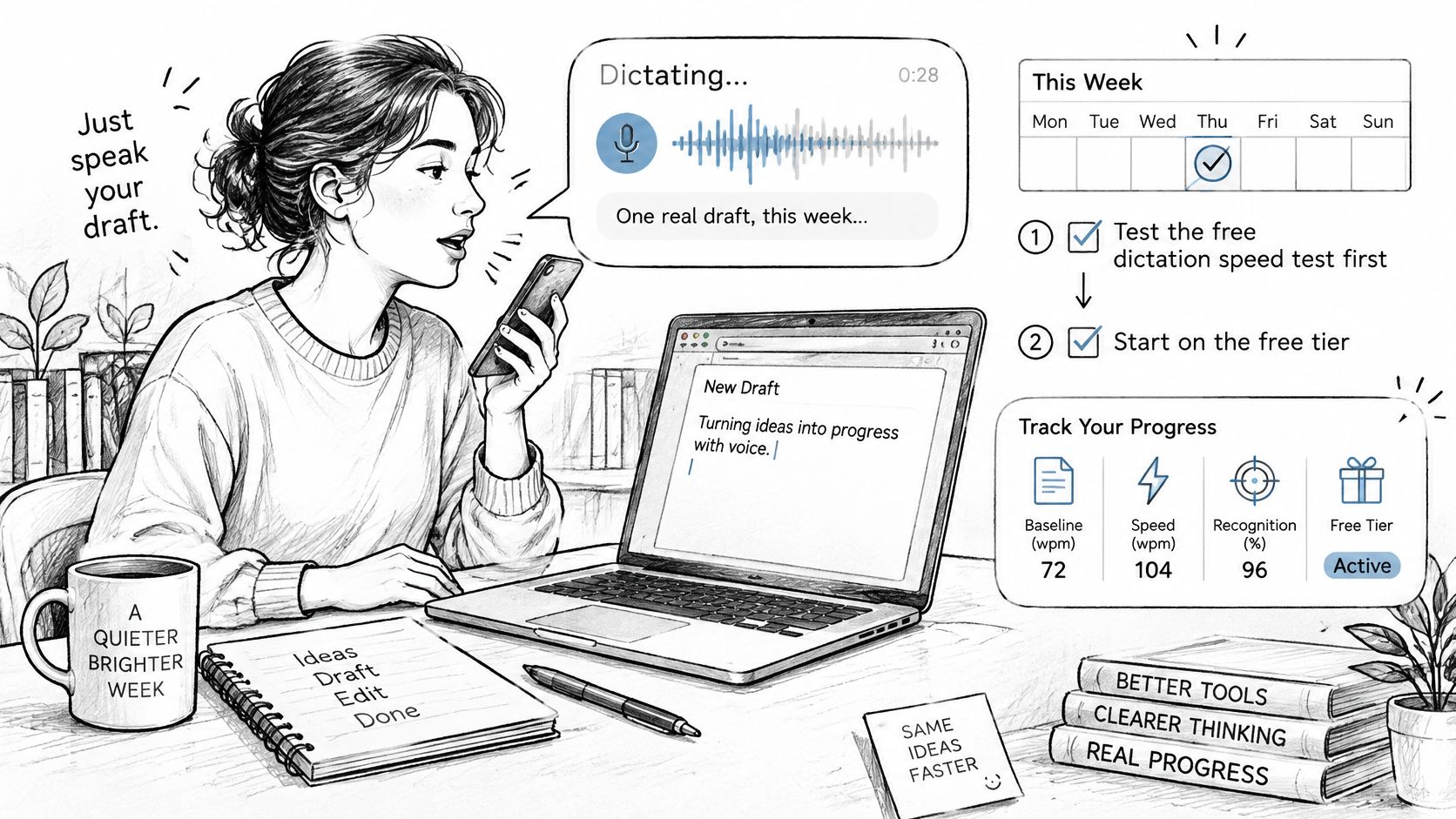
Compare the finished result
- Establish a baseline: Use a dictation speed test to examine speaking pace and recognition, then measure the actual drafting task separately.
- Record the whole effort: Include activation, speaking, corrections, formatting, and final review.
- Classify errors: Separate microphone problems from vocabulary failures and changes in meaning.
- Make a fair comparison: Compare with a similar typed task, rather than typing the now-familiar dictated passage and treating that as an unbiased test.
Keep the first attempt low-risk. An internal project explanation is a better experiment than a clinical instruction or an unreviewed customer commitment.
The decision isn't whether you can abandon the keyboard. It's whether voice produces a usable result with less effort for a particular kind of work. Keep dictation where total drafting and editing effort falls, and return to typing where it doesn't.
AIDictation offers a free dictation speed test and native voice-typing apps for Mac, Windows, iPhone, iPad, and Android, with a free tier of 2,000 words per month and no account required. Visit AIDictation to test a real draft in the app where you work; consider monthly, annual, or lifetime Pro only if your usage outgrows the free tier.
Frequently Asked Questions
What does Don't Type: How to Start Dictating Step by Step cover?
You've finished the meeting, but the follow-up is still an empty email. You know what changed, who owns the next action, and which deadline needs explaining.
Who should read Don't Type: How to Start Dictating Step by Step?
Don't Type: How to Start Dictating Step by Step is most useful for readers who want clear, practical guidance and a faster path to the main takeaways without guessing what matters most.
What are the main takeaways from Don't Type: How to Start Dictating Step by Step?
Key topics include Table of Contents, Why Dictation Beats Typing for Long Drafts, Choose Local or Cloud Dictation for Sensitive Text.
Ready to try AI Dictation?
Experience fast voice-to-text on your device. Free to download.
Download FreeRelated Posts
Audio Transcription App Free Guide for 2026
An audio transcription app free comparison for 2026: limits, privacy, offline use, accuracy tests, and which tier fits your work.
10 Best Ways to Transcribe Audio to Text Free in 2026
Compare 10 free ways to transcribe audio to text free, with privacy, accuracy, and limit trade-offs for each option in 2026.
Custom Dictionary for Word: Set Up AIDictation Vocabulary
Learn how to build a custom dictionary for word in AIDictation: add names, technical terms and acronyms, import in bulk and fix errors.