Speech to Text Gmail: Voice Typing Mastery
Your Gmail tab is open, the inbox count keeps climbing, and the replies you owe aren't hard. They’re just slow. A quick follow-up turns into a draft, a rewrite, a cleanup pass, then one more tweak because typing tends to invite overthinking.
That’s where speech to text gmail stops being a gimmick and starts acting like a real workflow upgrade. For a busy Mac user, dictation is often the fastest way to get ideas out while they’re still clear. The catch is that not all voice typing setups feel the same once you use them for real work. Some are fine for short replies. Some are fast but messy. Some are accurate enough until you’re handling sensitive client, medical, or internal product information.
This guide starts with the built-in options you already have. Then it shifts to the setup I’d use when speed matters, cleanup matters, and privacy matters.
Table of Contents
- Why Typing Emails Is Holding You Back
- Using Gmails Built-In Speech to Text Features
- Supercharge Gmail with AIDictation for Mac
- Tips for Flawless Email Dictation and Formatting
- Privacy and Security When Dictating Emails
- Integrating Voice Typing into Your Daily Workflow
Why Typing Emails Is Holding You Back
Most email work isn’t deep writing. It’s decisions, updates, nudges, clarifications, and follow-ups. Yet people still handle all of it with the slowest part of the workflow, the keyboard.
Speech changes that math. Voice-based email drafting can be up to 5 times faster than typing, with speaking averaging 150 words per minute versus 40 words per minute for typing. The same source says a focused two-minute message can be drafted in under three minutes with cleanup, compared with 6 to 8 minutes when typing and editing by hand, which amounts to a 60 to 70% time reduction per email for that kind of task (Willow Voice on voice-to-text email tools).
That matters more than it sounds. If you send a lot of email, the gain isn’t just speed. You stay closer to the thought. You don’t lose momentum between sentences. You stop treating every message like a mini writing assignment.
Where dictation helps most
- Fast replies: You already know what to say. Speaking gets it out before the thread goes stale.
- Status updates: These are usually easier to say than type because they follow natural speech patterns.
- Post-meeting follow-ups: Right after a call, your phrasing is fresh and specific.
- Inbox cleanup: Short, high-volume responses are where dictation often feels most useful.
Practical rule: If the email would be easy to explain out loud to a colleague, it’s a good candidate for dictation.
A lot of professionals try to fix slow email output by getting better at typing. That helps, and these typing speed habits are worth learning. But at some point, typing faster is still typing. Dictation solves a different problem. It lets Gmail keep up with how fast you already think and speak.
Using Gmails Built-In Speech to Text Features
Gmail doesn’t have a single polished dictation layer that works perfectly everywhere. What you get is a mix of Google voice tools, mobile keyboard dictation, and macOS system dictation. That’s enough to start.
What Gmail gives you out of the box
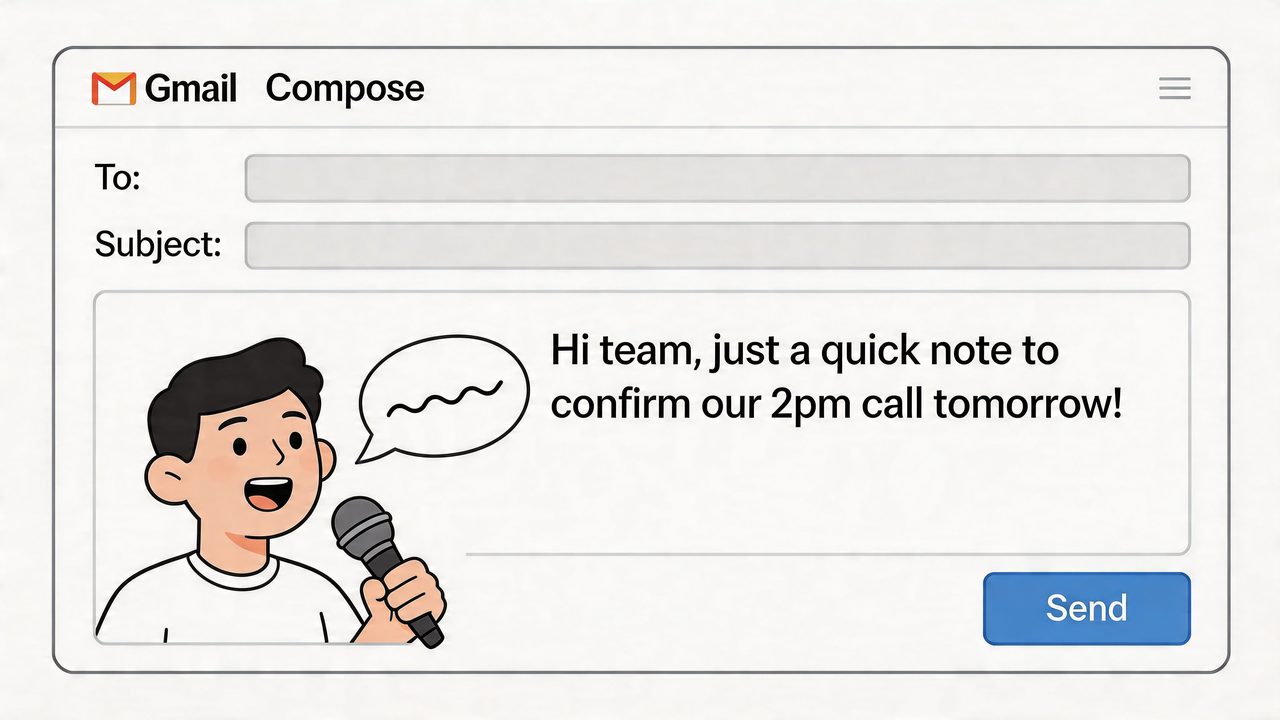
On a Mac in Chrome, many users start with Google’s browser-based voice tools. If you’re working in Google’s ecosystem, that feels familiar and usually takes only a moment to enable. You open your compose window, grant microphone access, and dictate into the active field.
On mobile, the path is simpler. Open Gmail, tap into the message field, and use the microphone on your phone’s keyboard. For quick replies, that’s often the easiest form of speech to text gmail because there’s almost no setup friction.
macOS also gives you built-in Dictation at the operating system level. That means you can place the cursor in Gmail and trigger dictation from the Mac, rather than relying only on browser-level tools. For short responses, this can work well because it’s available anywhere text input is allowed.
Under the hood, Google’s speech stack is capable and broad. Google Cloud Speech-to-Text supports advanced models such as Chirp 3, and the service allows 60 minutes of monthly audio processing on the free tier, with synchronous requests handling up to 1 minute of speech (Google Cloud Speech-to-Text). That makes the native route accessible for occasional use.
Where the built-in route starts to break
The problem isn’t that built-in dictation fails. The problem is that it tends to be good enough, then annoying.
A few friction points show up quickly:
| Situation | Built-in experience |
|---|---|
| Short reply | Usually smooth |
| Long draft | More cleanup and restarts |
| Specialized vocabulary | More correction |
| Noisy room | Accuracy drops |
| Sensitive content | You need to think harder about where audio is processed |
Built-in tools also tend to produce text that looks like raw transcription. That means you may still need to fix punctuation, split paragraphs, remove verbal filler, and smooth out self-corrections you made while speaking.
The first win with native dictation is speed. The second problem is editing.
If your Gmail use is light, that trade-off might be fine. If you answer email all day, you’ll notice the extra cleanup immediately. That’s the dividing line between casual dictation and a setup that actually changes how you work.
Supercharge Gmail with AIDictation for Mac
The jump from basic dictation to a usable writing workflow usually comes down to one thing. Does the tool just transcribe what you said, or does it help turn speech into finished text?
What changes when dictation is built for writing
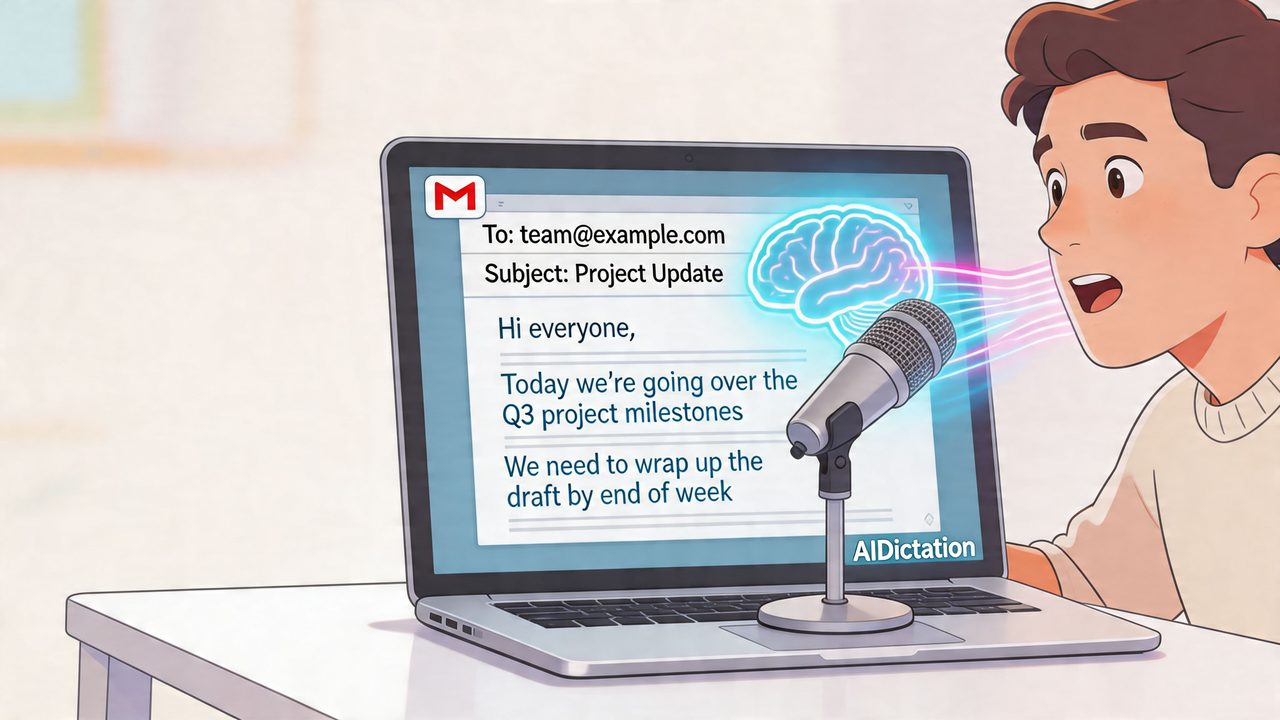
For Mac users, one option is AIDictation, which works across apps including Gmail and is designed around both on-device and cloud-based dictation modes. Instead of treating speech as raw input, it can clean up filler words, smooth self-corrections, apply punctuation, and format the result so the draft reads more like something you meant to send.
That’s the difference many people feel on day two, not day one. Day one is exciting because you can talk instead of type. Day two is where you decide whether you want to keep doing cleanup on every draft.
A writing-focused dictation workflow helps in a few practical ways:
- Less transcript noise: If you restart a phrase mid-sentence, the final draft doesn’t need to preserve that stumble.
- Better formatting: Email text should land as readable paragraphs, not a word stream.
- App-aware tone: Gmail usually needs cleaner punctuation and a more professional shape than chat apps.
- Flexible processing: Sometimes you want private local dictation. Sometimes you want cloud cleanup.
This is also where a Mac-specific setup starts to matter. Apple hardware is strong enough for fast local workflows, which changes what’s possible for privacy-conscious professionals.
How to use it with Gmail on macOS
The setup is straightforward. Install the Mac app, allow microphone access, and give it the permissions needed to insert text into the active field in Gmail. Then place your cursor in a Gmail compose window and dictate as you normally would.
If you want to try that workflow, the app is available on the AIDictation download page.
A practical way to use it is to dictate the whole thought first, then do one skim before sending. That keeps the main benefit of voice input, which is speed, while still preserving the judgment you want before an email goes out.
A quick walkthrough helps if you want to see the flow in action.
Say the email the way you’d explain it in a meeting, then let the tool shape it into email form.
That approach works especially well for stakeholder updates, support replies, internal summaries, and follow-ups after calls. Those messages are usually conceptually simple. The hard part is getting them out quickly without sending something sloppy.
Tips for Flawless Email Dictation and Formatting
Accuracy is never just about the speech engine. Your mic, room, pacing, vocabulary, and editing habits all affect whether speech to text gmail saves time or creates more of it.
What improves accuracy fastest
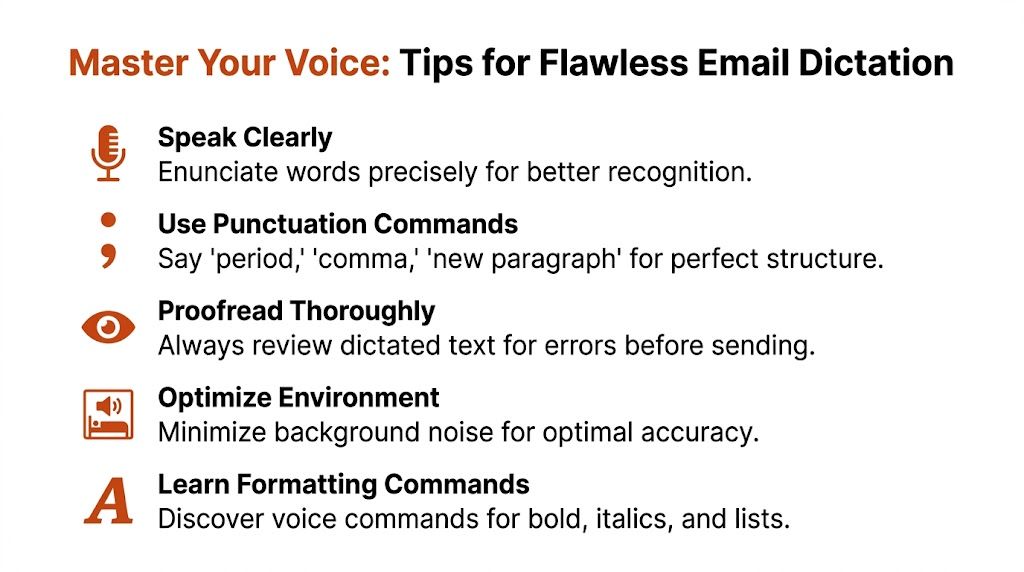
The biggest quality jump usually comes from your environment. Google’s real-time speech-to-text reaches 79 to 83% accuracy, but background noise can push Word Error Rate to 25 to 30%. The same benchmark discussion notes that using adaptation features for custom phrases can reduce out-of-vocabulary errors by 20 to 30% (voice recognition accuracy comparison).
That translates into a few practical habits:
- Use a decent microphone: Laptop mics can work, but a better mic usually gives the recognizer cleaner input.
- Dictate in shorter bursts when the room is noisy: Long passages are harder to salvage if the environment is bad.
- Speak naturally, not theatrically: Over-enunciating often sounds less natural and doesn’t always improve recognition.
- Pause at sentence boundaries: The system has a better chance of placing punctuation cleanly.
How to get cleaner formatting with less editing
Formatting problems waste more time than recognition problems. Even when the words are right, the email can still look wrong.
A few tactics help:
- Start by speaking in complete thoughts. Fragmented dictation produces fragmented drafts.
- Learn a small set of punctuation habits like “period” and “new paragraph” if your tool benefits from commands.
- Add names, product terms, and internal jargon to a custom dictionary if your dictation app supports it.
- Set app-specific rules when available, so Gmail drafts come out more formal than messages in chat apps.
Here are practical examples of that last point. A product manager might want roadmap terms and stakeholder names recognized consistently. A developer may need class names, API terms, and acronyms to land correctly. A clinician may need medication names and templated phrasing to show up reliably.
Clean dictation starts before you speak. It comes from a quiet room, a predictable vocabulary, and a tool that can learn your language.
Proofreading still matters. Always read the email once before sending, especially if it includes dates, names, or commitments. Dictation removes typing effort. It doesn’t remove responsibility.
Privacy and Security When Dictating Emails
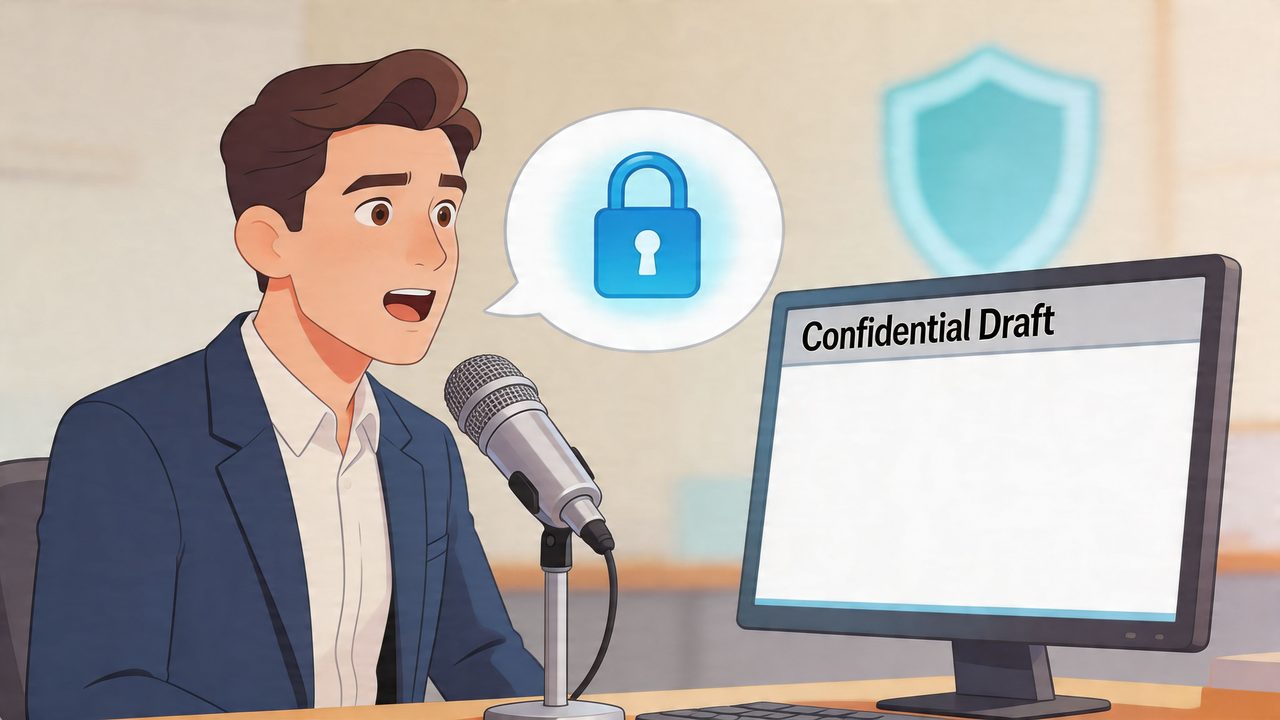
The initial evaluation of dictation tools often prioritizes speed. That’s reasonable until the email contains anything sensitive. Then the question changes from “Is this fast?” to “Where is this audio going?”
Why cloud dictation changes the risk profile
A lot of tutorials skip this entirely. They show how to turn on a microphone and stop there. That’s fine for generic email. It’s not enough for regulated or confidential work.
The privacy issue is straightforward. Many speech tools rely on cloud processing. If you’re dictating client details, internal product plans, legal language, healthcare information, or sensitive support cases, that architecture matters.
The verified research for this topic explicitly notes that existing tutorials on speech to text Gmail often miss the privacy risks enterprise users care about, and that most tools rely on cloud processing. It also notes rising fines for AI data mishandling and points to on-device dictation as the safer fit for professionals handling protected information (privacy concerns around Gmail voice tools and local dictation).
What private dictation should look like on a Mac
For a security-conscious Mac workflow, local processing is the cleanest answer. If the speech is handled on the device, you avoid sending dictated content out to a remote service every time you draft an email.
That matters for:
- Healthcare professionals: Patient-related notes and follow-ups need tighter handling.
- Developers: Internal architecture details and unreleased product information shouldn’t float around unnecessarily.
- Product managers: Planning docs and stakeholder emails often include sensitive business context.
- Support teams: Customer issues can contain personal or account-specific information.
If private, offline processing is your priority, it’s worth understanding how offline voice to text on Mac changes the workflow. The main benefit isn’t just compliance language. It’s peace of mind. You can dictate without wondering whether every spoken draft has to leave your machine first.
Sensitive email drafting should default to the smallest possible data footprint.
Cloud features still have a place. They can improve cleanup, formatting, and convenience. But for confidential Gmail work, local dictation should be the starting point, not an afterthought.
Integrating Voice Typing into Your Daily Workflow
The easiest way to make dictation stick is to stop treating it like a special mode. Use it where typing is obviously inefficient.
A few moments are ideal. Right after a meeting, dictate the follow-up while the details are still fresh. When support emails pile up, speak your first-pass replies instead of pecking through each one. If you’re drafting a stakeholder update, talk through the update as if you were giving it live, then tighten the result.
That’s also why the tool choice matters. Built-in options are useful for lightweight use and quick replies. A more advanced Mac workflow makes more sense when you need polished text, app-specific formatting, and private local processing for sensitive material.
The pattern is simple:
- Use voice for first draft thinking
- Use cleanup features for readability
- Use a final skim for judgment
Once that becomes normal, email gets faster without feeling rushed. You spend less time pushing words onto the screen and more time deciding what needs to be said.
If Gmail is where a large part of your day disappears, dictation is one of the few changes that can alter the pace immediately. Start with the native tools if you want the quickest test. If you’re on a Mac and need a workflow that balances speed, cleanup, and privacy, try AIDictation. It offers a free tier, so you can test voice-driven email drafting in your real inbox instead of guessing from a feature list.
Frequently Asked Questions
What does Speech to Text Gmail: Voice Typing Mastery cover?
Your Gmail tab is open, the inbox count keeps climbing, and the replies you owe aren't hard. They’re just slow.
Who should read Speech to Text Gmail: Voice Typing Mastery?
Speech to Text Gmail: Voice Typing Mastery is most useful for readers who want clear, practical guidance and a faster path to the main takeaways without guessing what matters most.
What are the main takeaways from Speech to Text Gmail: Voice Typing Mastery?
Key topics include Table of Contents, Why Typing Emails Is Holding You Back, Where dictation helps most.
Ready to try AI Dictation?
Experience fast voice-to-text on your device. Free to download.
Download FreeRelated Posts
Email Dictation Software: What It Is and How to Choose
Learn what email dictation software is, how it works, and how to pick the right one. Covers accuracy, privacy, HIPAA, accents, and real buyer checklists.
Email Response Time: A Practical Guide to Faster Replies
Master email response time with proven benchmarks, SLA templates, and practical tactics. Discover actionable steps to reduce reply latency and improve customer
Verbal Ink Transcription Workflows Today
Explore verbal ink transcription workflows, accuracy benchmarks, and how modern AI dictation tools compare to traditional human transcription services.