Master Code by Voice: Hands-Free Coding on macOS
You're probably reading this with one hand on the keyboard and the other on a mouse, already feeling the friction that builds up after a long week of coding. Wrists get sore. Shoulders tighten. The smallest refactor turns into hundreds of tiny hand movements. That's usually when developers first get curious about code by voice, not because it sounds futuristic, but because typing all day stops feeling free.
The hard part isn't getting words onto the screen. It's getting valid code onto the screen. Missing a brace, dictating the wrong casing, or having a model “helpfully” rewrite something literal will break your flow fast. That's why the actual challenge in code by voice isn't speaking. It's building a workflow that respects syntax.
I made the shift by treating voice as an input system, not as a magic replacement for the keyboard. For prose, almost any dictation tool can feel fine. For code, you need a microphone that hears you cleanly, a recognizer that doesn't collapse under technical vocabulary, and a command layer that knows the difference between “new line” and “newline character.” Once those pieces are in place, voice stops being a demo and starts becoming a serious way to work on macOS.
Table of Contents
- Why Code by Voice Is More Than Just a Novelty
- Your Hands-Free Coding Toolkit for macOS
- Configuring AIDictation for a Seamless Coding Experience
- Mastering the Voice To Code Vocabulary
- Integrating Voice into Your Full Development Workflow
- Productivity Tips and Overcoming Hurdles
Why Code by Voice Is More Than Just a Novelty
Most developers don't switch to code by voice because they hate keyboards. They switch because keyboards are only one kind of bottleneck. When your hands are tired, when you're recovering from strain, or when your brain is moving faster than your fingers, speaking can be the smoother path from idea to implementation.
That doesn't mean voice replaces everything. It works best as an augmenting input method. I still use the keyboard for precision edits, fast navigation in modal editors, and cleanup passes. But for drafting functions, comments, tests, commit messages, and repetitive boilerplate, voice removes a lot of mechanical effort.
The broader trend matters here because it means the tooling is no longer experimental. The global voice assistants market is projected to reach $38,539.5 million by 2031 with a 26.45% CAGR, and US usage is projected to exceed 157.1 million users by 2026, which points to a much larger base of mature speech infrastructure than developers had even a few years ago, according to voice assistant adoption data from Master of Code.
Why developers stick with it
A voice-first workflow earns its place when it solves a real problem:
- Ergonomics: It reduces constant small-input strain during long sessions.
- Draft speed: It's often faster to say a block's intent before tightening the syntax.
- Context retention: Speaking lets you stay with the problem instead of getting lost in keystroke mechanics.
- Accessibility: For some developers, voice isn't an optimization. It's the workable interface.
Practical rule: Don't think of code by voice as “hands-free all the time.” Think of it as “hands-light most of the day.”
The other reason this matters now is software quality. Modern dictation systems can preserve structure, apply formatting rules, and adapt output by app context. That's the difference between generic voice writing and a workflow built for technical work. If you want a broader look at how spoken input has evolved beyond simple transcription, this overview of voice writing on macOS is a useful baseline.
Your Hands-Free Coding Toolkit for macOS
A workable macOS setup has two jobs. First, it needs to hear you accurately. Second, it needs to resist the urge to “improve” code into something more readable but less correct. Most failures in code by voice come from neglecting one of those two.
The hardware matters more than people admit
Laptop microphones are fine for meetings. They're not what I'd trust for code syntax. A decent USB microphone or a good headset microphone gives you a more stable signal, fewer dropped consonants, and better performance when you're speaking punctuation, short commands, or symbol names.
That's especially important because the quality gap between speech engines is real. In a benchmark of more than a dozen speech-to-text APIs, GPT-4o-transcribe reached 94.3% accuracy, while lower-tier models showed non-native accent failure rates above 28.4%, as noted in this speech-to-text API benchmark discussion. For coding, that gap shows up as broken identifiers, wrong punctuation, and constant corrections.
Built-in dictation versus a coding-oriented tool
macOS dictation is usable for general text. I wouldn't rely on it for a serious coding workflow. It tends to be too generic, too eager to normalize language, and too limited when you need project-specific vocabulary.
A coding-oriented setup should handle at least these three things well:
| Need | Built-in dictation | Specialized setup |
|---|---|---|
| Technical terms | Often inconsistent | Custom dictionary support |
| App-specific behavior | Minimal | Different rules for IDEs, chat, docs |
| Privacy and speed | Varies by mode | On-device option for local work |
What makes a better setup usable day to day isn't only the recognizer. It's the layer around it. You want local transcription for private, low-latency work, cloud cleanup when you need smarter formatting, and a custom dictionary for symbols, class names, frameworks, and domain terms.
That combination also complements the rest of an AI-assisted stack. If you're already using tools to boost coding productivity with AI, voice fits best as the front-end input layer, not as a replacement for your editor, test runner, or code review process.
What I'd consider non-negotiable
For macOS, my minimum checklist looks like this:
- External microphone: A stable headset or USB mic beats the built-in mic for symbol-heavy dictation.
- On-device mode: Useful when you want privacy, instant response, or you're working offline.
- Custom dictionary: Required for package names, acronyms, function names, and team terminology.
- Context-aware formatting: The app should behave differently in Xcode or VS Code than it does in Messages or Mail.
A voice workflow fails when the tool treats code like prose.
That's the core trade-off. Cheap or generic dictation can seem fine in short demos. It usually falls apart on the first file with nested conditionals, long identifiers, and symbols spoken in quick succession.
Configuring AIDictation for a Seamless Coding Experience
Losing patience with code by voice often occurs in the first hour. Not because the idea is bad, but because the defaults are wrong for programming. A clean setup changes that fast.
Start with app-specific behavior
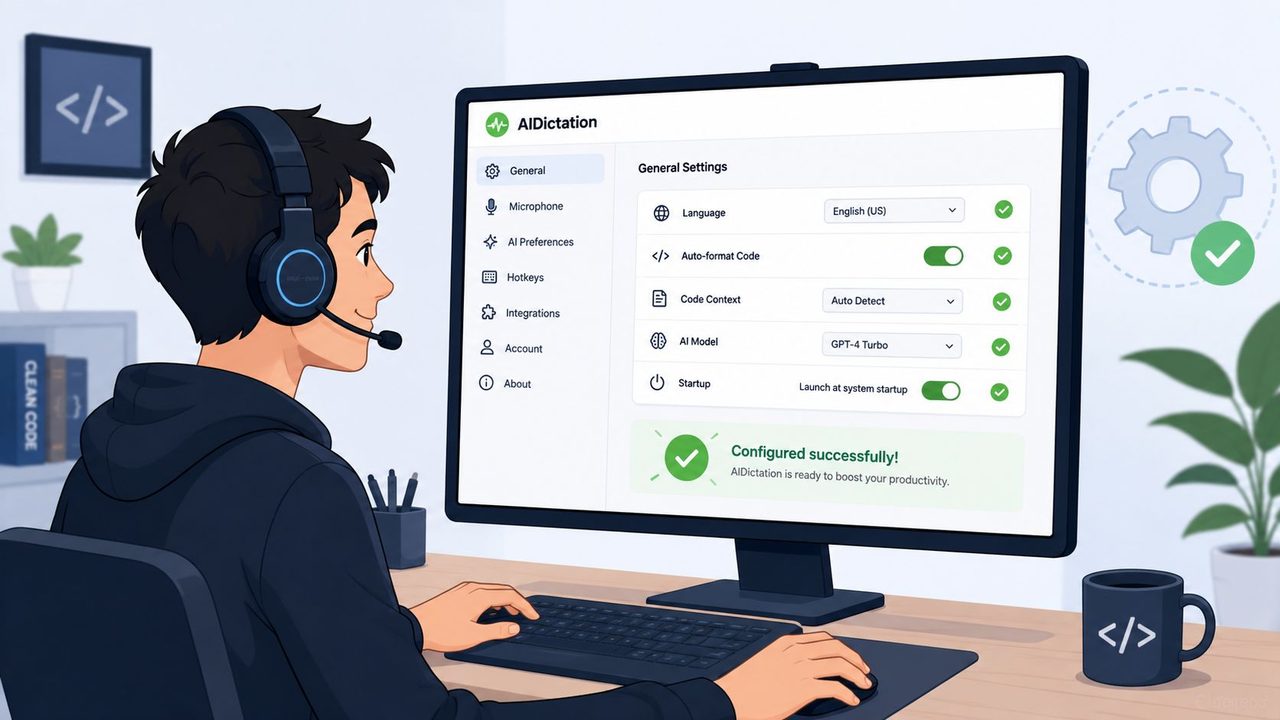
The first thing I configure is context. In an IDE, I want literal output, conservative punctuation handling, and no conversational cleanup. In Slack or Mail, I want the opposite. If the same dictation behavior applies everywhere, you'll either get ugly prose or over-corrected code.
Use app rules so the tool behaves technically inside your editor and more naturally elsewhere. That separation removes a surprising amount of friction. It also makes voice usable across the whole day instead of only in coding sessions.
If you want a broader look at how app-aware dictation fits into desktop workflows, the guide to a voice type app for macOS is worth reviewing.
Build the dictionary before you need it
The custom dictionary is where voice coding starts feeling personal instead of generic. Add your project vocabulary early:
- Repository terms: Module names, product terms, internal abbreviations.
- Code identifiers: Common classes, services, hooks, and utility names.
- Framework language: Things like SwiftUI, React, TypeScript, FastAPI, or whatever your stack uses.
- Team conventions: Preferred spellings and naming patterns.
I don't wait for repeated errors. If I know I'll say a term often, I add it before the session. That cuts down on correction loops and keeps the recognizer from drifting toward a more common but wrong word.
Field note: If a term appears in your codebase search results more than a few times, it belongs in the dictionary.
A lot of teams pair this setup with broader AI-powered development tools for generation and review. That pairing works best when dictation is responsible for precise capture and the rest of the stack handles reasoning, transformation, or automation.
Set hotkeys that don't fight your IDE
The third configuration step is hotkeys. This sounds small, but it decides whether voice feels smooth or clumsy. Pick one key combo for push-to-talk and one for toggling continuous dictation. Then make sure neither collides with your editor shortcuts.
Good hotkeys do two things. They keep your hands near their normal resting position when you do need the keyboard, and they let you switch modes instantly without searching the menu bar.
After that, spend ten minutes testing a real file. Dictate an import, a function, a conditional block, and a test name. Don't judge the tool on raw transcript quality alone. Judge it on edit cost.
This walkthrough helps to visualize what a polished setup looks like in practice:
If the output is close but cleanup is annoying, tighten the context rules. If it's missing your project language, expand the dictionary. Most frustration in early code by voice comes from under-configuration, not from the concept itself.
Mastering the Voice To Code Vocabulary
The make-or-break skill in code by voice is learning to speak syntax deliberately. Natural language is messy. Code is not. If you talk to your editor the same way you talk in a meeting, you'll spend the session repairing punctuation and structure.
Research on ASR in programming contexts makes this clear. Even minor recognition errors can break an entire code block, and the impact on syntax is often underestimated, as discussed in this research on ASR errors and downstream code quality. That's why a controlled spoken vocabulary matters more than raw dictation comfort.
Punctuation must become spoken muscle memory
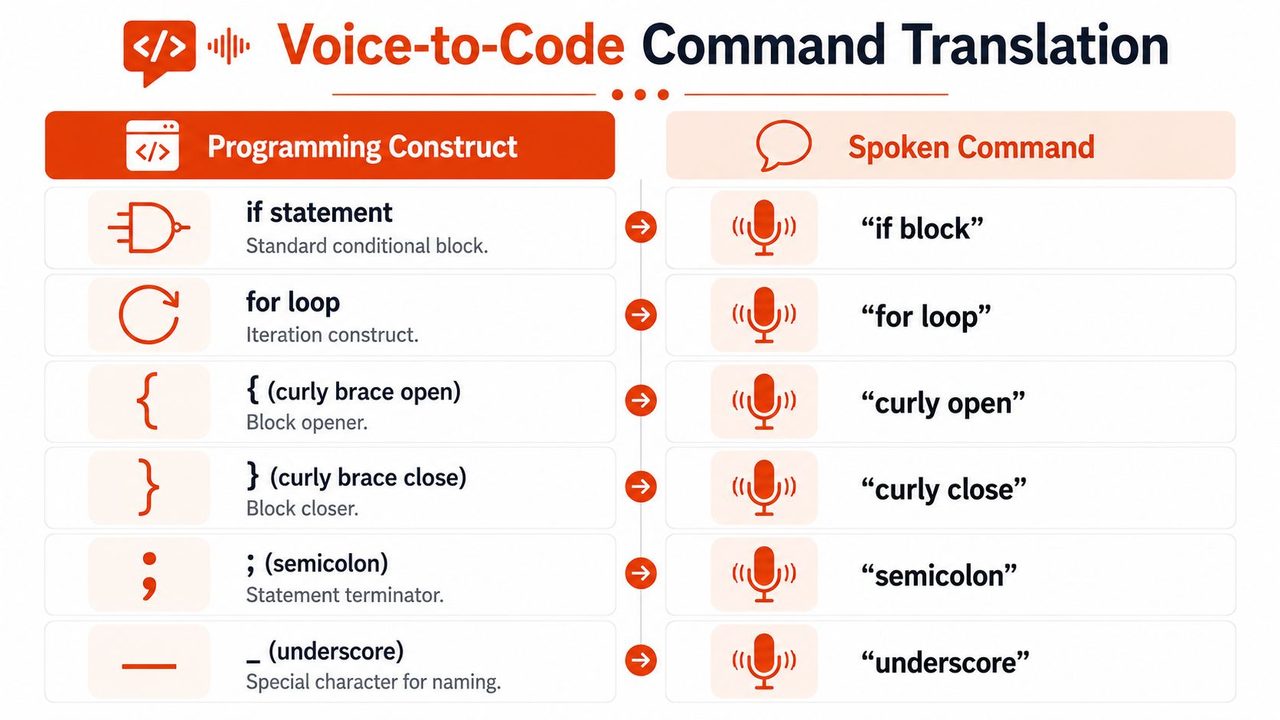
The first hurdle is symbols. You need a consistent spoken form for every character you use regularly. Don't improvise. Pick one term and stick to it.
A simple starter vocabulary:
- “Curly open” for
{ - “Curly close” for
} - “Paren open” for
( - “Paren close” for
) - “Bracket open” for
[ - “Bracket close” for
] - “Semicolon” for
; - “Comma” for
, - “Colon” for
: - “Dot” for
. - “Underscore” for
_ - “Bang” for
!
If your tool supports command customization, standardize the exact phrases you prefer. A good reference point for building that language is this guide to custom voice commands and vocabulary.
You don't want the recognizer guessing whether “dash” means a hyphen, a minus sign, or a flag prefix.
Casing and structure need explicit commands
Identifiers are the second big hurdle. Human speech doesn't naturally encode casing, but code depends on it. You need spoken commands for naming styles or a post-processing rule that applies them reliably.
I view it this way:
| Spoken intent | Desired output |
|---|---|
| camel case user profile service | userProfileService |
| pascal case payment controller | PaymentController |
| snake case retry count | retry_count |
| constant case api timeout | API_TIMEOUT |
Then there's line structure. Newlines and indentation should be treated as first-class commands, not as side effects.
Examples that work well in practice:
- “New line” inserts a line break
- “New line tab” moves to the next indented line
- “Outdent” steps back a level
- “End line” finishes the current statement cleanly
For Python, I often dictate in structural chunks:
def fetch user data paren user id colon new line tab if user id is none colon new line tab tab raise value error paren open quote missing user id quote paren close
For JavaScript or TypeScript, I speak the braces explicitly because hidden punctuation errors are more expensive there:
const result equals await fetch paren open url comma options paren close semicolon
Use snippets for anything you say twice
Voice gets faster when you stop dictating boilerplate manually. Repeated constructs should become snippets or commands. That applies to test blocks, logging statements, function templates, and common error handling patterns.
A few examples of what I'd turn into commands:
- “React effect block” inserts a
useEffectskeleton. - “Async test template” inserts the test wrapper you already use.
- “Guard clause” inserts your preferred early-return structure.
- “Try catch block” creates the shell, then leaves the cursor where you usually need it.
People finally stop worrying about the “missed semicolon” problem. The solution isn't speaking more carefully forever. It's reducing the number of syntax tokens you have to speak at all.
One more practical rule. Dictate code in semantic units, then review in visual units. Speak a full condition, a function signature, or a short block. Then pause and scan. Voice works best when paired with tight inspection loops, not blind trust.
Integrating Voice into Your Full Development Workflow
Code by voice becomes useful when it extends beyond the editor. If you still reach for the mouse every minute and type every command into the terminal, you haven't built a workflow. You've built a dictation demo.
A typical voice-first coding session
A normal session for me starts before I write any code. I open the project, switch to the working branch, and jump straight to the target file. The exact commands depend on your launcher, terminal setup, and editor shortcuts, but the pattern stays the same: speak navigation, then reserve the keyboard for narrow corrections.
From there, I dictate the first rough implementation. Not polished code. Working structure. Function signature, core conditional logic, maybe a test scaffold. After that, I switch into a tighter loop:
- Draft the block by voice
- Run the test command
- Listen or read the failure
- Patch the broken line
- Repeat until green
That rhythm matters because voice is strongest when the task has momentum. It's weak when you're doing tiny cursor movements and one-character edits for five straight minutes.
Where latency changes the whole experience
The feel of a voice workflow depends heavily on response time. In real-time voice coding, latency under 400ms is critical, and delays above 500ms reduced agentic coding performance by 48.9% in the benchmark discussed by Sierra's analysis of real-time voice agents. That matches what developers notice immediately. Slow feedback breaks concentration.
When the transcription appears almost instantly, you can treat voice like a live coding instrument. When it lags, you start speaking less naturally, over-monitoring every phrase, and waiting before the next command. That kills the conversational cadence that makes code by voice effective.
Low latency doesn't just save time. It preserves thought continuity.
This is why on-device inference matters so much on macOS. For debugging, test loops, and local edits, a private local mode usually feels better than routing everything through a slower remote pass. Cloud cleanup still has a role, especially when you want formatting help or transcript polishing. But in the middle of active development, immediate feedback wins.
Voice works best when the keyboard remains available
I don't recommend ideological purity here. The best workflow is mixed. Use voice for creation, naming, navigation, shell commands, and repetitive patterns. Use the keyboard for pinpoint edits, visual selection, and moments where your editor already gives you a faster direct path.
A balanced workflow usually looks like this:
- Voice for drafting: functions, tests, comments, commit messages
- Keyboard for surgery: one-character fixes, multi-cursor edits, fast text object motions
- Voice again for orchestration: run tests, switch files, trigger scripts, write the commit summary
That split keeps the strengths of both input methods. You're not trying to prove that hands-free coding is philosophically superior. You're trying to ship code with less strain and less friction.
Productivity Tips and Overcoming Hurdles
The first weeks of code by voice can feel awkward. That's normal. You're replacing years of keyboard muscle memory with a spoken command layer that has to become just as automatic.
Accuracy is still the main concern across voice technology. 73% of users identified accuracy as the biggest adoption obstacle, and 66% raised concerns about accents or dialects, according to speech and voice recognition statistics from Market.us. The good news is that modern AI-native systems are improving fast, with some deployments reaching 80% containment rates and reported 3-year ROI between 331% and 391%. For developers, the lesson is simple. Pick better tooling and reduce the amount of free-form dictation your workflow depends on.
A few habits help more than people expect:
- Work in a quieter setup: Background noise doesn't have to be extreme to degrade symbol recognition.
- Speak commands consistently: Don't alternate between three names for the same character.
- Review in short bursts: Scan after each logical block, not after a whole file.
- Protect private work: Use local processing when the code or discussion shouldn't leave your machine.
The learning curve is real, but most of it is vocabulary training, not technical limitation.
I'd also borrow a lesson from broader engineering productivity work. Teams that improve output usually redesign workflows, not just tools. This breakdown of how mobile product teams boost output is useful because the same principle applies here. Voice pays off when it fits the whole system around you.
Stick with it long enough to build a real vocabulary, a real dictionary, and a real correction loop. That's when code by voice stops feeling strange and starts feeling efficient.
If you want to try a practical macOS setup for code by voice, AIDictation is a strong place to start. It gives you local dictation on Apple Silicon, cloud cleanup when you want smarter formatting, custom dictionaries for technical terms, and app-specific context rules that make the experience far more usable in an IDE than generic dictation tools.
Frequently Asked Questions
What does Master Code by Voice: Hands-Free Coding on macOS cover?
You're probably reading this with one hand on the keyboard and the other on a mouse, already feeling the friction that builds up after a long week of coding. Wrists get sore.
Who should read Master Code by Voice: Hands-Free Coding on macOS?
Master Code by Voice: Hands-Free Coding on macOS is most useful for readers who want clear, practical guidance and a faster path to the main takeaways without guessing what matters most.
What are the main takeaways from Master Code by Voice: Hands-Free Coding on macOS?
Key topics include Table of Contents, Why Code by Voice Is More Than Just a Novelty, Why developers stick with it.
Ready to try AI Dictation?
Experience fast voice-to-text on your device. Free to download.
Download FreeRelated Posts
Is There a Speech to Text App for Mac? a Practical Guide
Is There a Speech to Text App for Mac. Wondering if there is a speech to text app for Mac? Compare built-in Dictation, on-device engines, and AI tools like
Dictation Software for Medical Professionals Compared
Compare dictation software for medical professionals. Evaluate accuracy, HIPAA privacy, ambient AI tradeoffs, and on-device tools like AIDictation.
Software Code Documentation: The Practical Developer Guide
Master software code documentation with expert best practices for API docs, inline comments, and READMEs. Boost team velocity with proven workflows.