Word Automatic Formatting: Complete Guide
You dictate a polished clinical note, legal argument, or technical specification into Word expecting the document to organize itself. Instead, the result may contain missing commas, inconsistent capitalization, unwanted bullets, broken paragraph styles, and specialist terms that AutoCorrect has “fixed” into something wrong. The transcription may be usable, but the cleanup still takes long enough to undermine the reason you chose voice input.
The problem is that Word automatic formatting isn't one feature. Word combines AutoFormat As You Type, AutoCorrect, paragraph and character styles, and its separate dictation commands. Each system has different triggers, settings, and limitations. Word can recognize “comma” or “new paragraph,” but that doesn't mean it understands the structure or editorial intent of the document you're creating.
Automatic punctuation in speech recognition has been treated as a formal research problem for at least 25 years, beginning with a 1999 Eurospeech paper on speech recognition with automatic punctuation. The practical lesson remains relevant: transcription, punctuation, capitalization, paragraphing, and final cleanup are related tasks, but they aren't the same task.
Table of Contents
- What Word Automatic Formatting Actually Does
- Configuring AutoFormat As You Type and AutoCorrect
- Building Styles That Survive Dictation and Paste Operations
- Where Word Dictation Formatting Falls Short
- Optimizing Voice to Text Formatting on macOS with AIDictation
- Troubleshooting Common Automatic Formatting Failures
What Word Automatic Formatting Actually Does
A physician dictates a follow-up note. Word inserts most of the words correctly, but the assessment runs into the plan, a medication name is changed, and a spoken list becomes ordinary sentences. The writer then spends time repairing the document instead of reviewing its substance. A lawyer experiences the same pattern with citations and defined terms, while a developer sees code identifiers converted into ordinary words.
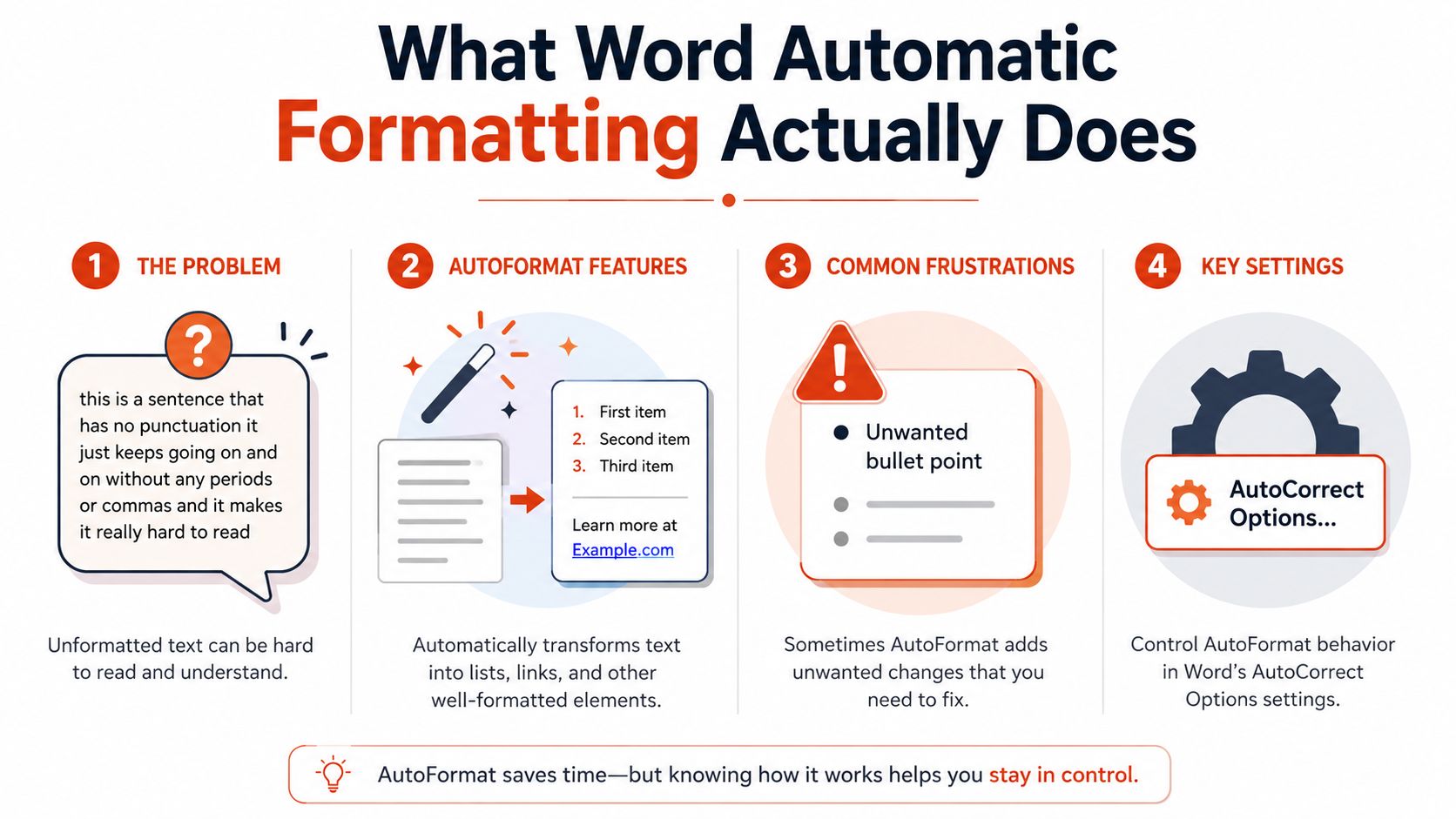
Word's built-in formatting tools can help, but they act on specific patterns rather than broad document intent. AutoFormat As You Type watches what you type and applies transformations such as smart quotes, automatic lists, and some hyperlink behavior. AutoCorrect replaces recognized misspellings or user-defined shortcuts. Styles determine the visual and structural treatment of headings, body paragraphs, quotations, lists, and other document elements.

Three systems with different jobs
AutoFormat As You Type is event-driven. It responds to patterns such as starting a line with an asterisk or number, typing quotation marks, or entering text that resembles a web address. That can be convenient in ordinary typing, but dictated text doesn't always arrive in the sequence Word expects. A voice command that sounds like a formatting instruction may be inserted as text, ignored, or interpreted inconsistently depending on the active language, document state, and dictation behavior.
AutoCorrect is a replacement engine. It works well for recurring spelling mistakes, abbreviations, names, and text expansions. It isn't a complete grammar editor, and Microsoft support discussions make the boundary clear: current Word dictation doesn't automatically correct every error after transcription. Users who expect AI-style rewriting from a dictation command are asking the feature to perform a different job.
Why defaults can create more work
Automatic lists are a common example. In a clinical note, a dictated sequence may be intended as prose, but Word can interpret a leading pattern as a list and apply indentation. In a legal document, smart quotes may be desirable in ordinary text but unsuitable for quoted material that must preserve a source's exact typography. Automatic heading recognition can also produce inconsistent hierarchy when a dictated paragraph begins with a phrase that resembles a heading.
Practical rule: Treat Word's automatic formatting as a collection of narrowly triggered conveniences, not as an editorial cleanup system.
The right configuration depends on the document. Keep transformations that save repetitive work, disable rules that alter structure without permission, and use styles to impose predictable hierarchy. That separation prevents you from expecting one toggle to solve transcription quality, document design, and proofreading at the same time.
Configuring AutoFormat As You Type and AutoCorrect
Open the control panel before changing your template. On Windows, use File > Options > Proofing > AutoCorrect Options. On macOS, use Word > Preferences > AutoCorrect. The wording and layout can vary by Word version, but the important controls are grouped around AutoCorrect behavior, AutoFormat As You Type, and exceptions.

Set AutoFormat As You Type deliberately
The AutoFormat As You Type tab controls live transformations. Review these options rather than accepting the default selection.
- Automatic bulleted lists: Enable this if you routinely type structured lists manually. Disable it if dictated notes or pasted content frequently acquire unwanted bullets.
- Automatic numbered lists: Keep it for outlines and procedures, but test it against legal numbering and clinical templates before using it broadly.
- Straight quotes with smart quotes: Useful for polished prose, but turn it off when exact source text, code, or citation preservation matters.
- Automatic heading styles: Convenient for informal documents, yet risky when heading levels carry a controlled meaning. Apply named styles directly when hierarchy matters.
- Set left and first indent with tabs and backspaces: Consider disabling this for dictation-heavy work. Indent behavior can become difficult to diagnose after voice input, pasted text, or mixed manual editing.
- Automatic hyperlink formatting: Helpful for ordinary reports, but review it if URLs must remain plain text or if a document contains sensitive material.
Word's formatting behavior also matters for publishing. If you're preparing a manuscript rather than a note, a dedicated guide to book formatting in Microsoft Word can help you distinguish document structure from quick, on-the-fly formatting.
Build an AutoCorrect vocabulary
The AutoCorrect tab lets you add replacements for terms Word regularly mishandles. Create entries for client names, medication names, product identifiers, internal abbreviations, and technical vocabulary. You can also use a short trigger such as addr to insert a longer address or standard clause, provided the shortcut won't appear naturally in your writing.
For words that shouldn't change, use the exceptions controls. This is useful for abbreviations, capitalization patterns, and names that Word repeatedly interprets as errors. Keep entries short, deliberate, and documented. A replacement that seemed helpful in one project can damage another if it applies globally.
The spelling dictionary is separate from AutoCorrect, so add specialist words there as well. The Word custom dictionary workflow is useful when dictated terminology should be accepted without replacement. For multilingual documents, check the language assigned to the text and dictionary. A correct entry in one language setting may not behave as expected in another.
Use a test document first. Dictate representative medical terms, citations, headings, lists, and pasted paragraphs before changing a shared template.
Building Styles That Survive Dictation and Paste Operations
Styles are the part of Word automatic formatting that gives you structural control. Direct formatting can make one paragraph look right, but a style tells Word what that paragraph is. That distinction matters when dictated text creates new paragraphs, when colleagues paste material from another application, or when you need to change the document's appearance without repairing every line manually.
Start with the Home tab, open the Styles pane, and choose New Style. Create a small style system rather than dozens of nearly identical choices. A practical foundation might include Normal or Body Text, Heading 1, Heading 2, Note, Quote, List Paragraph, and a specialized style for warnings or instructions.
Define the hierarchy before the appearance
Set the base paragraph style first. Choose the font, paragraph spacing, indentation, alignment, language, and proofing behavior. Use Style based on to establish a sensible relationship with Normal, then configure Style for following paragraph so the document moves logically from one block to the next.
For example, a Heading 1 can be followed by Body Text, while a Heading 2 can also be followed by Body Text. A clinical template might chain a section label to a structured body style, while a legal template might separate headings, quoted authority, argument, and footnote-related text. The exact names matter less than consistent relationships.
Open the Format button within the New Style or Modify Style dialog to set paragraph controls such as widow and orphan protection, keeping lines together, and keeping a heading with the next paragraph. These controls won't correct transcription, but they prevent a structurally sound document from breaking across pages in distracting ways.

Test the failure points, not just a clean sample
Paste content from a browser, email, PDF conversion, and another Word file. Dictate a heading followed by a paragraph, then insert a list and return to body text. If the result changes unexpectedly, inspect the style name and paragraph marks rather than manually adjusting the visible font.
Set paste behavior to Merge Formatting when that option is available in Word's preferences. It can reduce foreign font and spacing contamination, although it won't resolve every nested list or embedded style conflict. Save the finished arrangement as a template, and add frequently used styles to the Quick Style gallery for rapid application.
A clinical template might use a heading for history, a body style for findings, a list style for medications, and a separate warning style for items requiring review. A legal brief might separate headings, numbered arguments, quotations, and authorities. Technical documentation benefits from explicit styles for procedures, code-related prose, and cautions. For dictated lists specifically, bullet point formatting in Word is a useful reference for keeping list structure intentional rather than accidental.
The durable workflow is style-first. Let dictation supply content, then let named styles control structure. Don't rely on the appearance of a paragraph as proof that Word assigned the right format.
Where Word Dictation Formatting Falls Short
Word's native dictation is useful for getting language onto the page. It becomes less dependable when the task shifts from transcription to document reconstruction. Saying “period” may insert punctuation, but it doesn't necessarily decide whether the sentence belongs in the same paragraph, whether the next line should inherit a heading style, or whether a list should use a specific numbering scheme.
The research history explains why this separation persists. The 1999 work on automatic punctuation treated punctuation restoration as its own speech-recognition problem, and later dictation research continued to treat formatting as post-processing. In one LREC study, punctuation commands represented over 68% of the command inventory, based on a corpus containing 36 speech commands and 93 pronunciation variants, while the most frequent commands accounted for 62.5% of spoken command occurrences. The findings show how much command design matters in practical dictation, not that a single command can solve every formatting decision.
Recognition errors become formatting errors
A misrecognized term can change more than one word. If Word turns a medical abbreviation into ordinary language, the spell-checker may accept the wrong form. If a legal citation loses a symbol or spacing pattern, automatic formatting can preserve the error neatly. If a code identifier is split into familiar words, a later AutoCorrect replacement may make the result look polished while moving it further from the intended text.
Noise and accents add another layer. Microsoft documents voice commands for punctuation and formatting, but its guidance also depends on a reliable internet connection for Microsoft 365 dictation, and support material points users toward Voice Access in some situations where command recognition fails. These are operational constraints, not minor details, when a professional needs predictable output.
Clean text still needs review
Neural ASR made speech recognition far more capable, but downstream formatting remains a separate quality problem. A medical ASR study reported roughly 5 percentage points of absolute F1 improvement on gold text and roughly 10 percentage points on ASR outputs when dedicated punctuation and truecasing models improved on baseline models, as described in the AssemblyAI history of automatic speech recognition. Long-form dictation research has also found that even when English word recognition reaches human parity, segmentation and punctuation can remain bottlenecks.
The risk is highest in precision-sensitive documents. An AHRQ-sponsored study found an initial dictated-note error rate of 7.4%, which fell to 0.4% after transcriptionist revision and physician final review. It also reported that 96.3% of initial speech-recognition transcripts contained at least one error, compared with 58.1% after transcriptionist editing and 42.4% in finalized signed notes, with clinically significant errors falling from 63.6% initially to 14.7% after transcriptionist revision. The practical conclusion is straightforward: transcribe, flag suspicious spans, clean the text, and require author review for high-stakes content.
Optimizing Voice to Text Formatting on macOS with AIDictation
On macOS, a reliable Word workflow starts by deciding where each job belongs. Word can receive dictated text and apply its own commands, while a dedicated voice-to-text tool can handle vocabulary, cleanup, and context before insertion. AIDictation is one option that combines speech capture with custom vocabulary and post-processing, so it can sit in front of Word rather than forcing Word to perform every stage.

Configure the vocabulary before the commands
Create entries for names, diagnoses, product terms, code identifiers, acronyms, and phrases that Word tends to alter. Use the terminology in complete sentences, not only isolated words. A dictated technical paragraph should be tested with capitalization, punctuation, and nearby words because recognition depends on context.
Then create a small command set for actions you repeat:
- Section heading: Dictate a consistent phrase such as “new section heading,” insert the heading text, and apply the Word heading style after insertion.
- Body paragraph: Use a clear paragraph-break pattern so each new block returns to the intended Body Text style.
- List entry: Use a dedicated spoken command for a bullet or numbered item instead of relying on a sentence that happens to begin with a list-like pattern.
- Review marker: Insert a recognizable phrase for uncertain names, numbers, or citations, then search for those markers during final review.
Avoid building a command library so large that similar phrases compete. The purpose is predictable control, not a spoken replacement for every toolbar button. Keep Word's AutoFormat rules conservative, especially for lists and indentation, so the incoming structure doesn't trigger a second, conflicting transformation.
Send cleaned text into a controlled template
Open a test Word document containing the styles you intend to use. Dictate a short clinical assessment, a legal subsection, or a developer note. Check whether headings, body paragraphs, lists, punctuation, and specialist terms arrive as expected. If a problem appears, identify whether it originated in recognition, cleanup, the command set, or Word's style inheritance.
AIDictation supports local and cloud processing modes, custom dictionaries, and context rules that can adapt formatting by application. Its cloud mode adds cleanup and formatting features such as punctuation and paragraph refinement, while local processing is designed for private on-device dictation on compatible Apple hardware. For a broader comparison of voice input workflows, see this guide to a voice type app.
Use keyboard shortcuts to switch between dictation and manual correction. After a paragraph enters Word, review names, numbers, negations, dosage instructions, citations, and code-like strings before moving on. Don't wait until the end of a long document to discover that one command created the wrong style chain.
A useful division of labor looks like this:
- Speech capture: The voice tool recognizes the words and spoken commands.
- Text cleanup: The post-processing layer removes obvious artifacts and applies context-aware punctuation.
- Document structure: Word styles control headings, paragraphs, lists, and page behavior.
- Final verification: The author checks meaning, terminology, numbers, and required formatting.
This workflow doesn't eliminate review. It makes review narrower by separating raw recognition from formatting and by giving uncertain content a visible place in the correction loop.
Troubleshooting Common Automatic Formatting Failures
Start diagnosis with a clean document. If the behavior disappears in a new file, the problem is probably document-specific, template-specific, or caused by pasted formatting. If it follows you into a clean file, inspect Word preferences, the active language, add-ins, and the dictation application.
| Symptom | Root Cause | Fix |
|---|---|---|
| Bullets appear when you dictate ordinary sentences | AutoFormat As You Type interprets the opening pattern as a list | Open AutoCorrect Options, review automatic list settings, and disable the list rule if the workflow doesn't need it |
| Dictated commands appear as ordinary words | Word didn't recognize the command, or the active dictation mode doesn't support it reliably | Test the command in a blank document, verify language and microphone permissions, then use a dedicated command or manual shortcut |
| New paragraphs inherit the wrong appearance | The paragraph style chain is incorrect | Modify the preceding style's Style for following paragraph setting and test the transition again |
| Pasted text changes fonts and spacing | Source formatting overrides the destination document | Use Merge Formatting or Keep Text Only, then apply a named Word style |
| A technical term keeps changing | AutoCorrect has an unwanted replacement or the term isn't in the dictionary | Remove the replacement and add the approved spelling to the custom dictionary |
| Formatting works briefly, then stops | A document, template, profile, or add-in conflict is interfering | Reproduce the issue in a new document with add-ins disabled, then repair the affected template or extension |
| Lists become plain text after saving | The list was manually formatted or the document contains conflicting list definitions | Apply a named list style and test the file in a clean copy of the template |
| Word looks correct but the structure is wrong | Direct formatting is masking the assigned style | Turn on formatting marks, inspect the style name, and reapply the intended style |
Template corruption can create symptoms that look unrelated, including broken spacing, unstable lists, and fields that revert after editing. For a broader explanation of why Word templates can fail, this guide to Word resume template problems provides useful diagnostic context.
Keep a short test script for your own workflow. Dictate a heading, two body paragraphs, a list, a specialist term, a citation or number, and a deliberate correction. Run it after changing Word, a template, an add-in, or your voice tool. That small regression check is more reliable than assuming a setting will behave because its label sounds appropriate.
High-stakes documents need a human review step even when the page looks finished. Automatic formatting can make an error easier to read, but it can't decide whether the dictated meaning is clinically, legally, or technically correct.
If you need more than Word's built-in punctuation and formatting commands, try AIDictation with a custom dictionary, context rules, and a controlled Word template. Configure it with a small set of domain terms and formatting commands, test the workflow on representative documents, and use the resulting output as a cleaner starting point for final review.
Frequently Asked Questions
What does Word Automatic Formatting: Complete Guide cover?
You dictate a polished clinical note, legal argument, or technical specification into Word expecting the document to organize itself. Instead, the result may contain missing commas, inconsistent capitalization, unwanted bullets, broken paragraph styles, and specialist terms that AutoCorrect has “fixed” into something wrong.
Who should read Word Automatic Formatting: Complete Guide?
Word Automatic Formatting: Complete Guide is most useful for readers who want clear, practical guidance and a faster path to the main takeaways without guessing what matters most.
What are the main takeaways from Word Automatic Formatting: Complete Guide?
Key topics include Table of Contents, What Word Automatic Formatting Actually Does, Three systems with different jobs.
Ready to try AI Dictation?
Experience fast voice-to-text on your device. Free to download.
Download Free