How to Transcribe a YouTube Video to Text (Free & Fast, 2026)
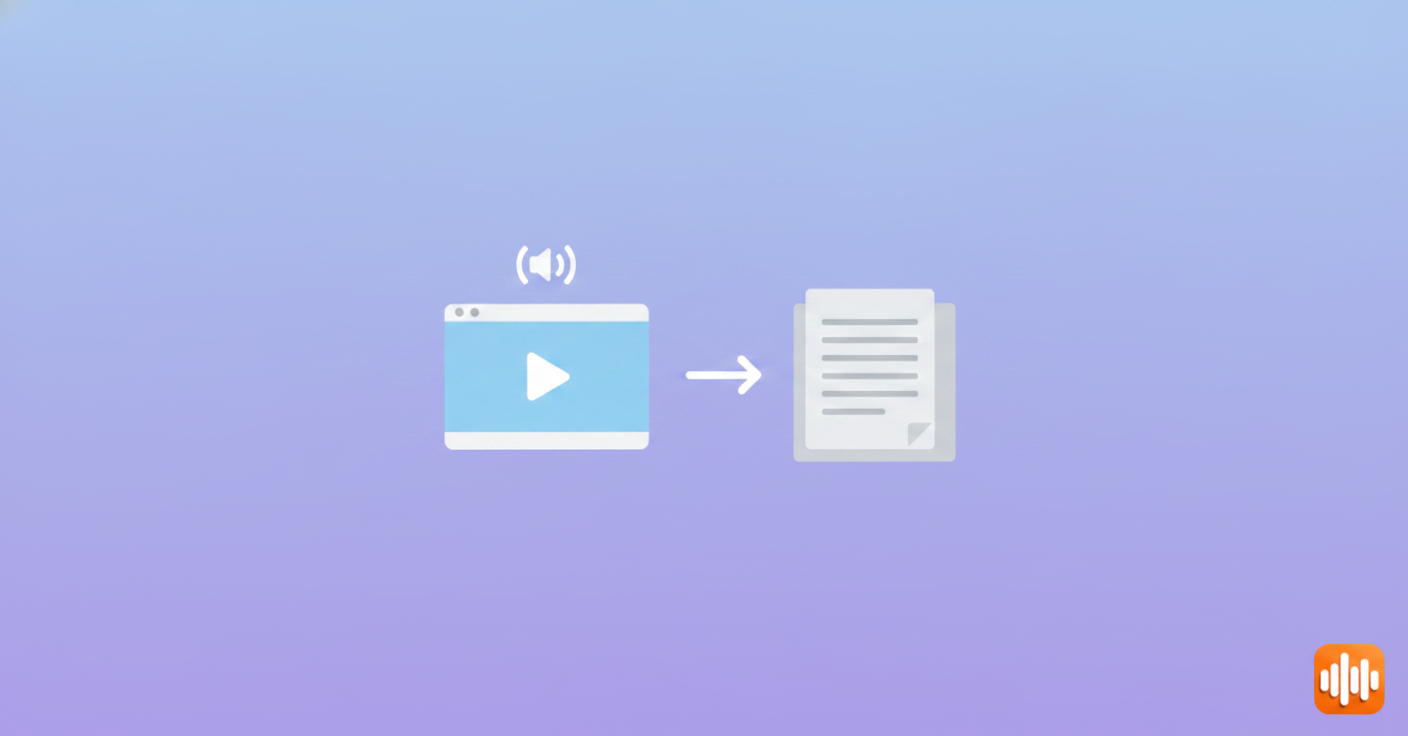
Yes, you can pull the full text out of almost any YouTube video in a couple of minutes, usually without downloading anything. The trick is knowing which of two paths your video falls into: the ones that already have captions (instant and free) and the ones that don't (a quick workaround). This guide covers both.
Why you'd want a YouTube transcript in the first place
A transcript turns a video you can only watch into something you can search, skim, quote, and reuse. That changes how useful the video is to you.

A few real situations where I reach for one:
- Turning a 40-minute tutorial into notes. Scrubbing back and forth to catch one command is miserable. Text lets me Ctrl+F the exact step.
- Repurposing a podcast or webinar into a blog post. The spoken version is the rough draft; the transcript is what I edit down.
- Studying a lecture. Reading is faster than watching at 1x, and I can highlight as I go.
- Captioning and accessibility. Some viewers need text, full stop.
- Quoting accurately. Paraphrasing from memory is how misquotes happen. A transcript gives you the exact words with a timestamp.
Whatever the reason, the fastest route depends entirely on whether the video has captions. Start there.
The fastest way: use YouTube's built-in transcript
If the video already has captions, you don't need any tool at all. YouTube hands you the transcript directly. This works on roughly 70% of popular videos, since creators add captions and YouTube auto-generates them for most uploads in major languages.
Here's the exact path on desktop:
- Open the video.
- Click the ...more link (or the three-dot menu under the video, depending on your layout).
- Choose Show transcript. A panel slides in on the right with the full text, timestamped.
- Click the three-dot icon inside that panel and pick Toggle timestamps to hide them if you just want the words.
- Highlight the text, copy, and paste it wherever you need it.
On a 20-minute video, this took me about 90 seconds start to finish — most of which was deleting timestamps I didn't want.
If you'd rather watch the click-by-click version, this walkthrough covers the built-in transcript panel end to end:
It's not perfect, though. The auto-generated captions arrive as one long block with no paragraph breaks, no speaker labels, and no punctuation in older or lower-effort videos. Names and technical terms get mangled ("Kubernetes" became "cooper netties" in one DevOps talk I grabbed). And the Show transcript option simply isn't there when a video has no captions at all, which is exactly the case the next section solves.
Mobile note: the YouTube app hides the transcript feature, so do this on a desktop browser. If you're stuck on a phone, open the video in your mobile browser and request the desktop site.
When the video has no captions: transcribe the audio yourself
No Show transcript button? Then you generate the text from the audio. This is the real differentiator, because plenty of older uploads, indie creators, and non-English videos ship with nothing.
You've got two practical approaches.
Option 1: Capture the audio with a speech-to-text tool
Play the video and let a speech-to-text app listen to your computer's audio output, transcribing in real time. This is the no-download route. A good voice-to-text engine handles the conversion live, and you end up with editable text by the time the video finishes playing.
This is also the most flexible option, because you control where the text lands — straight into a doc, a notes app, or your editor.
Option 2: Grab the audio file, then transcribe it
If you want higher accuracy or you're working with a long video, save the audio (an MP3 works fine) and run it through a dedicated transcription tool. The workflow is nearly identical to converting any recording; the same approach covered in our MP3 to text guide applies once you have the file. Batch processing tends to be more accurate than live capture because the model can take a second pass.
Either way, you're relying on automatic speech recognition under the hood. Modern ASR (the same family of models that powers tools like Whisper) hits 95–97% accuracy on clean, single-speaker speech. If you're curious how that actually works, we break it down in how automatic speech recognition works. The short version: the model converts sound into phonemes, maps those to likely words using a language model, and picks the most probable sentence. It's genuinely good now in a way it wasn't five years ago.
A reality check on accuracy: that 95% number assumes a podcast-quality voice in a quiet room. Throw in two people interrupting each other, a thick accent, or a music bed, and you're looking at 80–85%, or roughly one wrong word every six or seven. Always proofread before you trust it.
Here's the AI-transcription route in action, from raw video to editable text:
Free vs. paid methods: which should you actually use?
Short answer: for a one-off, short, captioned video, the free built-in transcript is all you need. For anything longer, uncaptioned, or destined for publication, a paid or freemium tool earns its keep.
| Method | Cost | Best for | The catch |
|---|---|---|---|
| YouTube built-in transcript | Free | Captioned videos, quick notes | No punctuation cleanup, desktop only, missing on uncaptioned videos |
| Free speech-to-text tiers | Free (limited) | Short clips, occasional use | Length caps (often 15–30 min), watermarks, slower |
| AI dictation / transcription apps | Paid or freemium | Long videos, publishing, accuracy | Costs money past the free tier |
Don't oversell the free tools to yourself. The free tiers almost always cap length, queue your job behind paying users, or skip the formatting that makes a transcript usable. If you transcribe video more than once a month, the time you save on cleanup pays for a real tool fast. For a broader rundown of options across price points, the online voice-to-text comparison is a useful next stop.
Cleaning up the raw transcript so it's actually usable
A raw transcript, whether from YouTube or an ASR tool, is rarely ready to paste into a doc. This is where most of the real work hides, and where a good tool saves you the most time.

The four things you almost always have to fix:
- Filler words. "Um," "uh," "you know," "like." They're invisible when spoken and exhausting to read.
- Punctuation and capitalization. Auto-captions love to give you a single run-on sentence with no periods.
- Speaker labels. In an interview or panel, you need to know who said what.
- Paragraph breaks. One unbroken wall of text is unreadable; group it by topic.
You can do all of this by hand, but it's tedious. A 30-minute video can take 45 minutes to clean manually. This is where AI clean-up shines: tools like AI Dictation strip filler, restore punctuation, and re-paragraph the text automatically, so you're editing for meaning instead of fixing commas. If you're a creator who lives in this workflow, our notes on voice typing for content creators cover how to fold transcription into a repurposing pipeline without it eating your afternoon.
Practical tips for cleaner transcripts
- Pick videos with good audio. A clear, single-speaker recording in a quiet room transcribes far better than a noisy panel. Audio quality matters more than any setting you can tweak.
- Verify names, brands, and jargon by hand. ASR guesses at proper nouns and technical terms. Search-and-replace the ones the model botched — it's the single biggest accuracy win.
- Keep the timestamps if you'll cite the video. They let you (and your readers) jump straight to the moment. Strip them only when you want clean prose.
- Respect copyright and fair use. Transcribing for your own notes is fine. Republishing a creator's full talk as your own article is not. Quote, credit, and link back instead of lifting wholesale.
- Spot-check the first and last minute. Errors cluster at the start (before the model "warms up" to the speaker) and during outros with music. Read those closely.
A real example: turning a 25-minute talk into a blog draft
Last month I wanted to repurpose a conference talk that had no captions. Here's what I actually did, timed:
- Found the video, no transcript button. So, the audio route.
- Played it through a speech-to-text tool while I made coffee — about 25 minutes, hands-off.
- Ran the raw output through AI clean-up: filler gone, punctuation restored, broken into paragraphs. ~30 seconds.
- Fixed five proper nouns the model mangled and added two speaker labels for the Q&A. ~4 minutes.
Total active time: under 10 minutes for a usable 3,800-word draft. Compare that to typing it out or scrubbing the video repeatedly, and the math isn't close.
Frequently Asked Questions
Can I transcribe a YouTube video to text for free?
Yes. YouTube's own transcript panel is free for any video that has captions — open the description, click the three-dot menu, and choose Show transcript. For videos without captions, you'll need a speech-to-text tool, many of which have free tiers.
How do I get a transcript when a YouTube video has no captions?
Play the audio and run it through a speech-to-text or AI transcription tool — either by capturing the audio on your computer or by feeding it to a dictation app. Accuracy is typically 95% or higher for clear, single-speaker speech.
Is it legal to transcribe a YouTube video?
Transcribing a video for personal notes, study, or accessibility is generally fine. Republishing someone else's content as your own — even as text — requires permission or a valid fair-use justification, so credit the source and quote rather than copy wholesale.
How accurate is automatic YouTube transcription?
Clean, single-speaker audio reaches about 95–97% accuracy. Heavy accents, background music, technical jargon, or people talking over each other can drop that to 80–85%, so always proofread before you publish or quote.
What's the fastest way to clean up a messy transcript?
Strip the filler words, fix punctuation, and add speaker labels. AI dictation and clean-up tools automate most of this — they remove the "ums," restore capitalization, and break the wall of text into readable paragraphs in seconds.
The bottom line
Captioned video? Use YouTube's built-in Show transcript and you're done in two minutes. No captions? Run the audio through a speech-to-text tool, then let AI clean up the mess. The whole point is to spend your time on the words that matter, not on chasing down missing periods.
Ready to turn any video into clean, usable text in minutes? Download AI Dictation free and skip the manual cleanup.
Frequently Asked Questions
Can I transcribe a YouTube video to text for free?
Yes. YouTube's own transcript panel is free for any video that has captions — open the description, click the three-dot menu, and choose Show transcript. For videos without captions, you'll need a speech-to-text tool, many of which have free tiers.
How do I get a transcript when a YouTube video has no captions?
Play the audio and run it through a speech-to-text or AI transcription tool — either by capturing the audio on your computer or by feeding it to a dictation app. Accuracy is typically 95% or higher for clear, single-speaker speech.
Is it legal to transcribe a YouTube video?
Transcribing a video for personal notes, study, or accessibility is generally fine. Republishing someone else's content as your own — even as text — requires permission or a valid fair-use justification, so credit the source and quote rather than copy wholesale.
How accurate is automatic YouTube transcription?
Clean, single-speaker audio reaches about 95–97% accuracy. Heavy accents, background music, technical jargon, or people talking over each other can drop that to 80–85%, so always proofread before you publish or quote.
What's the fastest way to clean up a messy transcript?
Strip the filler words, fix punctuation, and add speaker labels. AI dictation and clean-up tools automate most of this — they remove the 'ums,' restore capitalization, and break the wall of text into readable paragraphs in seconds.
Ready to try AI Dictation?
Experience fast voice-to-text on your device. Free to download.
Download FreeRelated Posts
Free Audio to Text Tools: 10 Options Compared for 2026
Compare 10 free audio to text tools: built-in recorders, free apps, offline models, and cloud APIs, with privacy and accuracy trade-offs.
8 Best Bilingual Dictation Apps: 5 Tested + 3 Baselines
We tested five bilingual dictation apps on Russian-English code-switching, plus three common baselines. Compare WER, language recall, script, and workflow.
Audio & Video Transcription Powered by AI: A Practical Guide
Learn how audio & video transcription powered by AI works, what affects accuracy, and how to pick the right workflow for interviews, lectures, and meetings.