Transcribe Audio to Text Mac: The 2026 Guide
You've probably got an audio file sitting in Finder right now. It might be a client call, a recorded Zoom, a lecture, or a voice memo you meant to turn into notes before the details went stale. The old Mac workflow for this was miserable: play a few seconds, pause, type, rewind, repeat.
That's no longer the default. A modern Mac can handle live dictation, prerecorded audio, and even privacy-sensitive transcription workflows without forcing you into one clumsy path. The question isn't just how to transcribe. It's which workflow fits the recording, the cleanup you can tolerate, and whether that audio is allowed to leave your machine at all.
Table of Contents
- From Hours of Audio to Perfect Text
- Choosing Your Mac Transcription Workflow
- Transcribing Live Speech with Real-Time Dictation
- Converting Audio and Video Files to Text
- Tips for High-Accuracy Transcription and Formatting
- Understanding Privacy with On-Device Transcription
- Frequently Asked Questions
From Hours of Audio to Perfect Text
A two-hour interview can still wreck an afternoon if the transcript is unusable. The audio gets captured fast. The time sink starts later, when you are cleaning filler words, fixing speaker labels, and hunting for the one quote you need for a report.
On a Mac, the workflow is better than it used to be. Apple now includes transcription features in its own apps, so a lot of users can start inside Notes or Voice Memos instead of uploading every recording to a third-party service first. That change is useful, especially for quick meeting notes and rough drafts.
But usable text and work-ready text are different outcomes.
Built-in transcription often gets you a draft, not a finished document. If the recording has cross-talk, weak microphones, industry jargon, or strict formatting requirements, the savings can disappear in editing. I have found that the fastest setup is usually the one that creates the least cleanup, not the one that produces the first transcript the quickest.
Practical rule: A transcription tool saves time only when the edit pass stays short.
Privacy also changes the decision earlier than many guides admit. For legal teams, healthcare staff, finance, HR, and anyone handling internal company recordings, the first question is not which app has the nicest interface. It is whether the audio can leave the Mac at all. On-device transcription is slower to improve than some cloud services, but keeping recordings local can be the right trade-off when policy, client expectations, or regulatory risk matter more than squeezing out a few points of accuracy.
A better way to evaluate any transcribe audio to text mac setup is by the job in front of you. A live planning meeting, a recorded interview, and a sensitive case discussion should not go through the same workflow. If you also use editing tools in your process, revid.ai's analysis of Descript is a useful reference point for understanding where transcript editing fits into a broader production stack.
The Mac can handle all of these jobs. The right choice depends on how much cleanup you can tolerate, how private the audio needs to stay, and whether the transcript is meant for your eyes only or for someone else to rely on.
Choosing Your Mac Transcription Workflow
The right workflow saves time twice. It gets the first draft onto the screen quickly, and it keeps the cleanup pass short.
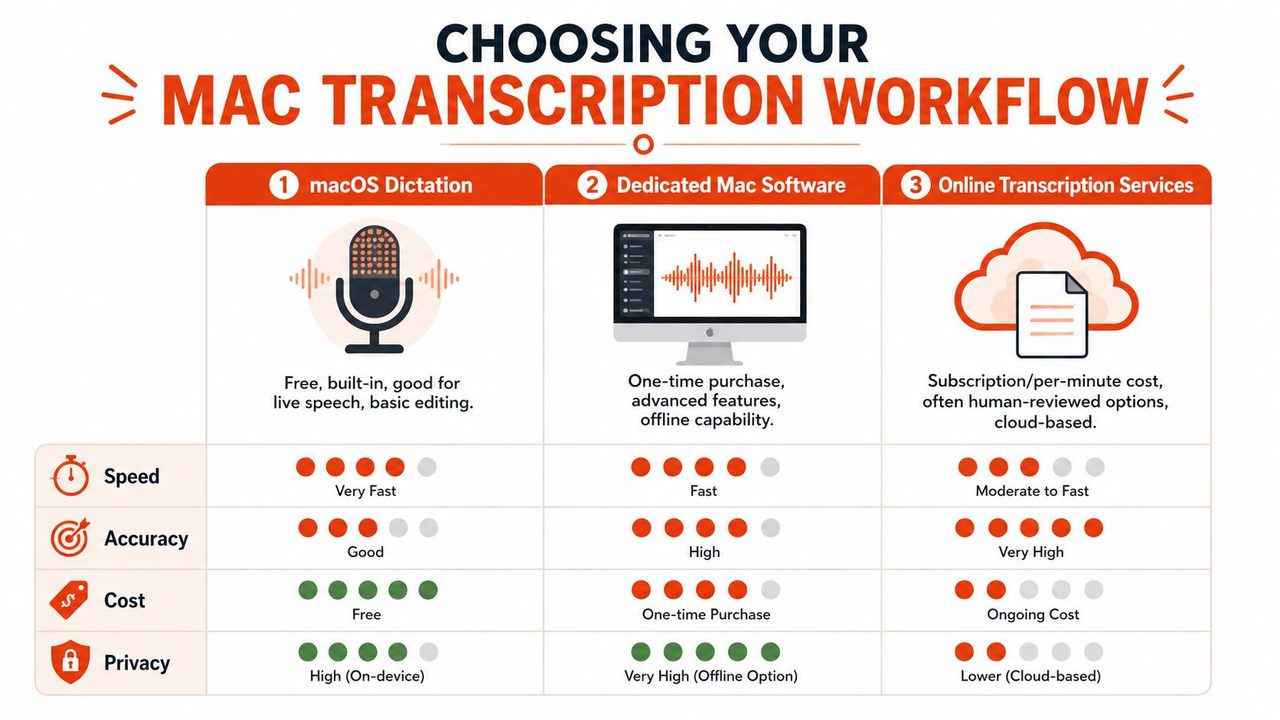
On Mac, there are three practical routes: built-in macOS tools, dedicated transcription apps, and cloud or human-backed services. The mistake is treating them as interchangeable. They solve different problems, and the privacy trade-off changes the answer fast if you handle client calls, patient discussions, HR interviews, or internal company recordings.
Three paths that actually matter
Built-in macOS tools are the fastest way to start because there is nothing to install and no extra cost. They work well for short notes, rough drafting, and quick capture while you are already inside a document. They are less reliable for long meetings, dense terminology, overlapping speakers, or anything that needs clean formatting at the end. If you want to get comfortable with Apple's built-in option first, this guide on using Dictation on Mac covers the setup and shortcuts.
Dedicated Mac software fits the jobs that happen every week. Recorded meetings, interviews, voice memos, training sessions, and internal documentation usually go here. Good Mac apps give you better speaker handling, timestamps, export control, and the option to keep processing local. That last point matters more than flashy features if your audio cannot leave the device. In practice, local transcription often gives up a bit of convenience for tighter control over where files go and who can access them.
Cloud and human-backed services make sense when the transcript is a deliverable, not just a personal reference. If the file feeds a legal review, publication workflow, board report, or formal record, paying for stronger editing or human review can be justified. The trade-off is straightforward. You usually get better final polish, but you also send sensitive audio off the Mac unless the service has terms and controls your organization can accept.
Mac Transcription Methods Compared
| Method | Best For | Typical Accuracy | Privacy Level | Cost |
|---|---|---|---|---|
| macOS Dictation | Quick notes, short drafting, live speech | Varies by recording quality and use case | High when processed locally | Free with macOS |
| Dedicated Mac Software | Meetings, interviews, documentation, repeat workflows | Often better than built-in tools on longer or messier files | Varies by app, often includes local options | One-time purchase or subscription |
| Online Transcription Services | Outsourced jobs, reviewed transcripts, publication-grade output | Strongest after editing or human review | Lower, because audio is typically uploaded | Per minute, per hour, or subscription |
Accuracy is only one filter. For many professional teams, privacy is the first one.
A law office may accept a slightly slower local workflow to avoid uploading client audio. A healthcare practice may need local processing because policy leaves no room for consumer cloud tools. A marketing team cutting webinar recaps may choose cloud transcription because speed and collaboration matter more than keeping every recording on one machine. Same Mac. Different answer.
I would also separate capture from editing before choosing a tool. Some apps are fine at turning speech into text but weak once you need to clean speaker labels, trim filler, and export something another person can trust. If transcription is part of a broader editing workflow, revid.ai's analysis of Descript is useful because it looks at the trade-off between transcript generation and post-production in one stack.
What I'd pick for common Mac jobs
For meeting notes, I'd use dedicated Mac software with speaker labels and local processing if the conversation is sensitive. Meetings create messy transcripts fast. Cross-talk, names, deadlines, and action items all raise editing time.
For voice drafting, built-in dictation is still efficient. It is fast, free, and good enough for short replies, outlines, and first-pass writing where perfect wording is not the goal.
For compliance-heavy work, start with an on-device workflow and only consider outside review after the first transcript exists. That keeps the raw audio under tighter control and lets you decide later whether the extra polish is worth the privacy and cost trade-off.
Transcribing Live Speech with Real-Time Dictation
You're in a meeting, someone assigns three follow-ups, and by the time you switch from listening to typing, half the detail is gone. Live dictation solves that specific problem well on a Mac. It captures the draft while the conversation is still happening.
Use macOS Dictation for short bursts
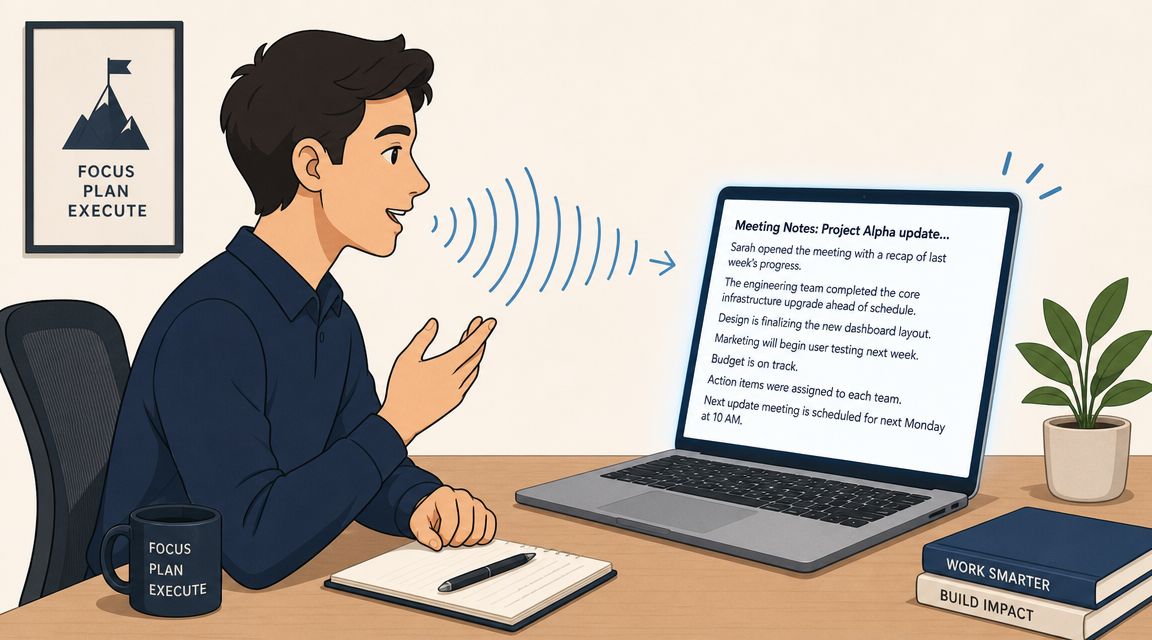
Built-in Dictation is still the fastest starting point for live speech on Mac. Put the cursor in a text field, trigger dictation, and speak in full phrases. For drafting an email, capturing meeting bullets, or getting a rough paragraph into a document, it is quick and requires almost no setup.
Its limit is scope. Live dictation works best when you are writing as you speak, not trying to produce a polished transcript of a long conversation. Once speech runs longer, gets noisier, or includes interruptions, cleanup time climbs fast.
A few habits make a noticeable difference:
- Keep the mic close: Less room noise means fewer missed words and names.
- Speak in complete thoughts: Short, broken fragments create more correction work.
- Say punctuation only when it helps: For notes and rough drafting, speed usually matters more than perfect spoken punctuation.
- Review immediately after the draft: Fixing errors while the context is fresh is much faster than revisiting them later.
If you need the setup steps, this guide on how to use dictation on Mac covers the Mac-side configuration clearly.
When live dictation needs more structure
Usually, the bottleneck is not word capture. It is editing. Spoken drafts often include repeats, false starts, filler, and awkward phrasing that are fine in conversation but poor in meeting summaries, client updates, or internal documentation.
AIDictation fits this use case as one option. It supports both local and cloud processing, which matters if your team has to choose between stronger privacy controls and the convenience of remote processing. That decision is easy to ignore until the content includes legal discussions, patient information, or internal financial planning. On-device handling gives tighter control over sensitive speech. Cloud processing can be faster or easier to scale, but it adds a data-handling question you should answer before using it for regulated or confidential work.
For practical work, I would use standard Mac dictation to get a rough draft out quickly. I would switch to a tool with cleanup and formatting support when the text needs to be shared, filed, or trusted by someone else.
The best live dictation workflow produces a draft you can edit in minutes, not a wall of spoken text you have to rewrite from scratch.
If you want to see a live workflow in action before changing your setup, this demo gives a solid visual reference:
Converting Audio and Video Files to Text
Monday morning usually starts the same way. There is a Zoom recording from Friday, a client interview on an iPhone, and maybe a training video someone needs summarized before lunch. On a Mac, the goal is not just to get words on the page. The goal is to turn recorded media into text that is accurate enough to use, fast enough to fit the workday, and handled in a way your company can approve.
Recorded files also force a privacy decision that live dictation does not always expose so clearly. If the file contains board discussions, patient calls, HR interviews, or legal review, sending it to a cloud service may create a compliance problem before accuracy even enters the conversation. If the material is lower risk, cloud transcription is often easier for long files and batch jobs. If the material is sensitive, local processing and tighter file control usually matter more than saving a few minutes.
A file workflow that saves review time
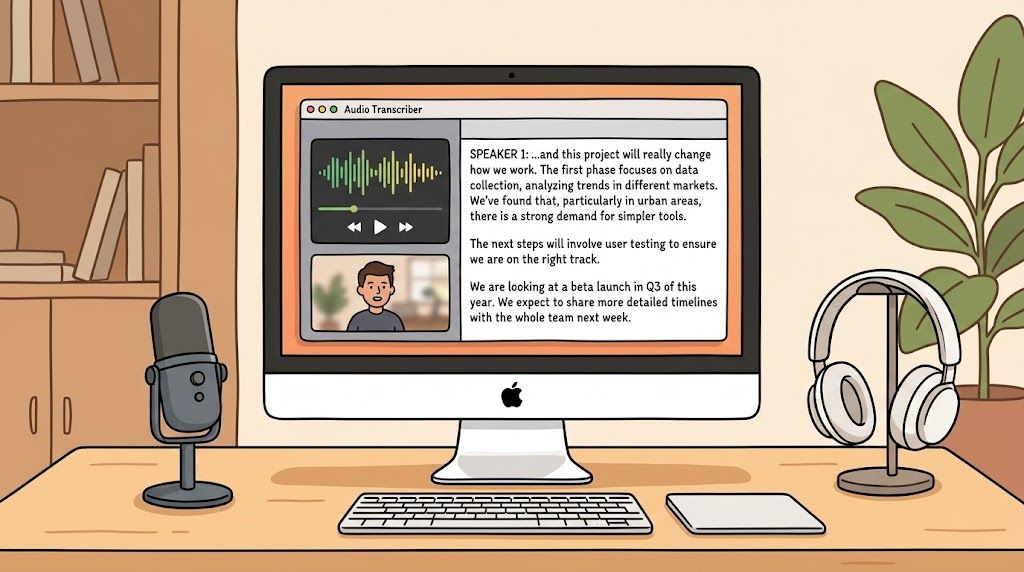
A practical Mac workflow is straightforward. Import the file, generate a draft transcript, review it against the recording, then export in the format the next person or system needs. The time sink is almost never the upload. It is the cleanup pass after the text comes back.
Start with the best source file you have. If you have both video and separate audio, choose the cleaner track rather than the smaller file. A clean mono recording with clear voices usually beats a compressed video rip, even if the video looks more "official."
Then batch similar files together. Interviews from the same project, recurring team meetings, and webinar episodes benefit from being processed in one session because naming stays consistent and you stay in the same context while reviewing terminology.
One more rule helps a lot. Review transcripts while you still remember who said what.
A browser-based option can be useful when you need a quick upload-and-convert workflow without installing another app. AIDictation's audio transcription tool for Mac file uploads is one example of that kind of setup.
Choose exports based on what happens next
Export format affects how much rework you create for yourself. Plain text is fine for rough notes, but it is the wrong choice if someone needs timestamps, comments, captions, or a document they can mark up.
Use the format that matches the actual job:
- TXT for quick notes, summaries, and pasting into docs or AI drafting tools.
- DOC or Word-compatible files when a manager, client, or teammate needs to edit and comment.
- SRT or VTT for captions, video publishing, and searchable media libraries.
- Timestamped transcripts for interviews, compliance review, evidence gathering, and quote extraction.
That choice sounds small, but it affects the whole downstream workflow. If the transcript is headed to Legal, timestamps may matter more than formatting. If it is headed to Marketing, speaker labels and editable paragraphs usually matter more than exact time codes.
For Mac users doing this regularly, that is the key benchmark. Pick the workflow that reduces manual cleanup, matches your privacy requirements, and exports into the next step without another conversion pass.
Tips for High-Accuracy Transcription and Formatting
A bad transcript usually starts with a bad recording. If the audio is muddy, distant, or full of overlapping voices, even a strong model will produce cleanup work you did not need.
The practical fix is to treat recording quality as part of the transcription workflow, not as a separate problem. A laptop mic across a conference room is fine for a quick memo. It is a poor choice for board meetings, interviews, or anything that needs reliable speaker attribution.
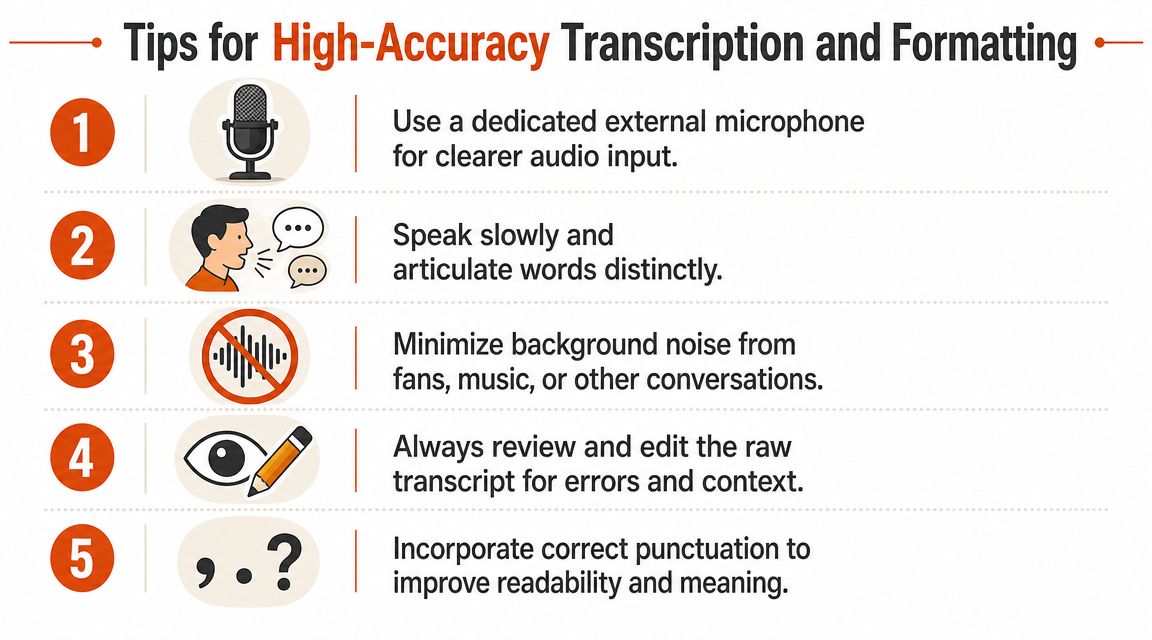
A few recording habits consistently improve results on Mac:
- Use the closest mic you can. A wired headset or USB microphone will usually beat the built-in mic if the speaker is more than a few feet away.
- Reduce room noise before you hit record. Fans, keyboard clatter, HVAC noise, and hard echoing surfaces all create avoidable errors.
- Record long sessions in workable sections. Shorter files are easier to rerun, easier to review, and less risky if one segment fails.
- Make speaker separation easier at the source. Clear turn-taking and stronger mic placement save time later if you need speaker labels.
If the first few minutes come back messy, stop there. Fix the setup, then rerun a short sample before processing the full meeting.
After the transcript is generated, correction order matters. Start with errors that change meaning. Leave stylistic cleanup for the end. That means names, dates, figures, product terms, legal language, medication names, and speaker labels should get attention before punctuation polish.
If your team handles sensitive audio, the workflow choice matters here too. Cloud tools can be faster for bulk jobs, but privacy review and upload restrictions can erase that speed advantage. For legal, healthcare, and internal executive material, offline voice-to-text workflows on Mac are often easier to approve because the audio stays local.
A custom vocabulary list also pays for itself quickly. Generic models still struggle with internal acronyms, client names, and domain-specific terms. Feeding those terms into the tool ahead of time cuts down on the kind of mistakes that make a transcript look untrustworthy.
Use this cleanup order if you want the fastest path to a usable transcript:
| Cleanup Priority | Why it matters |
|---|---|
| Names and terminology | These are the errors readers notice first, and they often affect trust and meaning |
| Speaker labels | Meeting notes and interviews fall apart if comments are assigned to the wrong person |
| Dates, numbers, and figures | Reporting, compliance, and follow-up actions depend on these being right |
| Paragraph breaks | Better structure makes review faster and summaries easier to draft |
| Punctuation and style | Useful, but worth doing after the factual content is correct |
For longer files, keyboard-driven review is still the fastest method. Play, pause, jump back a few seconds, correct the line, keep going. Mouse-heavy editing slows the whole pass down.
Formatting is what turns raw transcript text into something a team can use. Break dense blocks into short paragraphs. Pull decisions and action items into bullets. If the transcript is going to Legal or Compliance, keep timestamps attached to disputed sections instead of stripping them out for readability.
Privacy also affects formatting and review. If a vendor stores transcripts after processing, that may create retention questions for your organization. For a plain-language example of how one provider explains data handling, review our privacy statement.
Understanding Privacy with On-Device Transcription
Privacy is the filter most transcribe audio to text mac guides skip, and for some teams it should be the first question asked. Before speed. Before price. Before model choice.
What changes when audio stays local
Cloud transcription usually means uploading audio to a remote server for processing. That can be completely acceptable for public content, internal drafts with low sensitivity, or recordings where your organization already approves the vendor. But it may be the wrong fit for legal calls, healthcare conversations, executive meetings, or anything governed by client agreements.
Recent Mac-focused apps have started treating offline processing as a product feature rather than a niche extra. The App Store listing discussed in this topic area highlights secure local workflows, and recent Mac tools including MacWhisper and AIDictation emphasize on-device transcription for privacy-sensitive users in healthcare, legal, and executive roles, as noted in this App Store reference for transcription apps focused on secure use.
That distinction is practical, not theoretical. If the audio never leaves the Mac, you avoid a whole class of vendor, retention, and transfer questions.
For a plain-language example of how one audio company communicates its handling practices, Isolate Audio's privacy statement is worth reading because it shows the kind of policy detail privacy-conscious buyers should look for.
Who should treat privacy as the first filter
If you work in healthcare, legal, finance, or executive operations, local processing should be your default starting point. You can always choose to share a cleaned transcript later. You can't undo an upload once a recording has already left the device.
A good rule is simple:
- Use cloud transcription for lower-risk content where convenience and collaboration matter most.
- Use on-device transcription when policy, confidentiality, or client trust requires tighter control.
- Escalate to human review only after deciding the data handling is acceptable.
If you're evaluating a local-first workflow specifically, AIDictation's write-up on offline voice to text is relevant because it focuses on the on-device use case rather than generic cloud transcription advice.
Sensitive audio changes the buying criteria. The winning tool isn't the one with the longest feature list. It's the one that fits your data handling rules.
Frequently Asked Questions
Can a Mac transcribe long meeting recordings?
Yes, but long recordings are usually better handled by dedicated transcription software than built-in dictation. The main reason isn't just recognition. It's review workflow, export options, and easier handling of timestamps and speakers.
Can I transcribe video files too?
Yes. Many Mac transcription tools accept both audio and video files, then extract the speech and return a text transcript. This is useful for recorded presentations, webinars, and interview footage.
Do I need speaker separation?
If the recording includes more than one person, speaker labeling helps a lot. It's especially important for meetings, interviews, and legal or research work where attribution matters.
What export format should I use?
Use TXT for simple notes, a document format for collaborative editing, and SRT or VTT for captions and video workflows. Pick the export based on what happens after transcription.
Is built-in Mac dictation enough?
For short live drafting, often yes. For longer recordings, noisy audio, or anything client-facing, dedicated tools or reviewed services usually create less cleanup work.
If you want one Mac workflow that covers live dictation, prerecorded file transcription, and privacy-sensitive local processing, AIDictation is worth a look. It supports both on-device and cloud modes, which is useful when one project needs convenience and the next one can't let audio leave the machine.
Frequently Asked Questions
What does Transcribe Audio to Text Mac: The 2026 Guide cover?
You've probably got an audio file sitting in Finder right now. It might be a client call, a recorded Zoom, a lecture, or a voice memo you meant to turn into notes before the details went stale.
Who should read Transcribe Audio to Text Mac: The 2026 Guide?
Transcribe Audio to Text Mac: The 2026 Guide is most useful for readers who want clear, practical guidance and a faster path to the main takeaways without guessing what matters most.
What are the main takeaways from Transcribe Audio to Text Mac: The 2026 Guide?
Key topics include Table of Contents, From Hours of Audio to Perfect Text, Choosing Your Mac Transcription Workflow.
Ready to try AI Dictation?
Experience fast voice-to-text on your device. Free to download.
Download FreeRelated Posts
Is There a Speech to Text App for Mac? a Practical Guide
Is There a Speech to Text App for Mac. Wondering if there is a speech to text app for Mac? Compare built-in Dictation, on-device engines, and AI tools like
Dictation Software for Medical Professionals Compared
Compare dictation software for medical professionals. Evaluate accuracy, HIPAA privacy, ambient AI tradeoffs, and on-device tools like AIDictation.
How to Use Voice Dictation on Mac
Use Voice Dictation on Mac. Master voice dictation on your Mac — from built-in Apple features to third-party tools like AIDictation