Whisper for Mac: The Ultimate Setup Guide (2026)
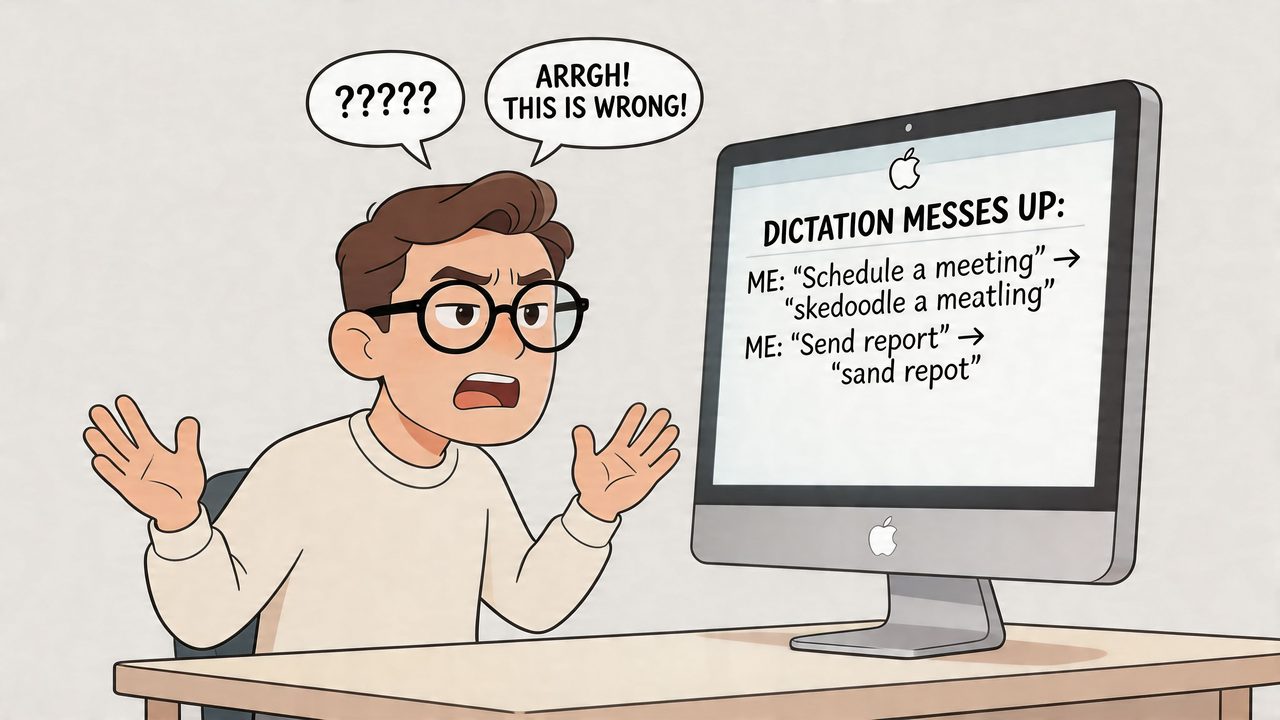
You’re probably here because Mac dictation let you down in a very familiar way. It got the common words right, then mangled a client name, flattened a technical term, or turned a quick spoken note into something you now have to fix by hand. That’s the moment a lot of Mac users start looking for whisper for mac.
The good news is that Whisper provides several workable paths on macOS. You can run it from Terminal with full control. You can use a polished GUI app and skip setup friction. Or you can use an integrated dictation tool built for writing workflows instead of raw transcription alone. The right choice depends less on “which tool is best” and more on how you work, how much control you want, and whether privacy is paramount.
Table of Contents
- What Is Whisper and Why Use It on Your Mac
- Path 1 The Command-Line Approach with whisper.cpp
- Path 2 Using GUI Wrappers for an Easier Experience
- Choosing Your Path CLI vs GUI vs Integrated Apps
- Troubleshooting Common Whisper Issues on macOS
- Beyond Basic Transcription The Future and Smart Alternatives
What Is Whisper and Why Use It on Your Mac
If Apple’s built-in dictation keeps stumbling on names, domain jargon, or accented speech, Whisper is the upgrade people usually notice first. It’s the speech recognition model from OpenAI that made local transcription on modern Macs feel practical instead of experimental.
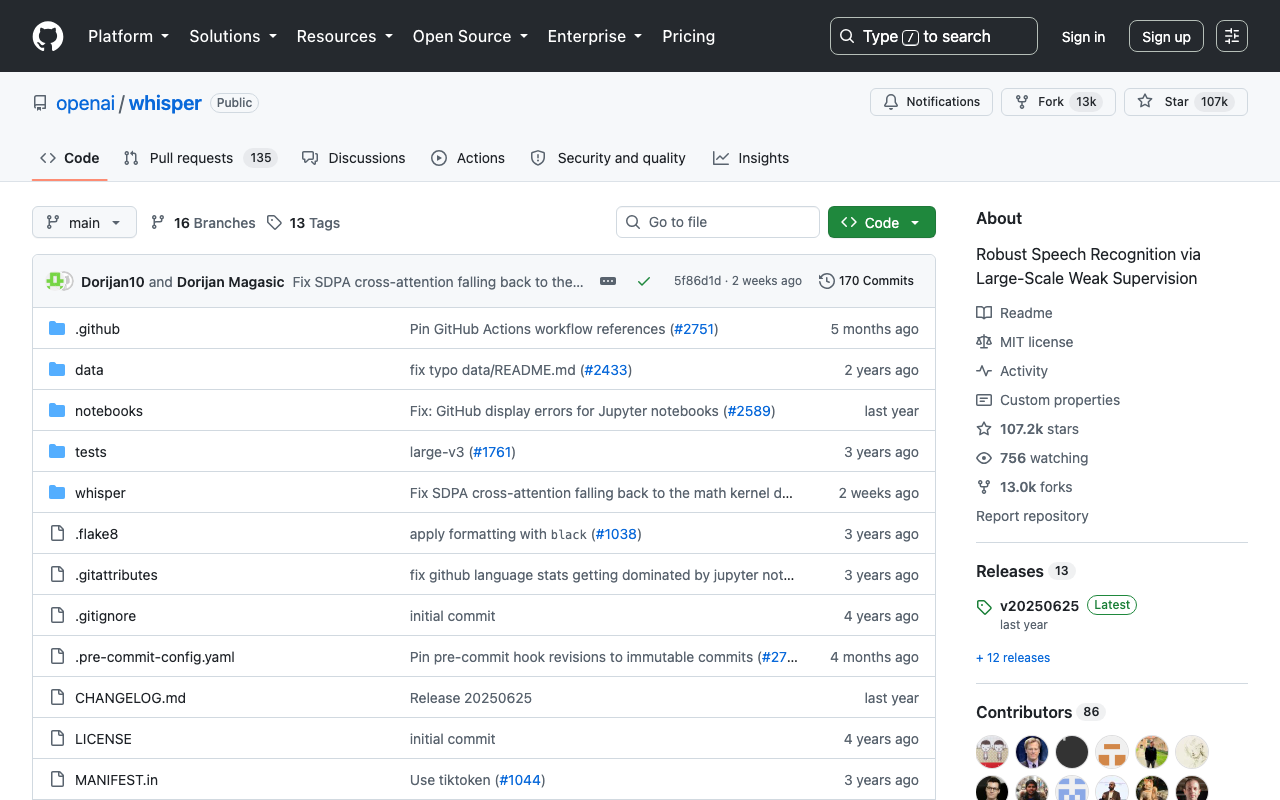
What changed is scale. OpenAI says Whisper was trained on 680,000 hours of multilingual supervised data and achieved 50% fewer errors than many specialized models without task-specific fine-tuning, which helps explain why it handles accents and background noise so well on Mac in everyday use (OpenAI’s Whisper announcement).
Why Mac users care about Whisper
Three things make Whisper matter on macOS.
- Accuracy that holds up outside lab conditions. It tends to cope better with messy real speech, not just clean studio audio.
- Local processing on Apple Silicon. For many Mac users, that means privacy by default because the audio can stay on the machine.
- No forced subscription just to get started. Open tools and local apps changed the economics of transcription.
That combination is why Whisper moved from “interesting model” to daily utility for students, developers, researchers, healthcare staff, and anyone who writes by talking.
Practical rule: If your main frustration is fixing dictation after the fact, Whisper matters less as an AI model and more as a way to reduce cleanup.
The three real ways to use whisper for mac
Most guides treat Whisper as a single thing. On Mac, it’s really an ecosystem.
You can take the command-line route with whisper.cpp if you want scriptability, model control, and batch processing. You can use a GUI wrapper like MacWhisper or Whisper Transcription if you want drag-and-drop simplicity. Or you can choose an integrated dictation app that turns speech into ready-to-send text inside your daily workflow, which is a different job than raw file transcription.
If your broader goal is faster private dictation on macOS, this roundup of speech to text for Mac is also useful context because Whisper is just one option available now.
Path 1 The Command-Line Approach with whisper.cpp
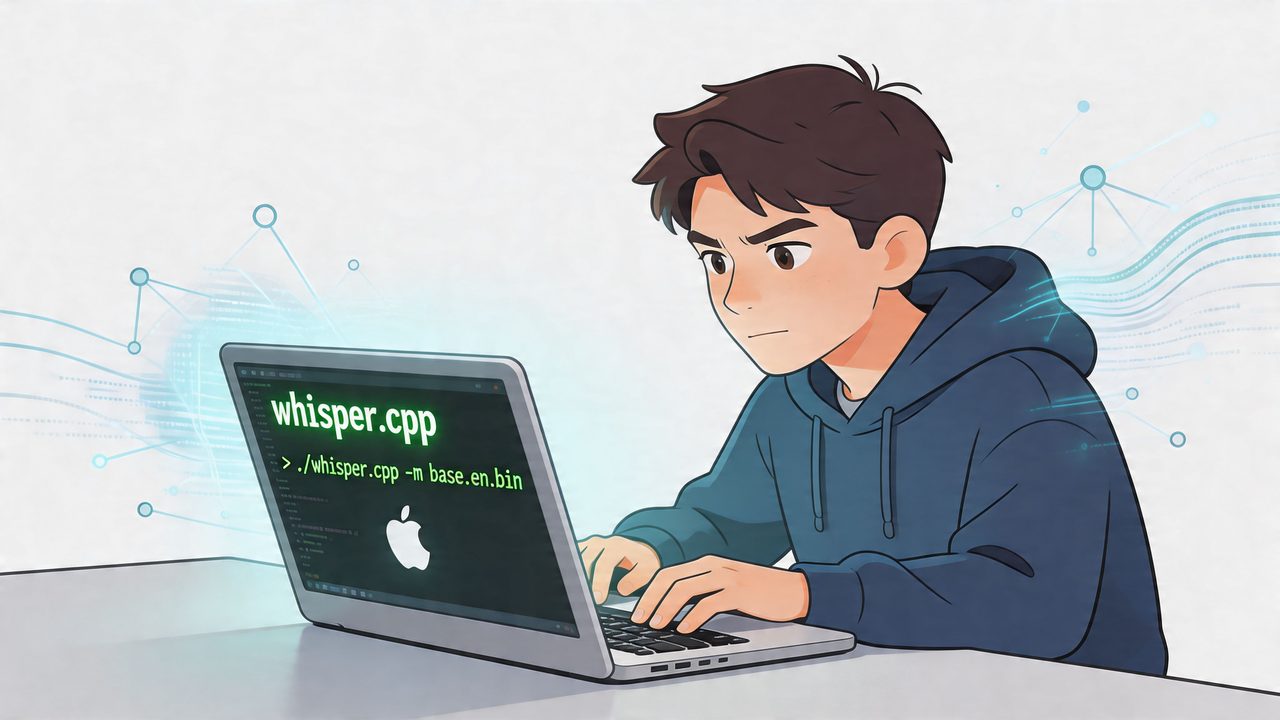
For developers and Mac power users, whisper.cpp is still the cleanest way to run Whisper locally. It skips the overhead of a heavier Python stack and gives you direct control over models, files, language settings, and output formats.
 Why power users still prefer whisper.cpp
The CLI path isn’t the easiest. It is often the most predictable.
You know exactly which model is running. You can script batches. You can convert folders of recordings into subtitles or text without clicking through app windows. If you already live in Terminal, this feels natural in a way GUI wrappers often don’t.
Performance is also solid on Apple Silicon. According to Voicci’s Apple Silicon Whisper performance testing, an M3 Max with 36GB RAM can hit 0.1x Real-Time Factor, which means a 10-minute audio file transcribes in about one minute, and the Medium model is often the sweet spot for speed and accuracy.
A practical setup on macOS
If you want a direct setup, this is the straightforward path:
-
Install the basics
- Xcode tools:
xcode-select --install - whisper.cpp via Homebrew:
brew install whisper-cpp
- Xcode tools:
-
Prepare your audio
- Whisper workflows are usually smoother when the file is converted to a standard WAV format.
- If you’re processing mixed audio sources, resampling first avoids avoidable errors later.
-
Run a transcription
- Single file command:
./main -m models/<model.bin> -l <ISO-639-1 language code> -f <audio.wav> --output-vtt - Batch pattern:
for i in output/*.wav; do ...; done
- Single file command:
The single most useful habit here is setting the language explicitly. Auto-detection is convenient until it guesses wrong and tanks the transcript.
If local, private speech workflows are the reason you’re considering this route, this guide to offline voice to text complements the whisper.cpp path well.
A quick walkthrough helps if you want to see the flow before touching Terminal:
Choosing the right model
Many users make the same early mistake. They assume “largest model equals right model.”
That’s not how whisper for mac works in practice.
- Tiny or Base makes sense when you care about speed first, or when the Mac is older or memory-constrained.
- Medium is often the practical default for people transcribing meetings, interviews, or product discussions.
- Large is better reserved for harder audio, where you’re willing to trade speed and memory for the last bit of accuracy.
Set your model based on the audio you actually have, not the audio you wish you had.
If you transcribe clean podcast-style speech, Medium is often enough. If you’re dealing with overlapping speakers, accented speech, or messy field recordings, you may want to step up. If you mostly need quick note capture, smaller models feel a lot faster and less fussy.
The command line route works best when you value control more than convenience. If that sounds like your default mode on Mac, whisper.cpp is still hard to beat.
Path 2 Using GUI Wrappers for an Easier Experience
Most Mac users don’t want to manage model files from Terminal. They want to drag in an audio file, pick a language or model, hit transcribe, and get on with their day. That’s where GUI wrappers earn their place.
Apps like MacWhisper and Whisper Transcription sit on top of Whisper and turn it into a normal Mac app experience. You get menus, file pickers, export options, and in many cases extra features like speaker labels or direct recording.
 What the GUI path feels like in practice
The usual workflow is simple.
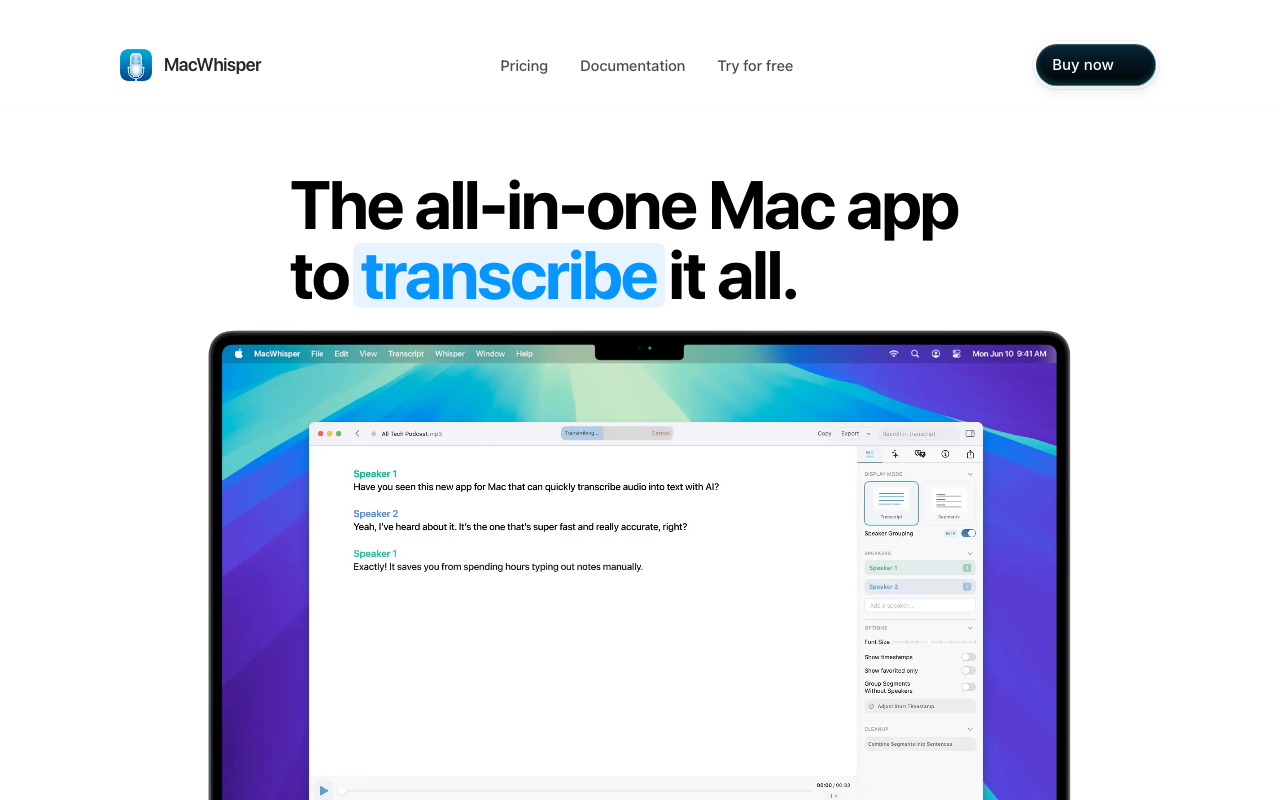
You install the app, open it, drop in an audio or video file, choose a model, and start transcription. For meeting recordings, lecture captures, or voice memos, that’s often enough. You don’t need to think about build tools, shell loops, or file conversion unless the source audio is unusually messy.
That ease matters because GUI apps are now fast enough that convenience doesn’t automatically mean compromise. In benchmarks collected by mac-whisper-speedtest, GUI apps like MacWhisper can transcribe audio up to 15 times faster than real-time playback on Apple Silicon, and MacWhisper Pro using Large-v2 reached an average 3.7% Word Error Rate on clean audio and 5.2% on noisier iPhone recordings.
For batch file transcription, GUI wrappers are where Whisper became mainstream on Mac.
Where GUI apps shine and where they don’t
GUI wrappers are strongest when the job is file-based.
They’re good for:
- Recorded meetings: Import the file, let it run locally, export text or subtitles.
- Lecture and podcast transcription: Minimal setup, good model selection, and easy retries.
- People who don’t want Terminal: The app handles the hard parts.
They’re less ideal when you want:
- Low-latency live dictation across apps
- Deep workflow automation
- Context-aware cleanup for emails, docs, or chat messages
That last point matters more than many guides admit. A file transcription app can be excellent and still not solve daily dictation. Speaking into a mic and getting clean prose into Slack, Gmail, Notes, or your editor is a separate workflow problem.
A few practical trade-offs show up quickly:
- Model choice still matters: Even with a clean interface, larger models can feel heavier on modest hardware.
- Feature layers vary a lot: Some apps focus on transcription only. Others add speaker separation, system audio capture, or cleanup tools.
- You still own the output cleanup: A good transcript isn’t always polished writing.
If your main task is turning recordings into text, GUI wrappers are usually the sweet spot. They’re the shortest path from “I have audio” to “I have a transcript,” and for plenty of users, that’s exactly enough.
Choosing Your Path CLI vs GUI vs Integrated Apps
You open your Mac on a Monday morning with three very different jobs in front of you. A folder of recorded calls needs transcripts. A long interview needs cleanup and export. You also want to dictate replies in Mail, notes in Obsidian, and quick messages in Slack without bouncing between apps. One Whisper setup will not handle all three equally well.
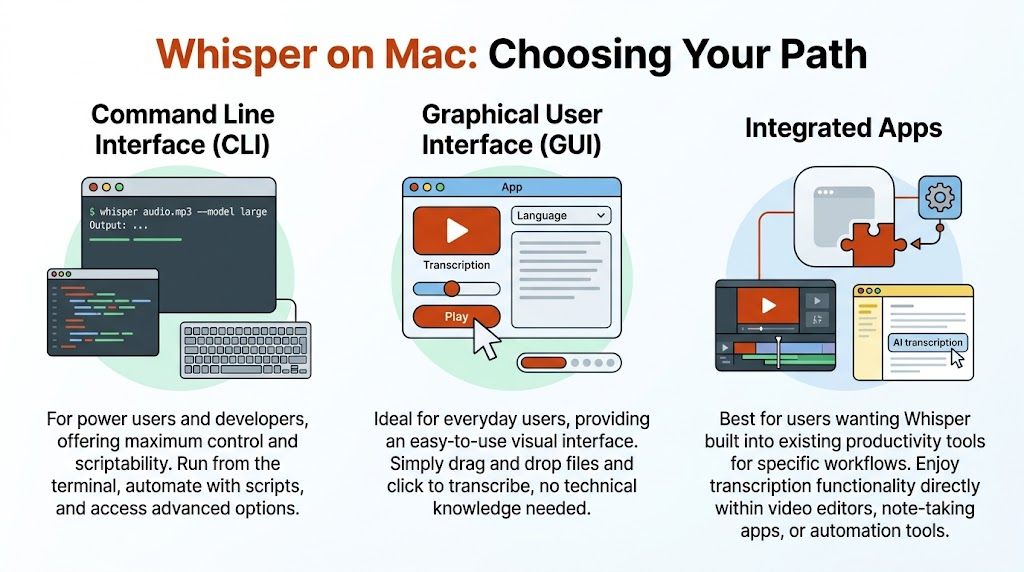
That is the part many Mac guides skip. They explain one tool, then treat every speech-to-text job as if it were the same. On macOS, the better question is simpler. Do you need control, convenience, or a writing workflow that stays fast all day?
How the three options differ
The CLI path fits users who want to tune the stack themselves. It works well for scripts, bulk transcription, prompt-level experimentation, and workflows that need predictable inputs and outputs. I still recommend it to developers and researchers first, because nothing else gives the same visibility into models, quantization choices, and automation hooks. The cost is time. You have to set it up, maintain it, and accept that a powerful local transcription pipeline does not automatically become a good dictation tool.
The GUI path fits people who want Whisper without living in Terminal. It is usually the most practical choice for recorded audio, especially if the job starts with a file and ends with a transcript, subtitle export, or light editing. The trade-off shows up after transcription. Many GUI apps stop at recognition, so punctuation cleanup, rewriting, and app-to-app dictation still happen somewhere else.
The integrated app path solves a different problem. It is for people who are not just converting audio into text, but replacing keyboard time during the workday. As noted by Dag-Inge Aas’s write-up on local Whisper workflows, live low-latency dictation has been a weak point in many local Whisper setups. That is why integrated tools exist. AIDictation is one example. It runs across macOS apps and offers different operating modes depending on whether you want local privacy, cloud cleanup, or a mix of both.
A transcript and finished writing are different outputs. Integrated apps earn their place only if they reduce that gap.
Which Whisper for Mac Method Is Right for You
| Method | Best For | Key Advantage | Main Trade-Off |
|---|---|---|---|
| Command Line Interface (CLI) | Developers, researchers, automation-heavy users | Maximum control and scriptability | Setup friction and less friendly daily use |
| Graphical User Interface (GUI) | Most Mac users handling recordings | Simple drag-and-drop transcription | Less flexible for live dictation workflows |
| Integrated Apps | Professionals who dictate into everyday apps | Speech goes directly into writing workflows | Usually less appealing to users who want raw model control |
A practical way to choose is to match the tool to the bottleneck.
- Pick CLI if you care about repeatability, local control, and custom workflows more than interface polish.
- Pick GUI if your main input is recorded audio and you want the shortest path from file to usable transcript.
- Pick integrated apps if your main goal is writing faster in the apps you already use every day.
For many Mac users, that final distinction is the one that clears up the confusion. File transcription, desktop dictation, and polished writing support sound related, but they are not the same job.
Troubleshooting Common Whisper Issues on macOS
Whisper on Mac is good, but it’s still easy to misread a problem. Many “Whisper is broken” complaints are really hardware, mic, or settings issues.
When the model is too heavy for your Mac
A very common failure pattern is selecting the biggest model on a lower-spec machine, then watching the app crawl, freeze, or crash.
According to Wispr Flow’s supported devices and system notes, Macs with less than 8GB of RAM have a high failure rate with Whisper’s Large model. On those systems, Tiny or Base is the safer choice for stability.
If your setup feels unstable, try this order:
- Drop the model size first. Don’t troubleshoot everything else before ruling this out.
- Close memory-heavy apps. Browsers and design tools often steal the headroom Whisper needs.
- Use shorter jobs. Very long files are more demanding than quick dictation bursts.
When accuracy drops for no obvious reason
If the transcript suddenly gets much worse, the microphone is often the culprit. The same source notes that poor mic quality can increase Word Error Rate by 15% to 25%.
That sounds obvious until you test it. A decent built-in Mac mic in a quiet room often beats a bad headset in a noisy office.
Common fixes that work:
- Use a cleaner microphone path: Wired or reliable built-in mics tend to behave better than flaky Bluetooth audio.
- Set the language explicitly: Wrong language guessing causes avoidable mistakes.
- Check your recording environment: Fan noise, room echo, and speaker bleed matter more than people think.
- Avoid clamshell surprises: If your Mac is closed, the built-in mic may not be available. Use an external mic instead.
Better audio usually improves results more than changing apps.
Another frequent issue is expecting dictation output to read like finished prose. Whisper is a speech recognizer first. If you speak in fragments, self-correct mid-sentence, or change direction halfway through a thought, the transcript will reflect that. Some tools help clean this up. Many don’t.
The practical fix is to separate two jobs in your head: recognition quality and writing cleanup. Once you do that, troubleshooting gets much faster.
Beyond Basic Transcription The Future and Smart Alternatives
Whisper is still one of the most useful speech tools you can run on a Mac. The part that has changed is everything around it: Apple’s built-in speech stack is improving, GUI apps are getting easier to use, and integrated dictation tools are doing more than dumping out raw text.
Why the situation is changing
Apple is closing the speed gap for everyday dictation. In MacStories’ hands-on review of Apple’s new speech APIs, Federico Viticci found that Apple’s latest Speech APIs in macOS Tahoe can beat Whisper on raw on-device speed for some files.
That matters if your job is quick capture. It matters less if you regularly transcribe interviews, technical jargon, uneven audio, or recordings that need tighter control over where data goes.
After testing both approaches on Mac, the practical takeaway is clear. Raw transcription speed is only one part of the workflow. Cleanup time, formatting, speaker handling, and privacy rules usually matter more once you move past short voice notes.
Smart alternatives depend on the job
This is why a single-method guide is no longer enough. Mac users now have three real paths: the command-line route with whisper.cpp, the easier GUI wrapper route, and the integrated app route that handles transcription plus cleanup and insertion into other apps.
For some setups, Apple speech is the fastest option for short dictation. Whisper-based tools still make sense for tougher audio and for users who want more control over models and local processing. Integrated apps make the most sense when the primary goal is usable writing, not a transcript you still have to fix by hand.
If you are comparing that broader category, this roundup of best voice to text software for 2026 is a useful reference point.
The bigger shift is practical. Speech on the Mac is becoming a full input layer, not just a transcription engine. Good tools now help with punctuation, formatting, rewriting, app-aware insertion, and choosing between local and cloud processing based on the task.
AIDictation fits that third category. It combines local dictation for private use, cloud cleanup when polished output matters, and an Auto Mode that picks the processing path for you. That kind of product is not replacing Whisper for tinkerers. It is reducing setup work for people who want to speak and keep moving.
The right choice depends on what you value most: control, simplicity, or finished output with less editing afterward.
Frequently Asked Questions
What does Whisper for Mac: The Ultimate Setup Guide (2026) cover?
You’re probably here because Mac dictation let you down in a very familiar way. It got the common words right, then mangled a client name, flattened a technical term, or turned a quick spoken note into something you now have to fix by hand.
Who should read Whisper for Mac: The Ultimate Setup Guide (2026)?
Whisper for Mac: The Ultimate Setup Guide (2026) is most useful for readers who want clear, practical guidance and a faster path to the main takeaways without guessing what matters most.
What are the main takeaways from Whisper for Mac: The Ultimate Setup Guide (2026)?
Key topics include Table of Contents, What Is Whisper and Why Use It on Your Mac, Why Mac users care about Whisper.
Ready to try AI Dictation?
Experience fast voice-to-text on your device. Free to download.
Download FreeRelated Posts
Email Dictation Software: What It Is and How to Choose
Learn what email dictation software is, how it works, and how to pick the right one. Covers accuracy, privacy, HIPAA, accents, and real buyer checklists.
Verbal Ink Transcription Workflows Today
Explore verbal ink transcription workflows, accuracy benchmarks, and how modern AI dictation tools compare to traditional human transcription services.
Apple Voice Recognition Software: Key Pros and Cons
Learn how Apple voice recognition software turns speech into text on your device, where it excels, and what tasks still challenge it in 2026.