Unlock Your Voice Recorder for MacBook Air Potential
You open your MacBook Air for a meeting, a lecture, a quick product thought, or a voice note you swear you'll turn into a clean document later. Recording is easy. Getting audio that's clear, editable, and useful is often where it becomes a hurdle.
That's the gap with a lot of advice on a voice recorder for macbook air. It usually stops at “use Voice Memos” or “buy a USB mic,” which is only half the job. The complete workflow starts with capture, then moves through settings, file handling, and finally into text you can send, search, or reuse.
On a MacBook Air, the trade-off is simple. The built-in tools are fast and convenient. An external mic and a better post-recording process give you cleaner results. Neither path is wrong. They just solve different problems.
The setup that works is the one that matches the recording you're making. A quick idea dump on the train doesn't need the same signal quality as a client interview, medical note, or developer walkthrough. Once you know that, the MacBook Air becomes a capable recording machine instead of a laptop with a red button.
Table of Contents
- Introduction From Idea to Audio
- Choosing Your Microphone Built-In vs External
- Mastering Your Mac's Native Recording Apps
- Configuring Your Mac for High-Quality Audio
- The Ultimate Workflow From Voice to Text with AIDictation
- Conclusion Your Next Steps in Audio Mastery
Introduction From Idea to Audio
A MacBook Air is often the recorder you already have with you. That matters more than people admit. The best audio setup is useless if it stays in a drawer while your meeting, idea, or interview happens without it.
For quick capture, the built-in path works. Open an app, press record, and speak clearly. For anything client-facing or transcript-heavy, the quality ceiling shows up fast. Fan noise, keyboard taps, room echo, and distance from the mic all get baked into the file.
That's why the decision isn't just about apps. It's about the full chain from microphone, to recording app, to audio settings, to usable text. If one part is weak, the rest of the workflow has to work harder.
Practical rule: Record as if you'll need the file twice. Once to listen back, and once to turn into text. That mindset changes how you choose your mic, your room, and your app.
The good news is that a MacBook Air can do this well. Apple's built-in tools are competent. External USB microphones are easy to add. And if your real goal is a polished note, email draft, or document instead of a raw audio file, you can build a workflow that gets there without much friction.
Choosing Your Microphone Built-In vs External
A MacBook Air on a kitchen table can capture a usable idea in seconds. The same setup can also give you a muddy transcript full of missed words if the mic is too far away, the room is live, or the keyboard keeps sneaking into the recording.
The microphone choice sets the ceiling for everything that follows. Better capture means less cleanup, fewer transcription errors, and less time fixing notes later.
What the built-in mic does well
The built-in microphone wins on speed. Open the laptop, hit record, speak, and keep going. For voice notes, class reminders, quick meeting follow-ups, or rough dictation, that convenience matters more than perfect tone.
It also works well when the alternative is not recording at all.
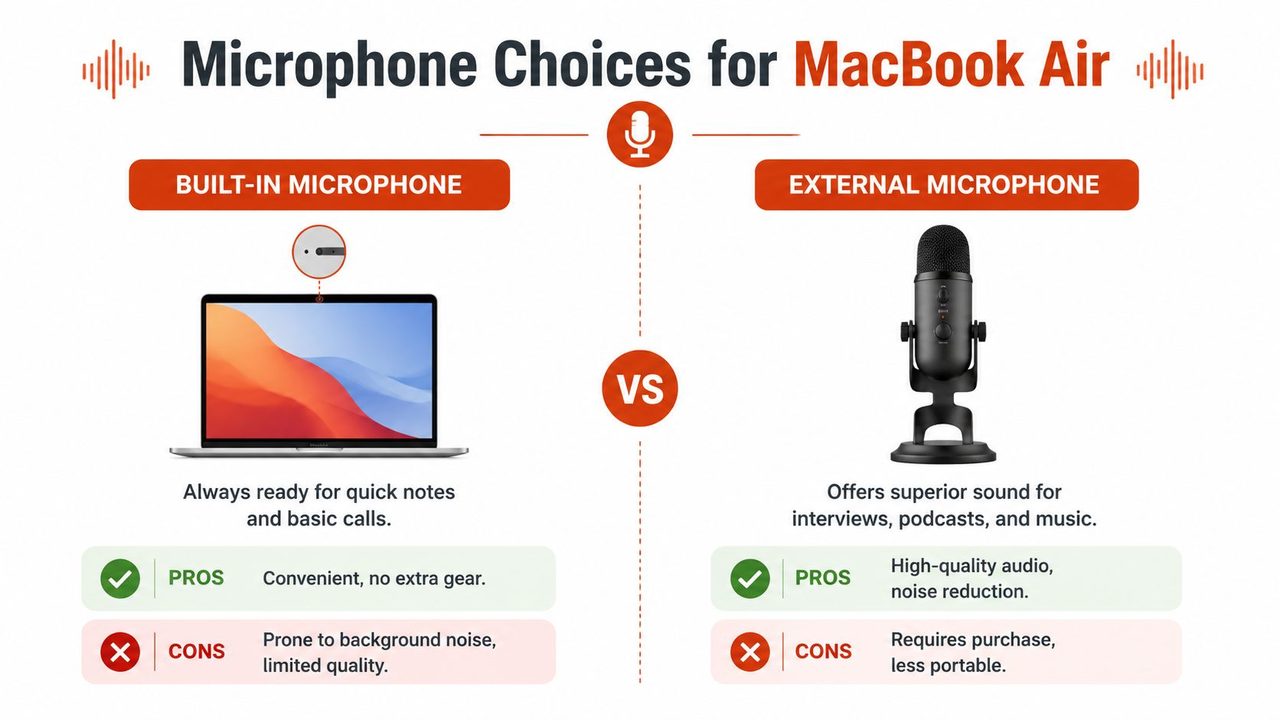
The trade-off is consistency. Built-in mics sit farther from your mouth than a proper spoken-word setup, so they capture more room sound, more laptop noise, and more level changes as you shift position. That is usually acceptable for reminders you will hear once. It becomes a problem when the recording needs to turn into reliable text.
If you plan to capture first and organize later, a quick workflow with Voice Memos on Mac for fast spoken capture is often enough to start. The limit shows up when that rough capture becomes source material for transcripts, client notes, or publishable audio.
When an external USB mic earns its place
An external USB mic gives you control the laptop mic cannot. You can place it close to your mouth, keep the input level more stable, and reduce how much of the room gets into the file. In practice, that usually matters more than any spec sheet.
For spoken-word work, distance is everything. A modest USB mic placed six to ten inches from your mouth will usually beat a more expensive built-in mic that sits two feet away near a noisy keyboard. That is why external mics are the better fit for interviews, narration, dictation you need to trust, and any recording that feeds an AI transcript.
| Feature | MacBook Air Built-In Mic | External USB Mic |
|---|---|---|
| Cost | Included with the laptop | Extra purchase required |
| Setup | Instant | Plug in, select as input |
| Portability | Excellent | Good, but adds gear |
| Audio quality | Fine for quick notes | Better for spoken-word clarity |
| Background noise control | Limited | Better when placed close and aimed well |
| Best use case | Ideas, lectures, casual memos | Interviews, voiceovers, client notes, transcription |
A practical rule I use is simple. If the recording only needs to preserve the thought, the built-in mic is fine. If the recording needs to become accurate text, a deliverable, or something another person will judge, use an external mic.
GarageBand can also make more sense once you add a USB microphone, especially if you want basic monitoring or cleaner exports. This guide to pro GarageBand recording and export is a useful reference for that setup.
If the end product is a document, email draft, meeting summary, or searchable note, treat the microphone as the first writing tool in the workflow. Good capture gives AIDictation cleaner audio to turn into text you can actually use.
Mastering Your Mac's Native Recording Apps
Apple already gives you two useful recording tools. It is recommended to start there before installing anything else.
Voice Memos for fast capture
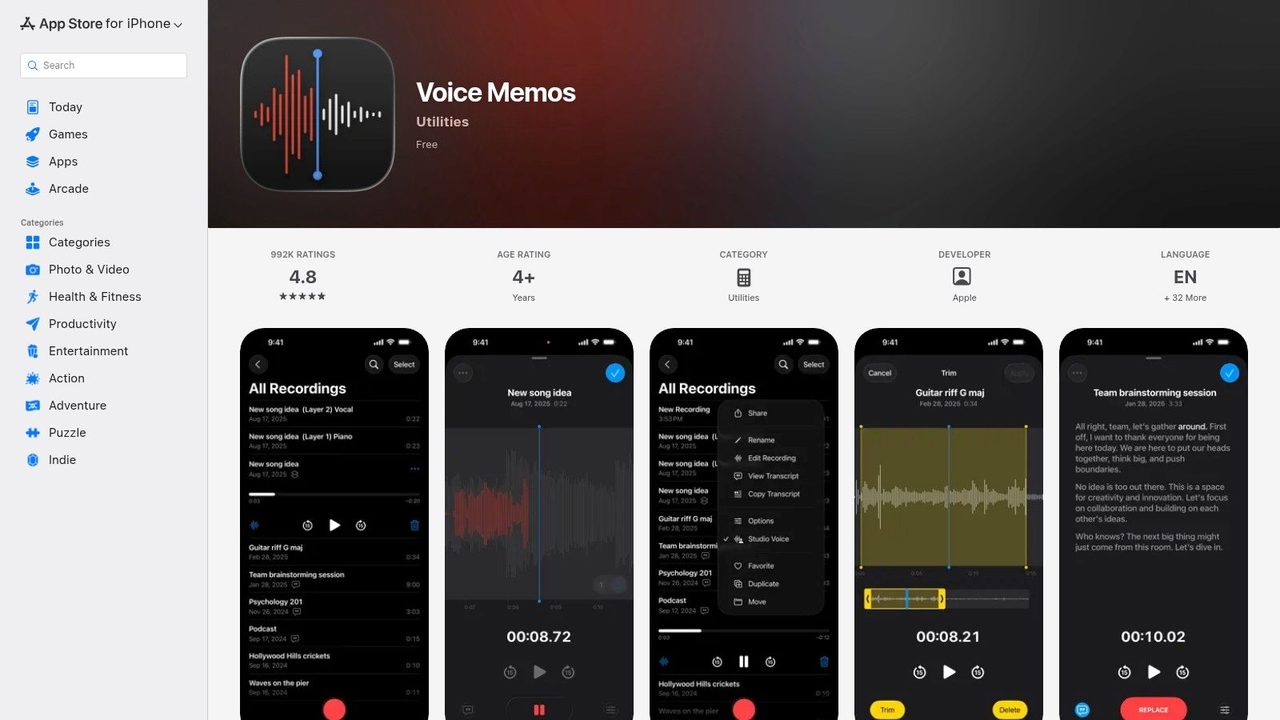
Voice Memos is the fastest built-in recorder on macOS. It has been pre-installed since macOS Sierra, offers uncompressed audio capture, and macOS Ventura added Skip Silence, which automatically removes 70-90% of pauses, as described on the Voice Memos App Store listing.
For everyday use, that makes it the easiest starting point on a MacBook Air:
- Open Voice Memos.
- Confirm your preferred microphone is selected in macOS input settings.
- Press record.
- Speak closer than feels natural. That usually improves clarity.
- Stop, rename the file, and share or sync it.
Voice Memos is especially good if you move between Apple devices. Record on the MacBook Air, then keep working from another Apple device through iCloud sync. If you want a closer look at practical usage patterns, this guide to using Voice Memos on Mac is a helpful companion.
QuickTime Player for simple controlled recording
QuickTime Player is the other native option people forget about. It's cleaner than many third-party utilities when all you need is a straightforward audio file.
The workflow is simple:
- Open QuickTime Player and choose New Audio Recording.
- Pick the input source from the dropdown before recording.
- Record a short test and play it back with headphones.
- Save with a clear filename so you don't end up with “untitled” recordings scattered across your Mac.
QuickTime is useful when you want a self-contained file saved exactly where you choose. It feels closer to a utility than a notes app.
If your work extends into music beds, layered edits, or more structured export, this walkthrough on pro GarageBand recording and export is worth bookmarking.
A quick visual walkthrough helps if you're setting this up for the first time:
Where the native apps start to slow you down
Apple's built-in apps are strong at capture. They're weaker at finishing the job.
Voice Memos is convenient, but its editing is basic. You can trim and share, but once you need richer export options, tighter file control, or a workflow that ends in text, it starts to feel narrow. That's also where many users run into the same frustration noted in forums: post-recording handling feels clunky when the audio needs to become something more usable.
Native apps are good at collecting audio. Professionals usually need help transforming it.
QuickTime has a different limitation. It gives you a simple file, but very little downstream structure. No transcript, no cleanup layer, and no workflow support for converting spoken material into polished writing.
Configuring Your Mac for High-Quality Audio
Good recording quality on a MacBook Air usually comes down to setup, not app choice. I see the same failure points over and over: the wrong input is selected, levels are too hot, the mic is too far away, or the room is doing more talking than the speaker.
Set the input before you hit record
Open System Settings > Sound > Input and verify the microphone you want to use. If you connected a USB mic or headset, confirm macOS switched to it before you launch Voice Memos, QuickTime, or any other recorder.
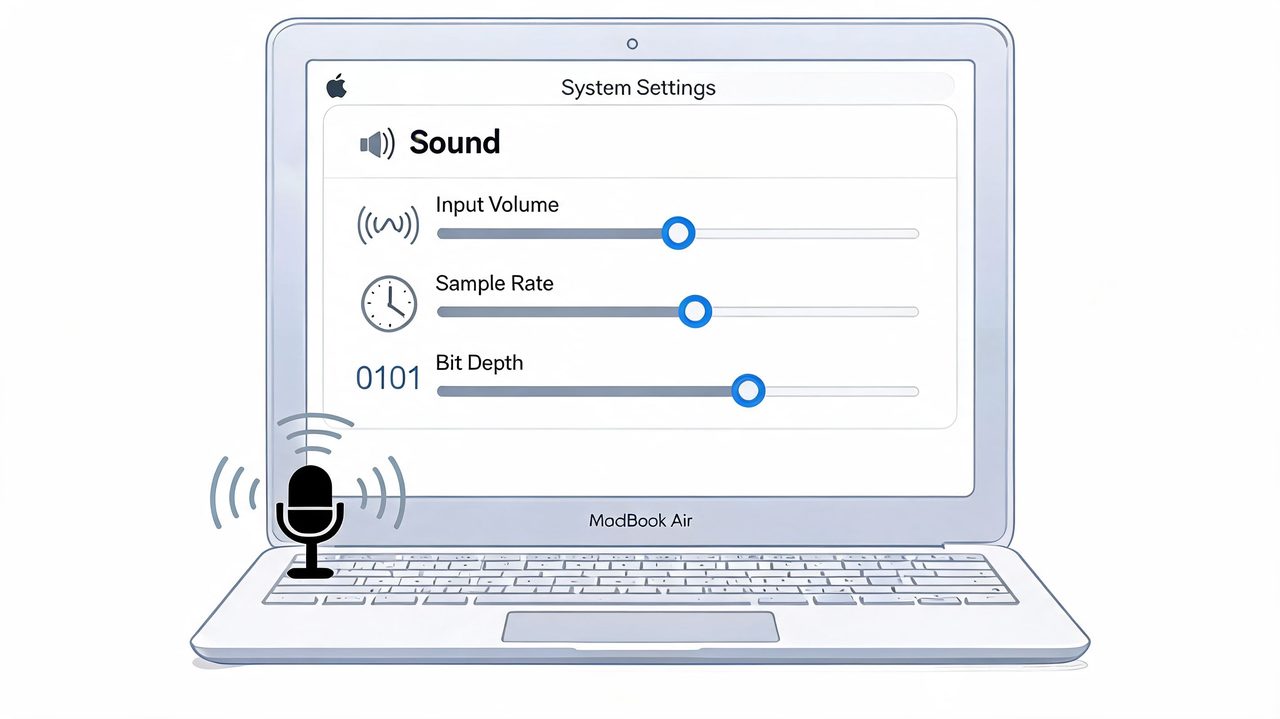
Then do a 10 second test recording.
Listen back on speakers or headphones and check three things. Your voice should be clear, loud enough without straining, and free of clipping on peaks. If loud words distort, lower the input level or move the mic slightly farther away. If the recording sounds distant, get closer before you raise gain. Distance usually hurts intelligibility more than low level does.
Use settings that make speech easier to process
For dictation, meeting notes, and transcripts, cleaner source audio produces better text. The goal is not studio perfection. The goal is consistent speech capture that a transcription tool can read without guessing at consonants, names, or punctuation breaks.
A practical setup looks like this:
- Choose the correct mic pattern or input source if your device offers options.
- Use higher-quality recording settings when available if the file will be transcribed or archived.
- Avoid aggressive compression when clarity matters more than saving space.
- Keep a stable mouth-to-mic distance so level and tone stay consistent across the whole take.
- Record a short sample first and listen for hiss, fan noise, and room tone before the main session.
If your end goal is text, this prep saves time twice. You spend less time repairing the recording, and less time fixing transcript errors after upload. That matters whether you use a native workflow or a dedicated macOS speech to text workflow to turn recordings into usable notes.
Room problems also need to be handled early. If you hear reflections, hollow tone, or speaker bleed, use this guide to fix mic echo before you start chasing software settings.
Fix the room before you fix the file
The MacBook Air will faithfully capture the room you give it. Bare walls, glass, tabletops, and open kitchens make spoken audio harsher and harder to transcribe. Mechanical keyboards and laptop fans are just as damaging because they sit in the same frequency range as parts of speech.
Small changes usually get better results than new software:
- Face soft surfaces such as curtains, a couch, or a full bookshelf.
- Get closer to the mic instead of raising gain from across the desk.
- Put the laptop on a mat or desk pad to reduce reflections off hard surfaces.
- Pause typing while dictating unless your mic rejects off-axis noise well.
- Test every new room with one spoken sentence and a quick playback check.
Better audio starts before the record button. Once the file is clean, the rest of the workflow gets faster, especially if the recording needs to become polished text instead of just staying an audio file.
The Ultimate Workflow From Voice to Text with AIDictation
A lot of recording advice ends too early. It helps you create an audio file, then leaves you there. For most professionals, the audio file isn't the deliverable. The deliverable is the note, summary, email, report, ticket update, or spec.
A workflow that actually finishes the job
The cleanest workflow on a MacBook Air looks like this:
- Capture the best audio you can with Voice Memos, QuickTime, or another recorder.
- Save the file clearly by meeting, topic, or date.
- Transcribe it in a tool built for voice-to-text work.
- Edit the result for the final destination, whether that's Notes, Word, email, or a project tool.
That last step is where a general recorder stops helping. AIDictation serves as a bridge between recording and usable output. On macOS, it can take recorded audio and turn it into cleaned-up text, with different modes depending on whether you need local processing or cloud cleanup. More context on the category is in this guide to a voice type app for Mac workflows.
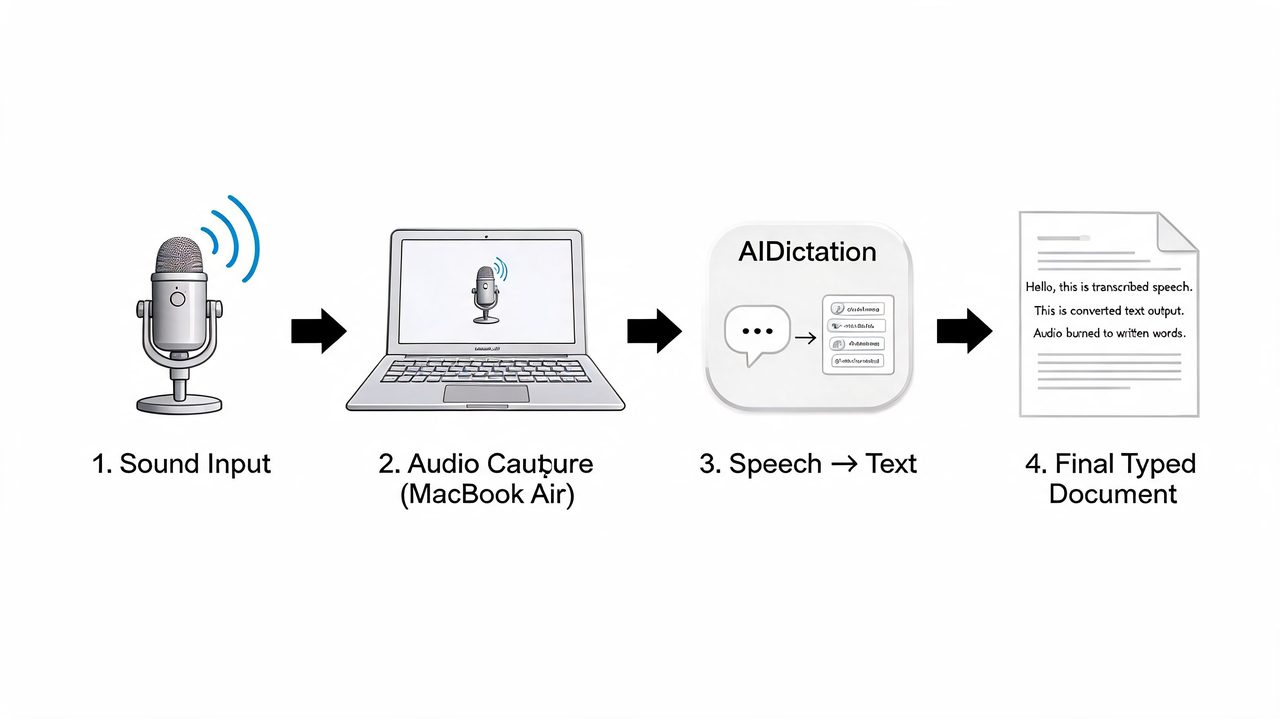
For a product manager, that means a rough meeting recording can become cleaned notes. For a developer, it means spoken implementation thoughts can become readable documentation. For a healthcare professional, it means recorded observations can move toward private, structured text without an awkward copy-paste chain across tools.
Where on-device transcription matters
Privacy has become a real part of the buying decision, not a footnote. Searches for “voice recorder MacBook Air no internet” spiked 145% YoY in 2025, and 72% of knowledge workers avoid cloud apps because of data leak fears, according to WritingMate's AIDictation overview. The same source says on-device models like Parakeet v3 can achieve 92% accuracy even with accents, without data leaving the Mac.
That matters on a MacBook Air because Apple Silicon makes local processing practical. If you're handling sensitive meeting content, internal planning, support communication, or healthcare notes, local-first processing isn't just convenient. It changes which recordings you're comfortable making in the first place.
A private workflow removes hesitation. People record more often when they trust where the audio goes.
Cloud processing still has a place. If your priority is cleanup, formatting, filler-word removal, and producing a polished paragraph quickly, cloud-assisted workflows can save time after the recording is done. The useful distinction isn't local versus cloud in the abstract. It's whether you need privacy first or polish first for this specific file.
What works in practice
A few combinations work reliably on a MacBook Air:
| Recording need | Capture tool | Mic choice | Best follow-up |
|---|---|---|---|
| Fast personal note | Voice Memos | Built-in mic | Transcribe only if the note becomes action |
| Meeting recap | QuickTime or Voice Memos | External USB mic if available | Clean into searchable text |
| Technical dictation | QuickTime | External USB mic | Use custom vocabulary and final formatting |
| Sensitive documentation | Lossless-capable recorder | External USB mic | Keep processing local when possible |
There's also a content angle. If spoken recordings are part of marketing or education, the audio file can feed more than one output. A transcript can become written content, and the same source audio can also support repurposing into short-form media. If that's relevant to your team, this guide on transforming audio into viral videos shows how creators extend value from one recording session.
The main lesson is simple. Don't judge a voice recorder for macbook air only by how fast it starts recording. Judge it by how quickly it gets you from speech to something usable.
Conclusion Your Next Steps in Audio Mastery
A MacBook Air is fully capable of serious voice recording if you treat it like a workflow, not a single app. The microphone choice sets your ceiling. Native apps handle capture well. Settings determine whether the audio stays clean enough for editing and transcription. The final step is turning that recording into text you can use.
For quick notes, the built-in microphone and Voice Memos are often enough. For anything transcript-heavy or client-facing, an external USB mic and better recording settings are worth the effort. That's where the difference between “I recorded it” and “I can work with this” becomes obvious.
The strongest setups are also the simplest. Pick the right mic for the job. Record in the quietest practical space. Use lossless settings when accuracy matters. Then move the file into a voice-to-text workflow that matches your privacy and output needs.
Do that a few times and recording on a MacBook Air stops feeling improvised. It becomes repeatable. That's what makes it useful.
If you want your MacBook Air recordings to end as clean, usable writing instead of raw audio files, try AIDictation. It's built for the part of the workflow most recorder apps ignore: turning speech into polished text with local or cloud processing depending on how private and how refined the result needs to be.
Frequently Asked Questions
What does Unlock Your Voice Recorder for MacBook Air Potential cover?
You open your MacBook Air for a meeting, a lecture, a quick product thought, or a voice note you swear you'll turn into a clean document later. Recording is easy.
Who should read Unlock Your Voice Recorder for MacBook Air Potential?
Unlock Your Voice Recorder for MacBook Air Potential is most useful for readers who want clear, practical guidance and a faster path to the main takeaways without guessing what matters most.
What are the main takeaways from Unlock Your Voice Recorder for MacBook Air Potential?
Key topics include Table of Contents, Introduction From Idea to Audio, Choosing Your Microphone Built-In vs External.
Ready to try AI Dictation?
Experience fast voice-to-text on your device. Free to download.
Download FreeRelated Posts
10 Best Dictate Software for Mac in 2026
Compare the best dictate software for mac in 2026 by accuracy, privacy, pricing, features, and use case—from Apple Dictation to AIDictation.
10 Technical Writing Best Practices for 2026
Master technical writing best practices with actionable guidance on clarity, structure, code, reviews, accessibility, localization, metrics, and dictation.
Voice to Text on Mac: Built-in Dictation vs the Best Apps (2026)
How to use voice to text on a Mac or MacBook: turn on built-in dictation, see where it falls short, and compare the best Mac voice to text apps for 2026.