How to Take Notes Faster: Proven Techniques for 2026
You're in a live meeting, the speaker's moving fast, and your notes are already falling behind. The usual response is to type harder or write faster, but that's the wrong lever. How to take notes faster comes down to a system, not a sprint, and the best systems compress capture, reduce decision fatigue, and leave room for cleanup later.
The old advice still matters. The Cornell note-taking system, widely associated with Walter Pauk's How to Study in College from 1962, uses a 2-inch recall column, a larger notes column, and a bottom summary area, and LibreTexts recommends filling in missing details within 8 hours and no later than 24 hours after class LibreTexts. But modern note-taking has a different pressure point, because lectures, client calls, and hybrid meetings often move too fast for perfect transcription. The winning workflow is a mix of preparation, compressed capture, and cleanup tools that turn rough input into usable writing.
Table of Contents
- Setting Up for Speed Before You Start Writing
- Rapid Capture Techniques for Real-Time Note-Taking
- Typing Shortcuts and Keyboard Efficiency Strategies
- Voice Dictation Workflows for Faster Note Capture
- Post-Capture Cleanup and Summarization Process
- Ready-to-Use Templates and Quick-Start Checklist
Setting Up for Speed Before You Start Writing
Fast note-taking starts before the first word lands on the page. If you are deciding how to label a section while someone is already speaking, you have already lost time. The fix is simple, build the structure first, then let the content fill it in.
Build the page before the event starts
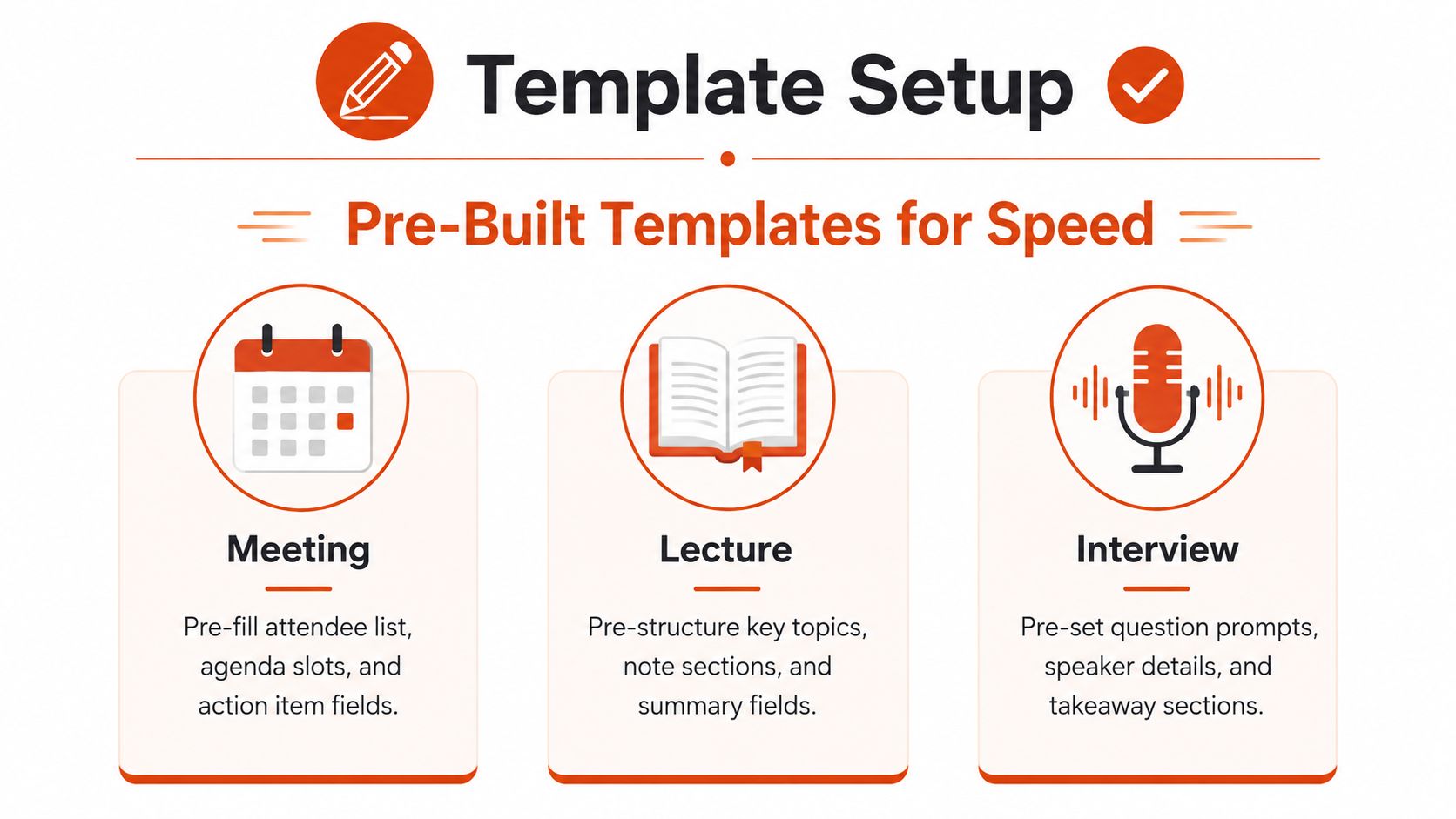
For recurring meetings, set up a template with the fields you always need, such as date, attendees, agenda, decisions, and action items. For lectures, use a structure that matches the subject, for example topic, definitions, examples, and questions. For interviews, pre-fill space for the person's name, the goal of the conversation, key quotes, and follow-up prompts.
The Cornell system is useful here because it gives you a default architecture, main notes, cue questions, and a summary zone. Cornell's Learning Strategies Center also warns against over-transcribing instead of chunking and reducing information, which slows capture and makes review less efficient Cornell LSC. That is where the speed gain comes from, fewer choices while the source is live.
Practical rule: if a meeting or class happens more than once, the template should feel boring. Boring is fast.
A good pre-session routine is to preview the agenda, skim the slide deck, or scan the interview brief, then pre-label the sections you expect to use. UNC's note-taking guidance recommends previewing material first, using abbreviations and symbols, and writing brief summaries and questions afterward UNC Effective Note Taking. That means you are not trying to be clever in the moment, you are removing friction before it appears.

Use one structure long enough to become automatic
Switching formats every day is slow. One week you are doing freeform notes, the next week you are trying a checklist, then you are back to paragraphs. That constant re-deciding costs more than you realize.
Pick one layout for each context and keep it stable. A meeting template should always put decisions and action items in the same place. A lecture template should always leave room for questions at the bottom. An interview template should always separate exact phrasing from your own interpretation, because those are not the same thing.
That consistency pays off when you review the notes later. You can scan for the same anchor points every time, and your hands stop pausing to ask, “Where does this go?” Speed in note-taking often looks like better organization, not faster handwriting.
Rapid Capture Techniques for Real-Time Note-Taking
Once the structure is in place, the aim is to capture meaning, not every word. Slow note-takers usually try to preserve the source verbatim, which is rarely the best use of time unless the exact wording matters. The faster approach is to reduce each idea to its most useful form, then move on.
A live meeting rewards shorthand, not perfection. If you are recording a lecture, a client call, or a hybrid discussion where people speak over one another, the fastest notes are the ones that separate what matters from what can wait for cleanup later. That is the part many traditional handwriting tips miss. Real note-taking now happens in a workflow, not just on a page.
Replace sentences with compressed phrases
Use keywords, short bullets, and fragments instead of full sentences. The practical reason is simple, your hand or keyboard moves faster when it is not building complete grammar in real time.
Compare the two versions below:
- Full sentence, “The team agreed to move the release to next Tuesday because QA found two blocking issues.”
- Compressed note, Release moves to Tue, QA blockers x2
The second version keeps the decision, the reason, and the urgency without wasting time on connector words. That compression also makes the cleanup pass easier, because the note already separates the fact from the filler.
A small shorthand system goes a long way:
- → for leads to or becomes
- + for added value or combined items
- ? for open questions
- ! for decisions or urgent points
- w/ for with
- b/c for because
If you are working across meetings and lectures, the same compression habits also pair well with hybrid capture tools. For example, a quick visual reference from how to create Mac screen captures can back up a short note when the spoken context is moving too fast to transcribe cleanly.
Handwriting and typing both slow down when you try to capture every clause. The fastest notes usually look incomplete in the moment and complete in review.
Capture the main point, then stop
The biggest speed leak is chasing side comments. Someone answers a question, adds a caveat, tells a story, and the note-taker tries to record all of it. That is usually too much. Capture the decision, the constraint, or the insight, then move on.
Selective capture also helps later review. A short note that marks the main point clearly is easier to clean up than a long transcript that hides the useful part inside extra wording. If you need the exact wording of a quote or a number, capture that piece precisely and leave the rest compressed. The same applies when you combine live notes with AI-assisted dictation or cleanup later. The goal is to preserve the useful signal first, then refine it after the meeting ends.
For screen-based work, it can also help to save supporting visuals or a quick screen recording reference for later review. That gives you context without forcing you to transcribe everything while the conversation is still moving.
Typing Shortcuts and Keyboard Efficiency Strategies
Typing can be faster than handwriting, but only if the keyboard is doing real work for you. If you are still hunting for symbols, formatting every line by hand, or typing the same phrases again and again, the speed advantage disappears. The goal is to turn your keyboard into an efficient capture tool.
Shortcut the repetitive parts
Text expansion is the easiest win. Set shortcuts for recurring phrases like “action item,” “follow up,” “needs review,” your department names, frequent client names, and common symbols you use in notes. On macOS and Windows, that setup saves time because you stop retyping what your hands already know.
Use formatting shortcuts too. Learn the commands for bullets, bold, headings, and undo in the app you use. If your note app supports quick navigation, use search and jump-to-date rather than scrolling through old notes manually.
Build a small library of accelerators that matches the way you take notes. A student might need subject-specific terms. A manager might need recurring stakeholder names. A developer might need code-related shorthand. The point is simple, reduce the number of characters your fingers have to produce.
Don't let typing tempt you into over-transcribing
Typing makes it easy to keep up with a fast speaker, which is exactly why it can become a trap. Once the keyboard feels quick, people start copying everything. That is not efficient note-taking, it is a transcript with extra effort.
A better rule is to type only what you would want to scan later. That usually means decisions, tasks, definitions, exceptions, and questions. Everything else belongs in compressed fragments or gets skipped.
For people who want a deeper walkthrough of keyboard-based capture, this guide to how to type faster is a useful companion to the same workflow. The trade-off is straightforward. Typing shortcuts help most when the source is structured and you already know the vocabulary. They help less when the speaker is moving quickly or changing topics mid-sentence.
Voice Dictation Workflows for Faster Note Capture
Voice dictation changes the capture equation because you can speak at the speed of thought instead of the speed of your fingers. That matters in meetings, interviews, and technical walkthroughs where the source is moving too fast for comfortable typing. It also matters when you want a cleaner draft without rebuilding every sentence by hand.
Use dictation as capture, not just transcription
The best dictation setup is one that turns speech into workable text, then cleans it as you go. AIDictation is one option built for that kind of workflow, with Auto Mode that switches between on-device recognition and cloud processing, Local Mode for private offline dictation on Apple Silicon, and Cloud Mode for cleanup, formatting, and filler-word removal. It also supports a custom dictionary for names and technical terms, which matters more than people expect when you're dictating real work.
That workflow helps in several contexts. A clinician can speak a note without stopping to type every phrase. An engineer can dictate technical documentation while keeping momentum. A multilingual professional can speak naturally and produce polished English output afterward.
For interviews and meetings, dictation works best when you treat it like a draft engine. Speak in short chunks, pause at natural breaks, and let the software separate paragraphs or bullet points. If the room is noisy or the speaker has an accent, the cleanup pass becomes just as important as the capture pass.
If you're setting up dictation on a Mac and the microphone feels off, it helps to troubleshoot the input chain before blaming the recognition model. A focused resource like fix dictation mic issues can save a lot of trial and error when the problem is really the microphone, not the transcription.
Match the mode to the situation
Local dictation is the right choice when privacy and speed matter more than polish. Cloud cleanup makes more sense when you need a cleaner draft for email, documentation, or stakeholder notes. Auto mode is the safest default when you're moving between environments and don't want to think about settings every time.
Use voice when the bottleneck is capture, not judgment. If you already know what should be written, dictation removes a lot of friction.
This is also where modern workflows differ from older note-taking advice. Traditional guidance focuses on handwriting and personal shorthand, but today's practical problem is end-to-end speed across hybrid meetings, recordings, and live conversations. Recent guidance increasingly mentions transcription tools, timestamps, and text expansion, which shows the shift from manual capture to assisted capture, while still leaving room for human review recent note-taking guidance. For a more detailed walkthrough of this style of workflow, see voice dictation workflows.
Post-Capture Cleanup and Summarization Process
Fast capture only matters if the notes become usable afterward. Raw notes are supposed to be rough. Leaving them rough forever is the mistake, especially when you need to reuse them later, share them with others, or search through them during a follow-up.
Clean up while the context is still fresh
The best time to clean notes is the same day, while the phrasing and intent are still easy to recall. A practical note-taking workflow keeps the cleanup step close to capture so small gaps do not turn into unreadable shorthand later note-taking workflow. That timing matters because compressed notes can become opaque quickly.
Use a simple cleanup pass:
- Expand shorthand you might forget later.
- Remove duplicate points and side comments.
- Mark decisions, tasks, and open questions.
- Add a short summary at the top or bottom.
- Separate facts from your own interpretation.
That process turns live capture into something reviewable, shareable, and searchable. It also exposes gaps. If you can't reconstruct a line from your shorthand, the template needs to improve, not your typing speed during the next session.
Let the cleanup format fit the audience
A meeting note for your own reference can stay terse. A summary for a stakeholder should be more polished and explicit. A technical note for a teammate should preserve terminology accurately. The format should match the purpose, not the original mess.
AI-assisted cleanup reduces friction without replacing judgment. A tool can remove filler words, normalize grammar, and reformat a rough transcript into bullets or paragraphs. That is useful when you need to move from raw speech to something people can act on. AIDictation's Cloud Mode does that kind of cleanup, while the broader note-taking workflow around it is outlined there.

Summarize for reuse, not decoration
A good summary is short because it is selective. It should capture what changed, what needs attention, and what someone should do next. If the summary only repeats the transcript in cleaner sentences, it still wastes time.
That is where manual review and AI cleanup work best together. Dictation and transcription can get the text into shape quickly, then a human can remove vague wording, verify names or terms, and tighten the final version for the actual reader. In hybrid meetings, that mix usually saves more time than trying to perfect the note in real time, and more time than retyping everything from scratch later.
Ready-to-Use Templates and Quick-Start Checklist
The fastest note systems are the ones you can reuse without thinking. If every session starts from scratch, you're not really building a workflow, you're improvising one. Templates solve that by making the first move automatic.
Three templates that cover most real use cases
Team Meeting Template
- Date
- Attendees
- Agenda
- Decisions
- Action items
- Follow-up date
Use manual capture when discussion is collaborative and you need to track decisions precisely. Use dictation when you need a clean summary after the meeting or when the meeting is being recorded for later review.
Academic Lecture Template
- Topic
- Key terms
- Examples
- Questions
- Summary
Manual capture works well when the lecturer is drawing diagrams or walking through structure slowly. Dictation is more useful for post-class cleanup, especially if you want to turn rough notes into study material.
Research Interview Template
- Participant
- Goal
- Key quotes
- Observations
- Open questions
Manual capture is better when exact wording matters. Dictation becomes valuable after the interview, when you want to turn fragments into a clear write-up.

Quick-start checklist for speed
- Choose one template first. Don't redesign your setup during a live session.
- Add your shorthand. Put your most-used symbols and abbreviations where you can see them.
- Test your keyboard shortcuts. Make sure the app doesn't fight your formatting habits.
- Check dictation input. Confirm the microphone and recognition mode before the meeting starts.
- Leave a cleanup slot. Schedule time to expand and organize notes while the session is still fresh.
The insight is that faster note-taking isn't one method. It's a sequence. Capture fast with the right template, compress while listening, then clean up into something usable before the details fade.
If you want a cleaner way to move from spoken input to usable notes, AIDictation can handle the dictation and cleanup side of that workflow on Mac. Visit AIDictation to see how it fits alongside your templates, shortcuts, and review process.
Frequently Asked Questions
What does How to Take Notes Faster: Proven Techniques for 2026 cover?
You're in a live meeting, the speaker's moving fast, and your notes are already falling behind. The usual response is to type harder or write faster, but that's the wrong lever.
Who should read How to Take Notes Faster: Proven Techniques for 2026?
How to Take Notes Faster: Proven Techniques for 2026 is most useful for readers who want clear, practical guidance and a faster path to the main takeaways without guessing what matters most.
What are the main takeaways from How to Take Notes Faster: Proven Techniques for 2026?
Key topics include Table of Contents, Setting Up for Speed Before You Start Writing, Build the page before the event starts.
Ready to try AI Dictation?
Experience fast voice-to-text on your device. Free to download.
Download FreeRelated Posts
8 Best Bilingual Dictation Apps: 5 Tested + 3 Baselines
We tested five bilingual dictation apps on Russian-English code-switching, plus three common baselines. Compare WER, language recall, script, and workflow.
How to Write Emails Faster: Boost Your Productivity
Discover how to write emails faster with actionable tips for triage, templates, shortcuts, editing, and voice dictation to boost productivity.
How to Take Better Lecture Notes with Voice Dictation
Learn how to capture, clean, and study lecture notes faster using AI voice dictation. Practical workflow tips for students, researchers, and journalists.