Zoom Meeting Transcription: The 2026 Setup Guide
The meeting ended ten minutes ago, but the recording isn't the deliverable anyone needs. A project manager wants the exact decision about the launch date, a legal reviewer needs to check one statement, and someone else is already asking who owns the follow-up tasks. Scrubbing through a video is slow. A transcript is useful only if it exists, can be found, is accurate enough to trust, and is accessible to the right people.
That makes Zoom meeting transcription more than a feature toggle. The practical workflow includes live captions, cloud recording, AI Companion settings, retrieval, export formats, accuracy controls, and permissions. Choose the wrong path at the start, and you'll spend more time repairing the output than using it.
Table of Contents
- Why Zoom Meeting Transcription Is a Workflow Decision
- Enabling Live Captions and Cloud Transcription in Zoom
- Finding, Searching, and Exporting Transcripts After the Meeting
- When a Third-Party Transcription App Beats Zoom's Own Engine
- Boosting Transcript Accuracy Before and During the Call
- Privacy, Compliance, and Admin Controls Around Transcripts
- Troubleshooting the Most Common Transcription Problems
Why Zoom Meeting Transcription Is a Workflow Decision
A Zoom call can produce several different text artifacts, and they aren't interchangeable. Live captions help people follow the conversation while it happens. A saved transcript preserves the spoken record afterward. An AI meeting summary condenses the discussion into decisions, topics, or follow-up material. Confusing these outputs is one of the most common causes of disappointment.
A team might enable captions for accessibility, then discover after the meeting that nobody saved the text. Another team might create a cloud recording and expect a polished set of notes, only to receive a verbatim transcript that still needs review. The recording, transcript, and summary serve different jobs, so the host should decide which one matters before the meeting begins.
Practical rule: Treat captions as a live viewing layer, and treat the cloud transcript as a meeting record with its own storage and access policy.
Zoom's current workflow centers on cloud recordings and AI Companion meeting summaries. Administrators can reach transcripts through the Zoom web portal under Recording and Transcript Management, while users can search transcript text using a meeting ID, topic, host email, or keyword. Zoom also states that AI Companion meeting-summary transcripts have no date limit when filtered, which makes retrieval a structured archive task rather than a hunt through downloaded files. Zoom's transcript management guidance documents that search model.
A useful operational chain looks like this:
- Before the call: Decide whether you need captions, a saved transcript, a summary, or all three.
- During the call: Confirm that the host has enabled the correct feature and that participants know text capture is active.
- After the call: Wait for processing, retrieve the transcript from the portal, and check whether the output is suitable for notes, compliance, or content reuse.
- Before sharing: Correct important names, decisions, and technical terms, then apply the appropriate permissions.
If the transcript is going to become a blog post, customer update, or social content, a separate workflow can help turn the raw conversation into publishable material. ProdShort's guide to automating content creation is relevant when the goal extends beyond storing the meeting record.
The key decision is simple: don't select a transcription method until you know what must survive the meeting. A caption stream may be enough for real-time comprehension. A cloud transcript is better for search and reference. A dedicated transcription tool may be more appropriate when the final output needs editing, speaker separation, or polished prose.
Enabling Live Captions and Cloud Transcription in Zoom
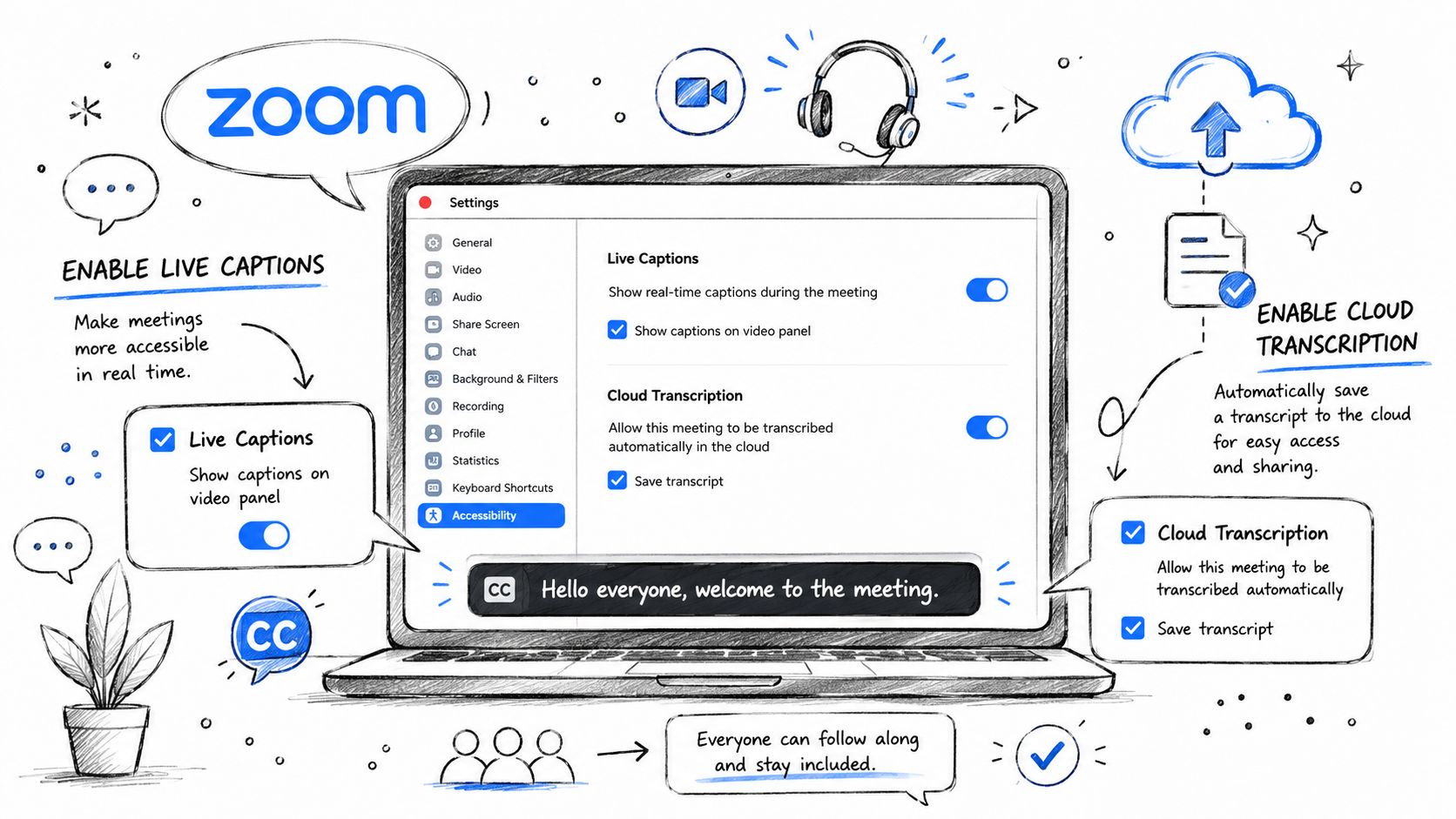
Zoom's settings separate what participants see during a call from what the platform stores afterward. Start with the live experience, then configure the saved record.

Turn on automated captions
As host, open the meeting toolbar and locate Captions. Depending on the Zoom interface, the control may sit under More. Choose the option that enables automated captions, then tell participants that captions are available. Each participant can generally show or hide the captions on their own screen.
This setting controls real-time text on the call. It shouldn't be treated as proof that a permanent transcript will appear later. If your purpose is accessibility or comprehension, live captions may solve the problem. If your purpose is documentation, continue with the cloud recording configuration.
Configure the saved transcript path
For a post-meeting transcript, the host or administrator needs the relevant cloud recording and transcript options enabled. Cloud recording keeps the meeting media in Zoom's hosted recording workflow, where audio, video, and transcript artifacts can be processed together. Account eligibility and plan configuration affect which recording and AI Companion controls are available, so check the settings exposed to your account rather than assuming every workspace has the same options.
AI Companion introduces a separate path for meeting summaries and related transcript material. If your organization allows it, enable the applicable AI Companion meeting-summary setting and confirm who can initiate it. Many rollouts fail here: an administrator enables a feature at account level, but hosts still lack permission, or the host records locally instead of to the cloud.
Use this account-level checklist:
- Recording location: Confirm that the meeting records to the Zoom cloud when a saved transcript is required.
- Transcript capability: Check that the account exposes the audio transcript or AI Companion transcript option.
- Host permissions: Verify that hosts can start the feature and retain the resulting material.
- Participant notice: Explain whether captions, recording, or AI-generated notes are active.
- Output expectation: Tell the team whether they'll receive a verbatim transcript, a summary, or both.
For teams that regularly convert calls into editable text, a dedicated meeting transcription workflow can sit alongside Zoom rather than replacing its live captioning. The important distinction is operational. Zoom handles the meeting environment and native cloud artifacts. An external app may handle cleanup or repurposing after the recording exists.
Don't enable every text feature indiscriminately. Start with one meeting type, verify the resulting files and permissions, and then create a repeatable policy for recurring meetings.
Finding, Searching, and Exporting Transcripts After the Meeting
The transcript is only useful if someone can retrieve it without replaying the meeting. Zoom's web portal is the control point for that process. Administrators can use Recording and Transcript Management, and users can search by meeting ID, topic, host email, or keyword, as described in Zoom's transcript retrieval documentation.
Use search before opening files
Start with the search field instead of browsing recordings one by one. Search for a project term, the host's email, or a distinctive phrase from the discussion. This approach works especially well for teams with recurring meetings because it treats transcripts as an archive rather than isolated downloads.
Zoom says there is no date limit when filtering AI Companion meeting-summary transcripts. That means older material can remain discoverable through the same search workflow, subject to the access and retention rules configured by the organization. Don't confuse search availability with indefinite preservation. A transcript may be searchable while it exists, but administrators can still control whether records are retained or removed.
Select the right export
Use the format that matches the next system:
| Format | Best use |
|---|---|
| TXT | Editing, copying into notes, or sending plain text |
| VTT | Keeping time-coded text aligned with recorded media |
| In-meeting download | Giving a participant a direct copy when the meeting controls allow it |
A VTT file is useful for media workflows because timing information travels with the text. It can look awkward in a standard document editor, though, especially if the receiving tool doesn't interpret caption metadata. TXT is cleaner for editorial review, but it loses the timing structure that helps someone jump back to the recording.
Before sharing, inspect the transcript for speaker attribution, names, product terms, and decisions. A transcript isn't automatically a finalized meeting record. Mark uncertain passages, correct high-impact errors, and separate factual notes from interpretation.
The final question is permission, not format. A person who can view a recording may not have the same rights to download or retain its transcript. Check the share settings and the administrator's policy before sending the file outside the original meeting group.
When a Third-Party Transcription App Beats Zoom's Own Engine
Zoom's native transcript is often the most convenient option because it stays close to the meeting, recording, and account permissions. Convenience isn't the same as suitability, though. A built-in transcript can be the right archive artifact and still be the wrong draft for a client email, technical specification, or publishable article.
The first comparison point is quality measurement. Zoom's commissioned benchmark reported a 7.40% word error rate for Zoom AI transcription in controlled real-meeting scenarios. The test used repeated meetings with two, four, and sixteen participants, run five times per platform, and reported fewer errors for Zoom than the tested Webex and Microsoft systems in that test set. Zoom's AI performance report provides the methodology and comparison.
That result is useful, but it shouldn't become a universal promise. Real rooms contain overlapping speakers, poor microphone placement, accents, background noise, and specialized vocabulary. A transcript can perform well in a controlled benchmark and still need substantial editing in a noisy conference room.

Choose based on the output, not the brand
A third-party app becomes more attractive when you need:
- Cleaner prose: Raw speech includes filler words, repetitions, and self-corrections that don't belong in a final document.
- A different privacy model: Local processing may be preferable when the recording shouldn't leave a controlled device.
- Post-call editing: A dedicated audio or video transcription workflow can turn a rough recording into text designed for reading.
- Cross-platform intake: The source may come from Zoom, another meeting platform, or an in-person recording.
AIDictation supports a local workflow on Apple Silicon through Local Mode, where processing runs on the device, and a Cloud Mode that adds cleanup, formatting, filler-word removal, and handling for self-corrections. Those are different trade-offs, not interchangeable buttons. Local processing favors control over the recording, while cloud processing can provide more transformation after recognition.
Consider a Zoom cloud recording that contains the right information but reads poorly. Export the audio or video, run it through a transcription workflow, and review the resulting paragraphs against the recording before distributing them. If the source is a short clip rather than a complete meeting, a service for transcribing short-form clips with AI may be a better fit than importing the entire call.
Keep Zoom's native transcript when discoverability and administrative continuity matter most. Use an external tool when the deliverable is edited writing, when the source is noisy, or when the meeting spans tools that don't share one transcript archive.
Boosting Transcript Accuracy Before and During the Call
Accuracy starts with configuration, not proofreading. The most consequential choice is whether the team uses the AI Companion transcript path or an older Zoom transcription path.
A University of Colorado Boulder OIT evaluation found a major configuration difference. AI Companion transcripts were accurate 85% of the time, compared with 48% for Zoom transcripts without AI Companion, while third-party transcripts of imported Zoom recordings ranged from 75% to 96% accuracy in that evaluation. The university's transcription evaluation shows why a generic statement about “Zoom accuracy” isn't enough. You need to name the workflow that produced the text.
Zoom's own benchmark uses another metric, word error rate, or WER. Its report measured a 7.40% WER for Zoom AI transcription in controlled real-meeting scenarios. A lower WER means fewer word-level recognition errors in that test, but the number still reflects a particular test design rather than every team's room, language, microphone, and vocabulary. The benchmark methodology belongs beside the result.
Remove preventable noise
Use an external microphone or headset where possible, especially for people joining from shared rooms. Ask non-speakers to mute, and avoid letting several people answer at once. Crosstalk creates ambiguity that no export format can repair reliably.
Names and technical terms deserve special attention. If a third-party tool supports a custom dictionary, add product names, customer names, acronyms, and domain vocabulary before processing. A clean microphone helps recognition, while a dictionary helps the engine choose the right spelling when the sound is already clear.
Accuracy is an input problem first. Better audio and disciplined turn-taking reduce the amount of editorial repair after the meeting.
Run this short preflight before important calls:
- Select the engine: Confirm whether AI Companion transcription is enabled rather than relying on an older path.
- Test the microphone: Listen for room echo, keyboard noise, and inconsistent volume.
- Control the room: Close competing audio sources and mute people who aren't speaking.
- Set the language: Match the transcription locale to the meeting's dominant language.
- Protect proper nouns: Prepare custom dictionary entries in the external tool if names or technical terms matter.
- Assign a reviewer: Decide who checks decisions and action items before the transcript is shared.
The final step is editorial judgment. Don't treat a transcript as authoritative when a disputed sentence affects a contract, clinical record, research result, or customer commitment. For teams working with difficult audio, guidance on speech recognition in noisy environments can help shape a more reliable capture setup. If the same spoken material will become a video asset, an AI video creation platform may belong later in the workflow, after the transcript has been checked.
Privacy, Compliance, and Admin Controls Around Transcripts
A transcript changes the governance profile of a meeting. Live captions disappear from the participant's immediate view, while a saved transcript can become a searchable record that people download, retain, quote, or combine with other systems. That distinction matters for healthcare teams, schools, regulated businesses, and organizations operating across borders.
Zoom's support materials describe administrator controls over whether hosts can retain, view, delete, or download transcripts as VTT files. Zoom also announced changes in August 2026 clarifying the difference between live accessibility captions and saved meeting transcripts. Zoom's guidance on transcript controls is the appropriate reference for mapping those controls to your account.
Build a policy around the record
Some university guidance warns that transcript visibility and saving may be enabled by default in certain configurations. That creates a practical risk: participants may be able to view or save text even when the host hasn't considered the transcript a formal deliverable. Administrators should test the participant experience, not just the host dashboard.

A workable governance checklist should answer four questions:
- Consent: Does the host tell participants that recording, captions, or transcription is active?
- Retention: How long should the transcript remain available for this meeting type?
- Access: Which hosts, administrators, departments, or external guests can view or download it?
- Redaction: Who removes sensitive details before the record reaches a wider audience?
Don't let accuracy and privacy become separate projects. The better the transcript, the more useful and potentially more sensitive it becomes. A highly searchable record can expose names, decisions, health information, student information, or commercially sensitive discussions more efficiently than a raw recording.
For teams evaluating local processing or external tools, document where audio and text travel, who can administer the account, and whether the output is copied into another workspace. Data security best practices for dictation workflows can provide a useful comparison point, but your own legal, security, and retention requirements still determine the acceptable configuration.
The safest default is not “transcribe everything.” Classify meeting types, limit access, disclose capture, and make deletion rules clear. Transcription has become an enterprise governance artifact, not merely an accessibility add-on.
Troubleshooting the Most Common Transcription Problems
Most failures come from configuration, not mysterious processing behavior. Use a decision tree instead of trying random settings.
The transcript icon doesn't appear
First check whether you're the host and whether automated captions are enabled for the account. If the control is missing, review administrator restrictions and the features available to your plan. Don't troubleshoot export files until the live control exists.
The post-meeting file is empty
Confirm that the meeting used cloud recording and that the transcript option was enabled before the call. If those settings were correct, allow processing to finish, then check the recording and transcript management area rather than relying only on the desktop client.
AI Companion won't create the expected summary
Check whether AI Companion is permitted for the account and whether the host can initiate the feature. Also confirm that the meeting configuration produced the source material the summary needs. A recording alone doesn't guarantee that every AI Companion output will be available.
The VTT file looks broken elsewhere
VTT is a caption format, so another application must support its timestamp and cue structure. Try opening the plain-text export for editorial use, or use a media player that understands VTT when timing matters. A locale mismatch can also produce poor punctuation, names, or language handling, so verify the receiving tool's language settings.
Zoom's direction also extends beyond conventional meetings. In 2025, Zoom announced that AI Companion 3.0's My Notes would support transcription for in-person meetings, Zoom Meetings, and meetings on other platforms, including Microsoft Teams, Google Meet, and WebEx, with some availability described as forthcoming in the announcement. Zoom's AI Companion 3.0 announcement points toward a broader capture workflow, but the same governance questions still apply: who recorded the conversation, where the transcript lives, and who can use it?
AIDictation can turn supported audio or video recordings into editable text, with Local Mode for on-device processing on Apple Silicon and Cloud Mode for cleanup and formatting. If you need a more polished transcript after a Zoom call, visit AIDictation and choose the processing path that matches your privacy and editing requirements.
Frequently Asked Questions
What does Zoom Meeting Transcription: The 2026 Setup Guide cover?
The meeting ended ten minutes ago, but the recording isn't the deliverable anyone needs. A project manager wants the exact decision about the launch date, a legal reviewer needs to check one statement, and someone else is already asking who owns the follow-up tasks.
Who should read Zoom Meeting Transcription: The 2026 Setup Guide?
Zoom Meeting Transcription: The 2026 Setup Guide is most useful for readers who want clear, practical guidance and a faster path to the main takeaways without guessing what matters most.
What are the main takeaways from Zoom Meeting Transcription: The 2026 Setup Guide?
Key topics include Table of Contents, Why Zoom Meeting Transcription Is a Workflow Decision, Enabling Live Captions and Cloud Transcription in Zoom.
Ready to try AI Dictation?
Experience fast voice-to-text on your device. Free to download.
Download Free