Typing and Carpal Tunnel: Beat Wrist Pain Now
The most common advice about typing and carpal tunnel is too blunt. “Stop typing” sounds simple, but it doesn't match how many individuals work or what the evidence shows.
If you're an office worker, developer, manager, student, or clinician, you probably can't just abandon your keyboard. The better question is this: how do you lower wrist strain while still getting your job done? That's where a mixed-mode approach helps. You reduce the amount of high-volume typing, keep the keyboard for short, precise tasks, and use voice dictation for the long stretches that usually overload your hands.
Table of Contents
- What Is Carpal Tunnel Syndrome Really
- The Surprising Truth About Typing and CTS Risk
- Recognizing Early Symptoms and When to See a Doctor
- Ergonomic Strategies for Prevention and Pain Relief
- Effective Habits and Exercises to Reduce Strain
- Adopt a Smarter Workflow with Voice Dictation
- Medical Treatments and Your Path Forward
What Is Carpal Tunnel Syndrome Really
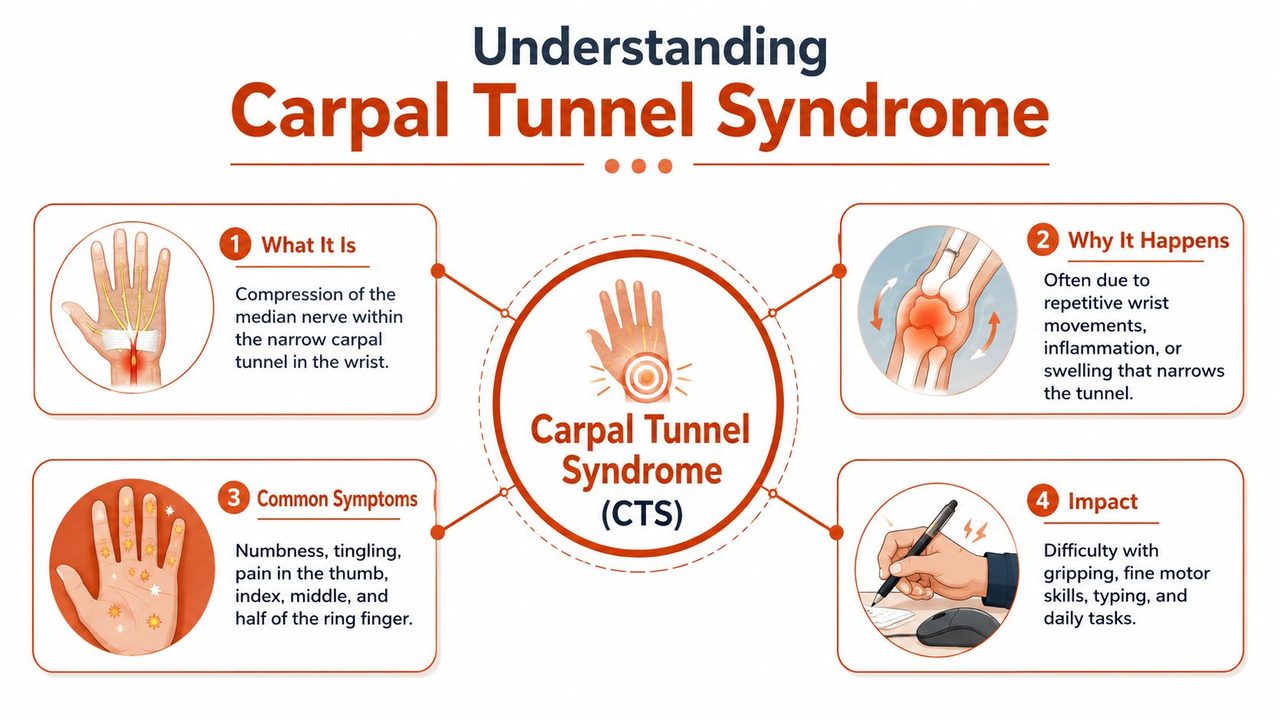
Carpal tunnel syndrome, or CTS, is a compression problem. It happens when the median nerve gets squeezed as it travels through a narrow space in the wrist called the carpal tunnel.
Think of the carpal tunnel like a tight passageway
A simple way to picture it is to imagine a bundle of cables running through a narrow conduit in a wall. If the conduit gets crowded or bent, the cables don't transmit cleanly. In your wrist, the “cable” is the median nerve. The “conduit” is a small tunnel formed by wrist bones and a strong band of tissue called the transverse carpal ligament.
When that space gets irritated, swollen, or mechanically stressed, the nerve has less room. That can lead to tingling, numbness, pain, or hand weakness. The symptoms usually show up in the thumb, index finger, middle finger, and part of the ring finger because that's the territory the median nerve serves.
If you're trying to sort out whether your symptoms fit this pattern, this overview on understanding carpal tunnel symptoms can help you compare what you're feeling with the more typical nerve-related signs.
Why pressure matters more than repetition alone
Many people find this confusing. They hear “repetitive strain” and assume any repeated movement must directly cause CTS. But repetition by itself isn't the whole story. What matters is whether a task increases pressure in the tunnel, especially if your wrist bends away from a neutral position or you use more force.
Research summarized by the CDC shows that typing raises carpal tunnel pressure compared with holding the hand in the same static posture, and wrist position can make that pressure much worse. At 20° of ulnar deviation, pressure can rise to about 50 mm Hg, a level associated with compromised median nerve health, according to this CDC evidence on typing posture and carpal tunnel pressure.
Key idea: CTS isn't just about moving a lot. It's about whether your nerve is being crowded, compressed, or irritated while you move.
That's why two people can type for similar amounts of time and have very different outcomes. One keeps the wrists fairly straight and uses a light touch. The other bends the wrists, hovers in tension, grips the mouse tightly, and works through discomfort for hours. The second pattern creates a very different mechanical load.
The Surprising Truth About Typing and CTS Risk
Here's the contrarian part. For many office workers, the keyboard is not the main problem people assume it is.
Research has not shown a simple, straight-line relationship where more typing automatically means more carpal tunnel syndrome. In one PubMed-indexed study, workers with intensive keyboard use had lower CTS prevalence than workers with no keyboard use at work, and a meta-analysis in the same paper pointed in a similar direction. You can review those findings in this PubMed study on keyboard use and CTS prevalence.
That finding surprises people because “repetitive strain” sounds like repetition alone should explain everything. It doesn't. Office hand strain works more like traffic building up in a narrow tunnel. The number of cars matters, but congestion gets much worse when lanes narrow, speeds change, and drivers stay tense on the brakes. In the hand, those added stressors are usually awkward wrist position, sustained muscle tension, gripping, and long uninterrupted bouts of input.
That helps explain why typing often gets blamed for problems that are partly coming from the mouse, from posture, or from sheer exposure time without enough variety.
What tends to raise risk more at a desk
Researchers studying office work have found more concern around heavy mouse use than keyboard use alone. A systematic review in Occupational Medicine reported an association between mouse use and hand or arm symptoms, while the relationship with keyboard use was less consistent across studies. You can read that summary in this review of computer work exposure and musculoskeletal symptoms.
That distinction matters in daily life. Mouse work often combines small repeated movements with low-level gripping and a steady, held posture. Many workers do not notice that they are “squeezing” the mouse until they consciously relax their hand. Typing can also irritate symptoms, especially during long sessions, but the pattern is often different. The keyboard tends to become more problematic when speed, force, bent wrists, and lack of breaks pile on top of each other.
A practical way to look at desk risk is this:
| Work pattern | Why it matters |
|---|---|
| Short typing bursts with neutral wrists | Usually lower strain for many office workers |
| Long mouse-heavy sessions | Adds gripping, hovering, and sustained tension |
| Fast typing with a hard strike | Increases tendon and muscle load |
| One input method for hours | Gives tissues too little variety and recovery |
A useful goal is not “stop typing forever.” It is “lower total keyboard and mouse load, then spread the remaining load more intelligently.”
That is why a mixed-mode workflow makes sense for professionals who cannot abandon the keyboard. Keep the keyboard for short emails, passwords, spreadsheet edits, and quick corrections. Shift high-volume drafting to voice dictation when possible, such as meeting notes, first drafts, case summaries, or long messages. This approach reduces repeated keystrokes without asking you to work in an unrealistic way.
If your symptoms make you wonder whether the problem is CTS or another nerve issue, this guide to pinched nerve care can help you understand the overlap.
The bigger takeaway is reassuring. Many office workers do not need to fear every minute of typing. They usually do better by lowering force, reducing long mouse sessions, changing positions sooner, and using a mixed keyboard-plus-voice workflow for heavy text production.
Recognizing Early Symptoms and When to See a Doctor
CTS often begins subtly. People usually don't describe it as dramatic pain at first. They talk about tingling at night, fingers that feel “asleep,” or a hand that doesn't feel quite normal during keyboard or mouse work.
Early warnings
Early symptoms often come and go. You might notice:
- Tingling in the thumb, index, or middle finger
- Numbness that wakes you at night
- A hand that feels clumsy after long computer sessions
- Relief when you shake the hand out
At this stage, symptoms may be intermittent. That can make them easy to dismiss, especially if your workload is heavy and the discomfort fades by morning.
Developing problems and red flags
As symptoms progress, you may notice that they show up during the day, not just at night. Gripping a phone, holding a mug, buttoning clothes, or using a mouse for a long stretch may become more annoying. Some people start dropping objects or avoiding tasks that require fine finger control.
A useful way to think about progression:
- Early warnings: occasional tingling, nighttime numbness, mild symptoms after work
- Developing problems: more frequent daytime symptoms, reduced grip confidence, hand fatigue with routine tasks
- Advanced issues: persistent numbness, clear weakness, difficulty with fine motor tasks even when you're not working
If numbness becomes constant, weakness is noticeable, or symptoms keep interrupting sleep, it's time for a clinical evaluation.
Some wrist and hand symptoms can also come from a different nerve problem higher up the arm or neck. If you're unsure whether your symptoms fit CTS or something else, this guide to pinched nerve care offers a helpful comparison of nerve-related symptoms and when they deserve professional attention.
See a doctor sooner if:
- Symptoms are getting more frequent instead of settling down.
- You're losing grip strength or dropping items.
- Night symptoms are disrupting sleep regularly.
- Self-care changes aren't helping after a reasonable trial.
- You have constant numbness, not just brief tingling.
The goal isn't to alarm you. It's to catch a nerve problem before it becomes harder to reverse.
Ergonomic Strategies for Prevention and Pain Relief
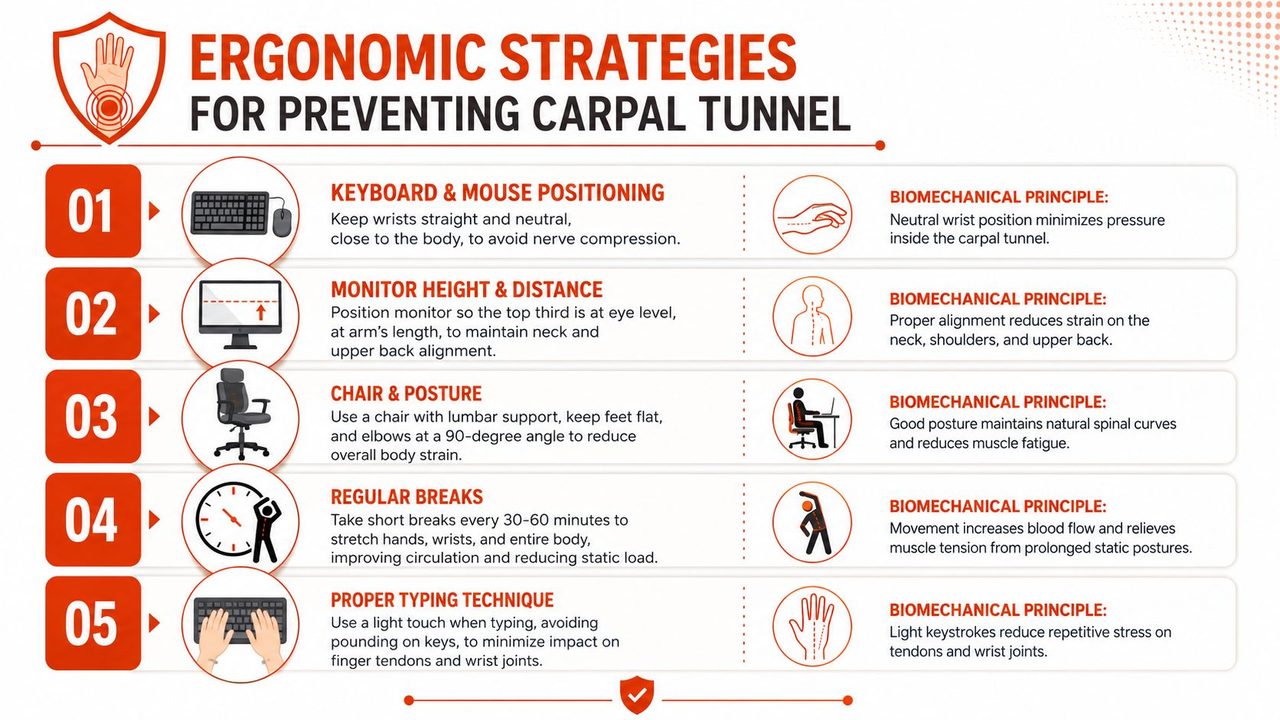
Most ergonomic advice is too vague to be useful. The main target is simple: keep the wrist as neutral as possible, meaning not bent up, down, or sideways for long periods.
Research shows that maintaining a neutral wrist position is the primary ergonomic intervention to reduce pressure in the carpal tunnel. It also shows that continuous typing changes the median nerve, and that deformation is greater with a 20° positive keyboard tilt than with a flat keyboard, based on this PMC review of keyboard tilt, median nerve deformation, and neutral wrist posture.
Build around a neutral wrist
If your keyboard is propped up on the back legs, your wrists often extend upward to match it. That position may feel familiar, but familiar isn't the same as low-strain. A flatter keyboard, or one with a slight negative tilt, usually makes it easier to keep the forearm, wrist, and hand in a straighter line.
That same principle applies to the mouse. If the mouse is far from your body, you tend to reach, abduct the shoulder, and carry extra tension all the way down the arm. A better setup brings the mouse close enough that your elbow stays near your side and your wrist doesn't have to twist to control it.
A simple workstation audit
Use this checklist from the floor up rather than starting with gadgets.
- Feet and chair: Put your feet flat on the floor or on a stable footrest. Your chair should support your back so you're not collapsing forward.
- Elbows and desk height: Let your elbows rest comfortably by your sides, roughly around a right angle. If the desk is too high, your shoulders rise and your wrists often compensate.
- Keyboard position: Keep it close enough that you don't reach. A flat or slightly negative angle is usually friendlier than a raised positive tilt.
- Mouse placement: Keep it beside the keyboard, not off to the side where you have to stretch.
- Monitor height: The top portion of the screen should be around eye level so you're not craning your neck and loading the whole upper limb.
A short table can help you spot common mistakes:
| Setup issue | What usually happens |
|---|---|
| Keyboard too high | Wrists extend and shoulders tense |
| Keyboard tilted up | Wrist angle increases |
| Mouse too far away | Arm reaches and grip tension rises |
| Chair too low | You shrug or bend wrists to compensate |
| Monitor too low | Head drops forward and arm posture worsens |
Wrist rests are another area where people get mixed messages. They can be helpful during pauses, but they aren't meant to be pressure points while you type. If you press your wrists into a pad as you work, you may add more compression right where you're trying to create space.
Practical rule: support the forearms, not the wrist crease itself.
If you want a broader workflow view of reducing keyboard load across the day, this article on voice dictation workflows for everyday computer tasks pairs well with ergonomic changes because it tackles exposure, not just posture.
Effective Habits and Exercises to Reduce Strain
A well-adjusted desk is only part of the picture. Your hands also respond to how you work minute by minute. Carpal tunnel risk rises more when tasks involve repeated hand use plus forceful gripping, pressing, or pinching, which is why gentle technique and smarter pacing matter as much as equipment. The National Institute for Occupational Safety and Health discusses these exposure patterns in its overview of work-related musculoskeletal disorders and physical risk factors.
Lower the effort your hands use
Typing time gets a lot of attention, but force is often the hidden part. A keyboard key needs only a small press. If you strike hard, hold your shoulders tight, or squeeze the mouse like a tool that might slip, you ask the forearm muscles to stay switched on longer than they need to. Those muscles act like the upstream pulleys for the tendons that pass through the carpal tunnel.
Start with small changes you can feel right away:
- Use a softer keystroke: Press only hard enough for the key to register.
- Rest on the mouse instead of gripping it: Your hand should feel placed, not clamped.
- Relax during thinking pauses: Let your hands drop to your lap or the desk instead of hovering.
- Shorten long typing runs: Symptoms often build during the second or third uninterrupted block, not the first.
A simple cue helps. At the end of each email, paragraph, or task, unclench your jaw, lower your shoulders, and let your fingers go loose for a few seconds. That quick reset is like taking your foot off the gas at a red light. The engine keeps working, but the strain drops.
If desk work fills most of your day, this guide to repetitive strain prevention for desk-based work gives practical ways to reduce total exposure, not just improve posture.
Use movement as a reset, not a test
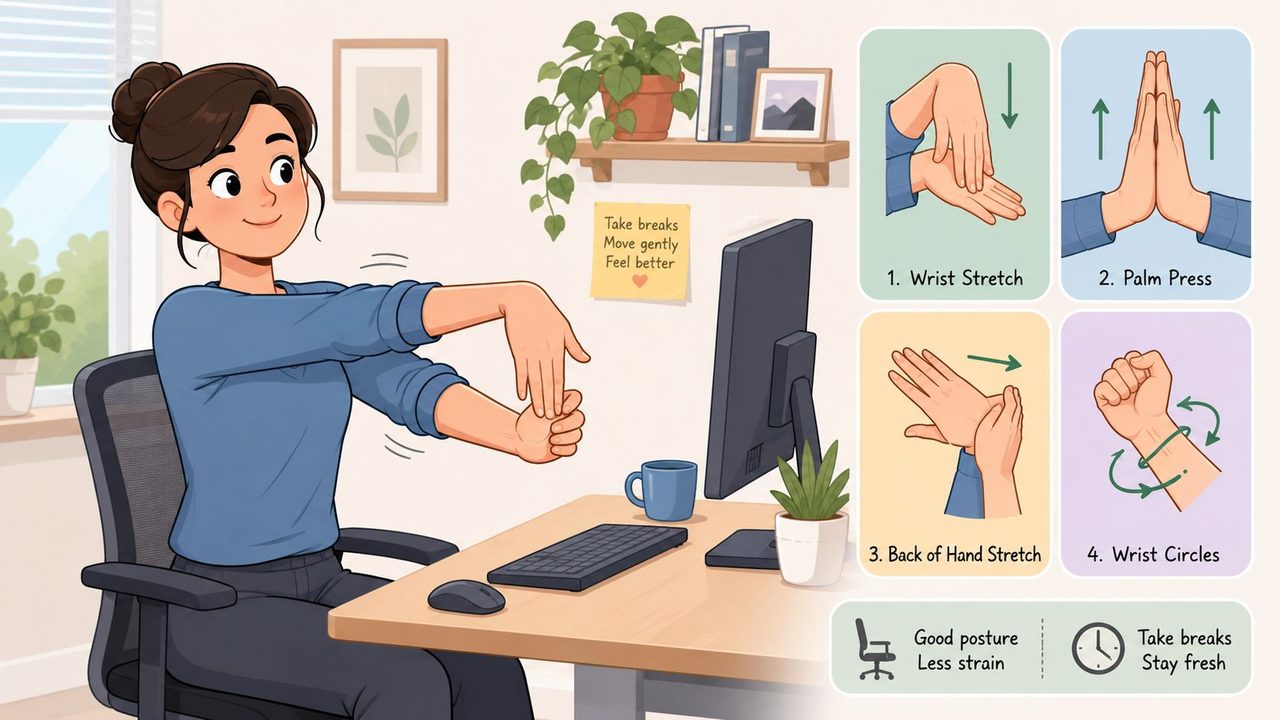
Exercises can calm stiffness and improve tendon motion, but they should feel easy. They are not meant to prove how far you can stretch. If a movement increases tingling, numbness, or burning, that is your signal to ease off.
1. Wrist flexor stretch
Straighten one elbow with the palm facing up. With the other hand, gently draw the fingers back until you feel a mild stretch along the inner forearm. Mild is the goal.
2. Wrist extensor stretch
Straighten one elbow with the palm facing down. Use the other hand to bend the wrist so the fingers point toward the floor. You should feel this more along the top of the forearm than inside the wrist.
After a few minutes of explanation, it helps to watch a movement demonstration:
3. Tendon glides
Begin with the fingers straight. Move into a hook fist, then a full fist, then a straight fist, returning to straight fingers between positions. Picture the tendons sliding like cables through a sleeve. Smooth motion is more useful than a strong stretch here.
A few guardrails can keep these drills helpful:
- Stop if numbness spreads or lingers more: Nerves do not respond well to being pushed through irritation.
- Avoid forceful stretching or repeated joint cracking: More intensity does not mean more benefit.
- Use exercises to support a broader plan: If symptoms keep returning, reducing total keyboard load usually matters more than adding extra stretches.
That last point is easy to miss. Many office workers try to stretch their way out of a workload problem. A better approach is to combine brief movement breaks with a mixed-mode workflow, so your hands are not doing every long-form task by keyboard alone.
Adopt a Smarter Workflow with Voice Dictation
A practical answer for many professionals isn't quitting the keyboard. It's changing which tasks deserve your hands.
Use the keyboard for short work and voice for long work
The mixed-mode approach is straightforward. Keep typing for brief, precise actions where the keyboard is efficient. Offload long-form drafting to voice. That lowers total keyboard exposure without forcing you into an all-or-nothing system.
This works especially well for:
- Emails and status updates
- Meeting notes
- First drafts of reports or specs
- Clinical documentation
- Brainstorming and outlines
The keyboard still makes sense for:
- Short edits
- Hotkeys and navigation
- Code changes
- Table cleanup
- Quick form entries
One practical way to start is to create your own switch rule. For example, if the task is a paragraph, a summary, or a long email, dictate it. If the task is a short reply, a filename, a command, or a small correction, type it. The exact cutoff doesn't need to be perfect. What matters is reducing the longest, most repetitive keyboard blocks.
Use voice for generation. Use the keyboard for precision.
What this looks like in a real workday
A product manager might dictate the first pass of a feature spec, then use the keyboard to tighten headings and adjust bullets. A developer might dictate comments, documentation, or issue summaries, then type code and shortcuts. A clinician might speak the narrative portion of a note and use the keyboard for brief edits inside the EHR.
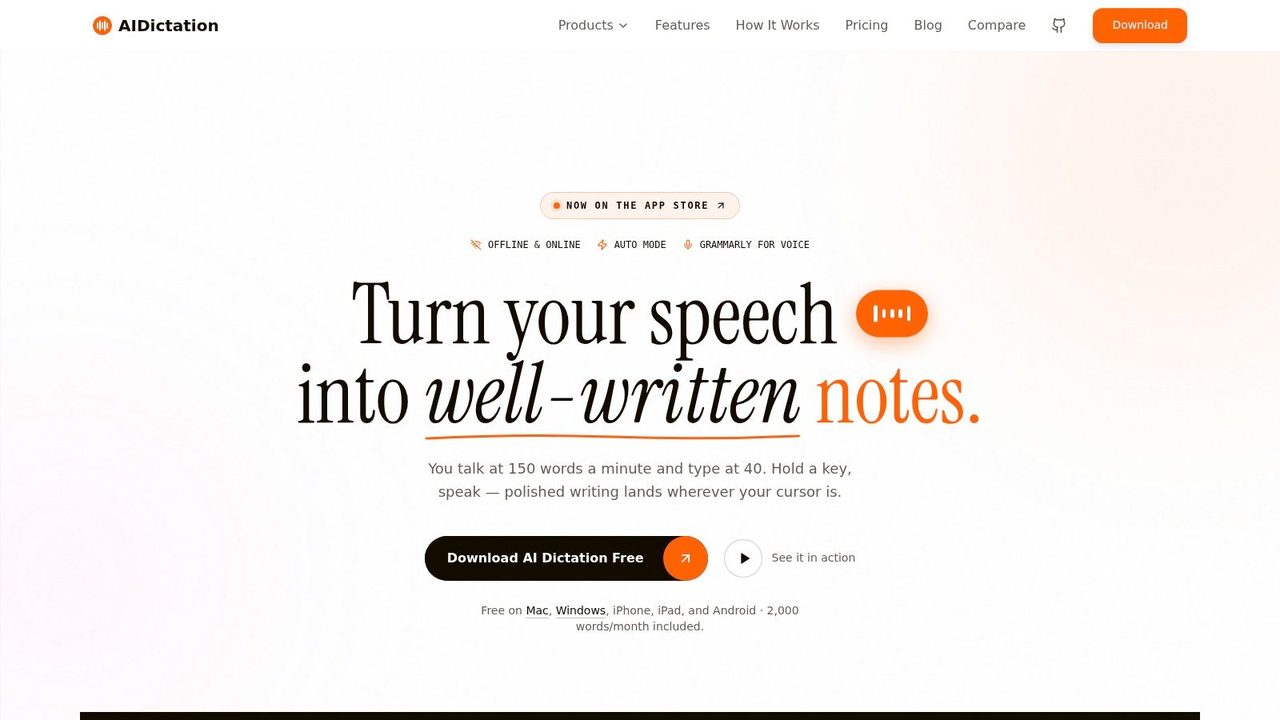
One option in this space is getting started with voice dictation on Mac with tools such as AIDictation, which turns speech into formatted text and includes on-device and cloud modes, automatic cleanup, and custom dictionary support for technical or specialized terms. In practical use, features like app-aware formatting and vocabulary control can make dictation easier to integrate into normal desk work instead of treating it like a separate process.
“Stop typing” often fails at the workflow level. People still need to answer messages, revise documents, and move through software quickly. Mixed-mode work respects that reality. It reduces load without pretending every task is equally suited to voice.
Medical Treatments and Your Path Forward
If self-management isn't enough, medical care can help. The usual path starts conservatively. Many clinicians consider night splinting, activity changes, and therapy first, especially when symptoms are still intermittent.
Common next-step treatments
If symptoms persist, a doctor may discuss options such as:
- Wrist splints, especially for nighttime symptoms
- Corticosteroid injections to calm inflammation around the tunnel
- Occupational or physical therapy for activity modification and hand function
- Surgical release when symptoms are persistent, progressive, or causing weakness
For a plain-language overview of what those options can look like, MedAmerica Rehab Center provides a useful summary of common treatment paths.
A practical way forward
The most helpful message about typing and carpal tunnel is also the most reassuring one. You usually don't need to panic, and you usually don't need to stop working. You do need to pay attention to posture, force, mouse habits, symptom progression, and how much high-volume keyboarding you do without relief.
A neutral wrist, lighter input, better breaks, and a mixed-mode workflow can change the day-to-day load on your hands. If symptoms are mild, those changes may help you keep working more comfortably. If symptoms are progressing, getting assessed early gives you more options and a better chance of preventing long-term nerve irritation.
If long drafting sessions are what flare your hands up, try AIDictation as part of a mixed-mode workflow. Use voice for emails, notes, and first drafts, then keep the keyboard for short edits and commands so you can reduce strain without giving up speed.
Frequently Asked Questions
What does Typing and Carpal Tunnel: Beat Wrist Pain Now cover?
The most common advice about typing and carpal tunnel is too blunt. “Stop typing” sounds simple, but it doesn't match how many individuals work or what the evidence shows.
Who should read Typing and Carpal Tunnel: Beat Wrist Pain Now?
Typing and Carpal Tunnel: Beat Wrist Pain Now is most useful for readers who want clear, practical guidance and a faster path to the main takeaways without guessing what matters most.
What are the main takeaways from Typing and Carpal Tunnel: Beat Wrist Pain Now?
Key topics include Table of Contents, What Is Carpal Tunnel Syndrome Really, Think of the carpal tunnel like a tight passageway.
Ready to try AI Dictation?
Experience fast voice-to-text on your device. Free to download.
Download FreeRelated Posts
8 Best Bilingual Dictation Apps: 5 Tested + 3 Baselines
We tested five bilingual dictation apps on Russian-English code-switching, plus three common baselines. Compare WER, language recall, script, and workflow.
How to Write Emails Faster: Boost Your Productivity
Discover how to write emails faster with actionable tips for triage, templates, shortcuts, editing, and voice dictation to boost productivity.
How to Take Better Lecture Notes with Voice Dictation
Learn how to capture, clean, and study lecture notes faster using AI voice dictation. Practical workflow tips for students, researchers, and journalists.