Lost Cursor on Laptop? Fix It Fast
You're usually in the middle of something when it happens. A report is open, tabs are stacked across the screen, you move your hand to click one thing, and your cursor is gone. No pointer. No trackpad response. Maybe the mouse light is on, maybe it isn't. Either way, it feels like the laptop just took away your steering wheel.
The good news is that a lost cursor on laptop problem often looks worse than it is. In practice, the fix is usually a simple device-path issue, a disabled touchpad, or a setting that changed after sleep, an update, or a mode switch. The fastest way back is to stop guessing and work through the problem in the right order, from the quickest checks to the more stubborn software causes.
Table of Contents
- That Vanishing Act Your Cursor Just Performed
- First Response Quick Checks
- Restoring the Cursor in System Settings
- Navigating Your Laptop Without a Cursor
- Advanced Diagnostics for Persistent Issues
- Prevention and When to Call for a Repair
That Vanishing Act Your Cursor Just Performed
You open the laptop, move a finger across the touchpad, and nothing on screen responds. The pointer may not be gone at all. It may be hidden, parked on another display, or switched off by a touchpad toggle.
That distinction saves time.
A hidden cursor often comes back with a visibility fix. On a Mac, shaking a finger quickly on the trackpad can make the pointer enlarge so you can spot it. A disabled cursor needs a different fix, such as pressing the laptop's touchpad function key to turn input back on. If the touchpad itself still clicks or scrolls but you cannot see the pointer, treat it as a visibility problem first. If the touchpad does nothing at all, treat it as an input problem.
Laptop cursor failures usually come from settings, sleep-wake glitches, touchpad toggles, display behavior, or driver hiccups. Hardware failure is possible, but it is not the first thing to assume. Lenovo and other 2-in-1 systems can also hide or change pointer behavior when the device switches modes, which is why the symptom can feel random even when the cause is simple.
Start with the least disruptive checks. Confirm whether the cursor is hidden versus disabled. Then test the obvious hardware and keyboard toggles. After that, move into system settings and driver checks. That order keeps you from restarting blindly or changing settings you did not need to touch.
If you need to keep working while the pointer is missing, keyboard input and voice to text on Windows can buy you time until the cursor is back.
For laptop-specific hardware quirks, these Australian DIY touchpad solutions are a useful reference, especially if your touchpad stopped responding after a key press, update, or accidental setting change.
First Response Quick Checks
Start with the fixes that don't require menus, logouts, or reinstalling anything. A lot of cursor problems clear the moment you restore the input path.
Check the keyboard toggle first
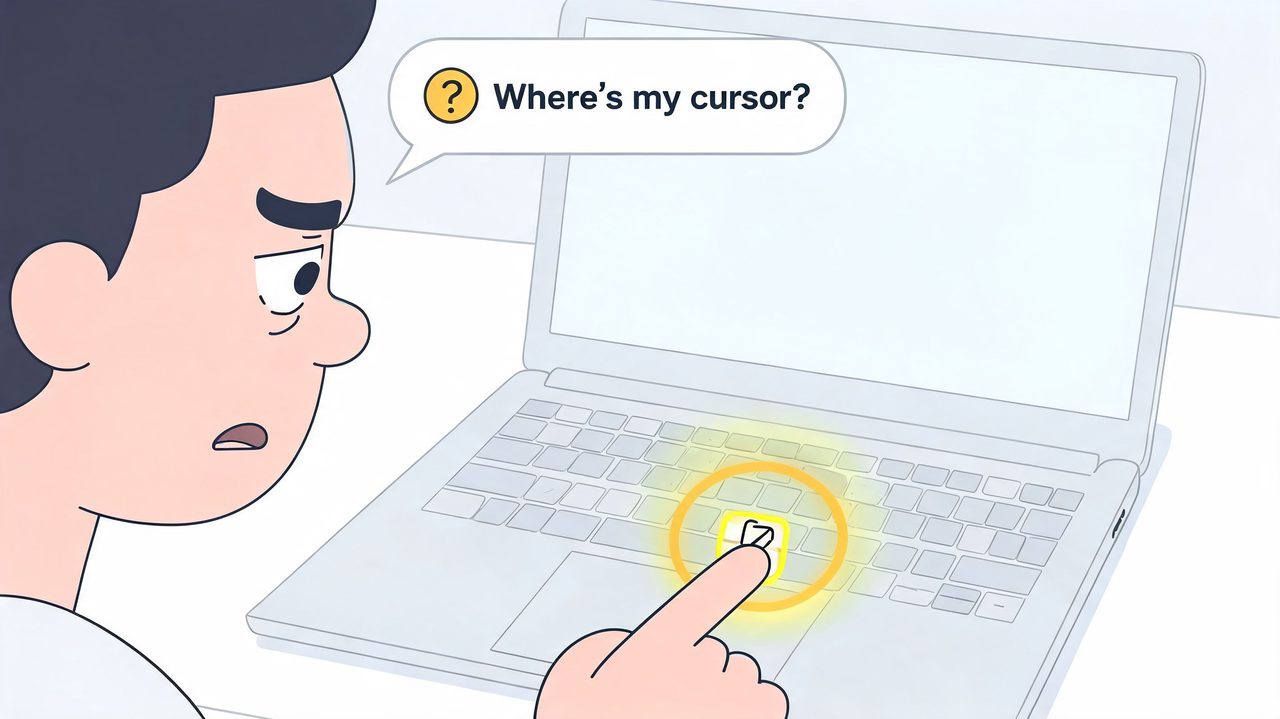
On many laptops, a function key can disable the touchpad. Microsoft community guidance specifically mentions Fn combinations such as Fn+F3, Fn+F5, Fn+F9, or Fn+F11 for some models in its Windows cursor recovery guidance. Your laptop may also show a small touchpad icon on one of the top-row keys.
Try these in a calm sequence:
- Tap the likely touchpad key once: Look for a key with a trackpad icon or a crossed-out rectangle.
- Hold Fn and tap the matching function key: If your laptop uses secondary function behavior, the plain key press may do nothing.
- Pause after each attempt: Some systems take a moment to restore the driver and redraw the pointer.
If you're on Windows and still need a productive fallback while sorting things out, this guide to voice to text on Windows can help you keep drafting without relying on the mouse.
Reset the mouse connection
If you use an external mouse, treat it like a connection problem until proven otherwise.
- Wired mouse: Unplug it and reseat it firmly. Then try a different USB port.
- Wireless mouse: Check the battery, confirm the receiver is still connected, and re-pair if the mouse uses Bluetooth.
- USB receiver setup: If the dongle is in a hub or adapter, move it directly to the laptop for the test.
A non-functional USB path can look identical to a vanished cursor, as can a wireless mouse that loses its pairing after the laptop sleeps.
Disconnecting and reconnecting a USB mouse, re-pairing a wireless device, or running the correct Windows troubleshooter based on connection type are all part of Microsoft's recommended early checks.
If the touchpad itself is the likely culprit, some readers find it useful to compare platform-specific steps with practical repair-style advice such as these Australian DIY touchpad solutions, especially when the issue feels tied to a laptop-specific keyboard shortcut or touchpad lock setting.
Restoring the Cursor in System Settings
A missing cursor often falls into two buckets. The pointer is hidden, or the pointing device is disabled. That distinction matters because a hidden cursor can come back as soon as you change the right setting, while a disabled touchpad or mouse will stay dead until you turn it back on.
A clean visual walkthrough helps if you're doing this keyboard-only.
Windows steps
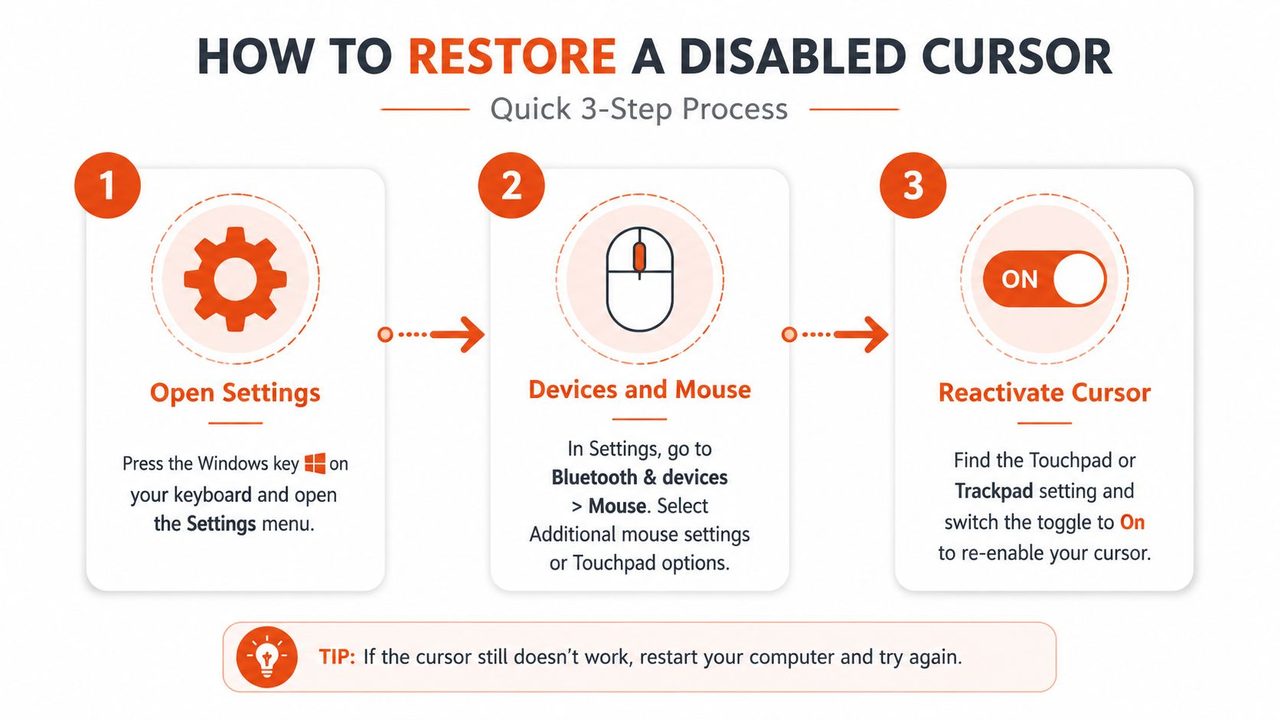
Start with Settings before touching drivers or Device Manager. If a toggle was switched off by a shortcut, an update, or a sleep-wake glitch, this is the fastest low-risk fix.
Use the keyboard in this order:
- Press the Windows key, type Settings, and press Enter.
- Use Tab and the arrow keys to open Bluetooth & devices.
- Select Touchpad.
- Confirm the touchpad is On.
- If your laptop has a sensitivity or gesture page, check that the device is still listed and responding.
If you use a Bluetooth mouse, stay in the same area and confirm Windows still shows it as connected. A lost pairing can look exactly like a vanished cursor.
There is another setting worth checking on Windows. Open Additional mouse settings if you can reach it, then look for pointer options that affect visibility. On some systems, the cursor is still working but hard to see because of a display scaling issue, pointer trail setting, or a theme change after an update. That is a different problem from a disabled device, and it needs a different fix.
Convertible laptops add one more wrinkle. On some models, switching into tablet mode or partially folding the hinge can suppress trackpad input or hide the pointer by design. If your laptop flips, rotates, or detaches, check its current mode before assuming the hardware failed.
Here's a short video walkthrough if you want a visual reference while stepping through the menus.
Mac steps
On a MacBook, this problem is usually a settings issue, an accessibility behavior, or an app-specific visibility quirk.
Try this path:
- Press Command+Space, type System Settings, press Enter.
- Use Tab and the arrow keys to reach Accessibility.
- Check Pointer Control and related pointer settings.
- Open Trackpad and confirm the trackpad is enabled and behaving normally.
- If the cursor only disappears in one app, quit that app and test the rest of the system.
If the pointer vanishes while typing, during presentations, or only on certain screens, treat it as a visibility problem first. The cursor may be active but hidden by the app, display behavior, or an accessibility setting.
If you need to keep working on a Mac while testing settings, Apple's built-in voice tools can help. This guide on using dictation on Mac without relying on the trackpad is a practical fallback.
Re-enabling the device in settings is the safer first move. Uninstalling drivers or changing deeper system components too early creates extra problems, especially when the actual cause is a single disabled toggle or a hidden-pointer setting.
Navigating Your Laptop Without a Cursor
When the pointer is still missing, the priority changes. First save your work. Then keep moving with the keyboard instead of waiting for the cursor to return.
Keyboard survival basics
The core pattern is simple. Tab moves between buttons and fields. Arrow keys move inside menus and lists. Enter selects. Esc backs out of dialogs. Alt+Tab on Windows and Command+Tab on macOS switch apps fast enough to keep you functional.
A few habits make this much easier:
- Save first: Use Ctrl+S on Windows or Command+S on Mac before trying riskier fixes.
- Open search instead of hunting menus: The Windows key or Command+Space gets you to settings faster than menu navigation.
- Use Spacebar on toggles: Many checkboxes, switches, and highlighted controls respond to Space.
If you're on a Mac and the mouse is still unreliable, it helps to know the built-in dictation and voice workflow options. This practical guide on how to use dictation on Mac is useful when you need to finish notes, email replies, or draft text without waiting for the trackpad to cooperate.
Essential Keyboard Navigation Shortcuts
| Action | Windows Shortcut | macOS Shortcut |
|---|---|---|
| Open app launcher or main menu | Windows key | Command+Space |
| Move between fields and buttons | Tab | Tab |
| Move backward through fields | Shift+Tab | Shift+Tab |
| Select highlighted item | Enter | Return |
| Toggle a checkbox or switch | Space | Space |
| Switch between open apps | Alt+Tab | Command+Tab |
| Save current work | Ctrl+S | Command+S |
| Close current window | Alt+F4 | Command+W |
Keyboard-only workarounds also help you diagnose the issue. If the laptop responds normally to keys, opens settings, and saves documents, the machine itself is alive. You're narrowing the fault to input, pointer rendering, or display behavior instead of a total system freeze.
Advanced Diagnostics for Persistent Issues
When the simple checks fail, stop treating it as one generic problem. A stubborn lost cursor on laptop issue usually falls into one of two buckets. The cursor is disabled, or it exists but isn't being rendered where you expect.
When the cursor is invisible, not absent
This is the nuance that is frequently missed. Microsoft community guidance notes that a meaningful share of these cases come from software or GPU/display issues that make the cursor invisible rather than absent, and that better troubleshooting asks whether the pointer disappears only in one app, after sleep, or on an external display in its discussion of disappearing laptop cursors.
Ask these questions:
- Only one app? Then the app may be interfering with pointer display.
- Only after sleep or lock? That points toward resume behavior, graphics state, or a driver hiccup.
- Only on an external display? Then look at display mode, monitor handoff, or GPU rendering.
If the entire screen is misbehaving and you're seeing more than just a missing pointer, a broader display-focused guide like this walkthrough for fix black screen on laptop can help separate cursor problems from true display failure.
A missing pointer in one application is a different class of problem from a dead touchpad. Treat the pattern as evidence.
Driver and troubleshooter checks
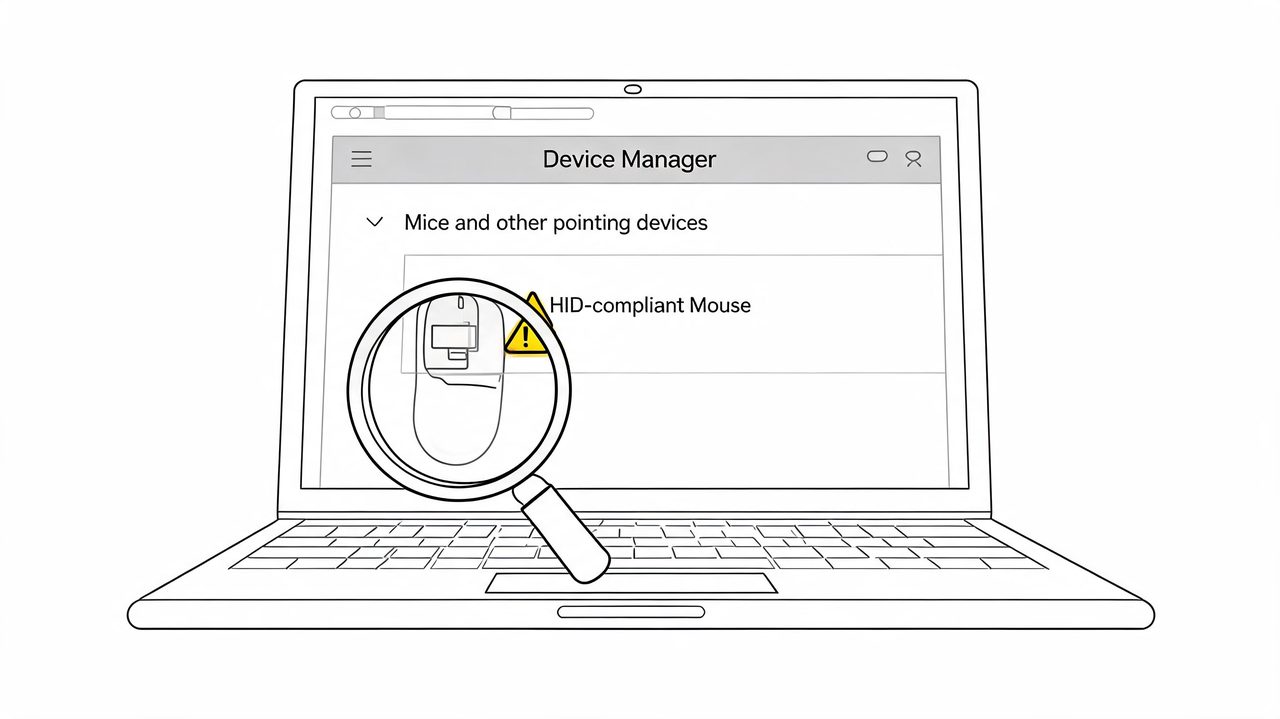
Once you've ruled out the simple toggles and visibility clues, Windows users should inspect Device Manager.
Use the keyboard path:
- Press the Windows key.
- Type Device Manager and press Enter.
- Open Mice and other pointing devices.
- Look for your touchpad or mouse entry.
- Open properties and check for errors, then try Update driver or uninstall and restart so Windows can reinstall it.
Be selective here. Driver reinstalls can help after a bad update or corrupted device entry, but they're not magic. They won't fix a disabled touchpad switch, a drained wireless mouse battery, or a pointer being hidden by display behavior.
Windows also recommends using the right built-in troubleshooter based on the connection type. If it's a Bluetooth mouse, use the Bluetooth troubleshooter. If it's hardware-related, use the hardware path Microsoft points users toward in its support guidance. On Mac, if dictation or accessibility behavior has also become erratic while the cursor issue is happening, a troubleshooting reference like dictation not working on Mac can help you spot whether the problem is isolated to pointing or part of a wider input/settings issue.
Prevention and When to Call for a Repair
Good prevention starts with boring habits that work. Keep Windows or macOS updated. Keep touchpad, Bluetooth, and mouse software current. If you use vendor utilities from Synaptics, ELAN, Logitech, or Dell, check those too. Cursor problems often start with a bad setting, a driver conflict, or an update that changed input behavior without making it obvious.
Physical care matters just as much. Dust around a touchpad edge, a swollen battery pressing from underneath, a loose USB receiver, or a worn click mechanism can all produce symptoms that look random at first. The pattern matters. A pointer that is hidden only in certain apps usually points to software. A pointer that disappears across the whole system, returns when you press on the palm rest, or cuts out during movement is more consistent with hardware trouble.
Do not keep troubleshooting for days if the failure is becoming more frequent.
If the cursor freezes, jumps, or comes back only after repeated restarts, treat that as escalation, not a nuisance. At that point, continued driver resets may waste time. A practical way to frame it is the difference between fixing the current fault and reducing future failures. This overview of corrective and preventive maintenance is a useful model for deciding whether to keep testing software or replace the mouse, touchpad assembly, or related hardware.
Book a repair when the cursor issue is paired with other warning signs. Examples include a touchpad that feels physically different, missed clicks, intermittent keyboard problems, battery swelling, visible liquid damage, or the pointer failing even in the BIOS or recovery environment. Those clues point away from a simple hidden-cursor problem and toward a device that needs hands-on service.
If you still need to get work done while the hardware decision is pending, use a fallback that does not depend on the trackpad. AIDictation helps Mac users turn speech into clean, ready-to-send writing, which is useful when the trackpad is unreliable and you still need to finish notes, emails, or documentation.
Frequently Asked Questions
What does Lost Cursor on Laptop? Fix It Fast cover?
You're usually in the middle of something when it happens. A report is open, tabs are stacked across the screen, you move your hand to click one thing, and your cursor is gone.
Who should read Lost Cursor on Laptop? Fix It Fast?
Lost Cursor on Laptop? Fix It Fast is most useful for readers who want clear, practical guidance and a faster path to the main takeaways without guessing what matters most.
What are the main takeaways from Lost Cursor on Laptop? Fix It Fast?
Key topics include Table of Contents, That Vanishing Act Your Cursor Just Performed, First Response Quick Checks.
Ready to try AI Dictation?
Experience fast voice-to-text on your device. Free to download.
Download Free