What Is Email Template? Definition, Examples and Setup
An email template is a reusable message structure with fixed parts and variable fields that change for each recipient. Teams use it to avoid rewriting routine messages while keeping their wording, formatting and required information consistent.
But consistency can repeat mistakes, too. Accessibility reporting discussed by Stripo found serious or critical issues in 99.89% of 443,585 tested HTML emails in 2025. A reusable design isn't automatically a good design.
The useful question isn't just how to save an email. It's how to save a message that remains readable, accurate and appropriate whenever someone reuses it.
Table of Contents
- What an Email Template Is and Its Parts
- Template Examples for Each Audience
- Where Templates Fail and How Much Personalization Is Enough
- Building a Template That Works for Every Reader
- How to Create and Use Templates in Gmail, Outlook and Apple Mail
- Confirm Your First Template Before You Send
What an Email Template Is and Its Parts
An email template standardizes recurring communication by separating stable wording from information that changes. Think of a printed form letter: the explanation stays on the page, while someone fills in the blanks for the next recipient.
That distinction matters at email's scale. An estimated 4.48 billion people used email worldwide in 2024, with approximately 361.6 billion messages sent and received each day, according to WriteVoice's email statistics. Teams need a repeatable starting point, not a newly composed message for every routine exchange.
Templates commonly support these uses:
- Transactional messages, such as receipts and password resets.
- Operational messages, such as appointment reminders.
- Professional workflows, including support replies, hiring updates and stakeholder notes.
A template doesn't have to look like a newsletter. A saved paragraph in Apple Mail can be a template, just as a branded receipt generated by a billing system can be one.
The fixed layer and the variable layer
Consider a purchase receipt. Its fixed layer might contain the company logo, a thank-you sentence, an order-summary heading, a support contact and transaction terms.
The variable layer supplies the customer's name, order number, purchased items and receipt link. The surrounding structure stays stable, but the actual transaction details belong to that purchase.
Here's how those layers fit together visually.
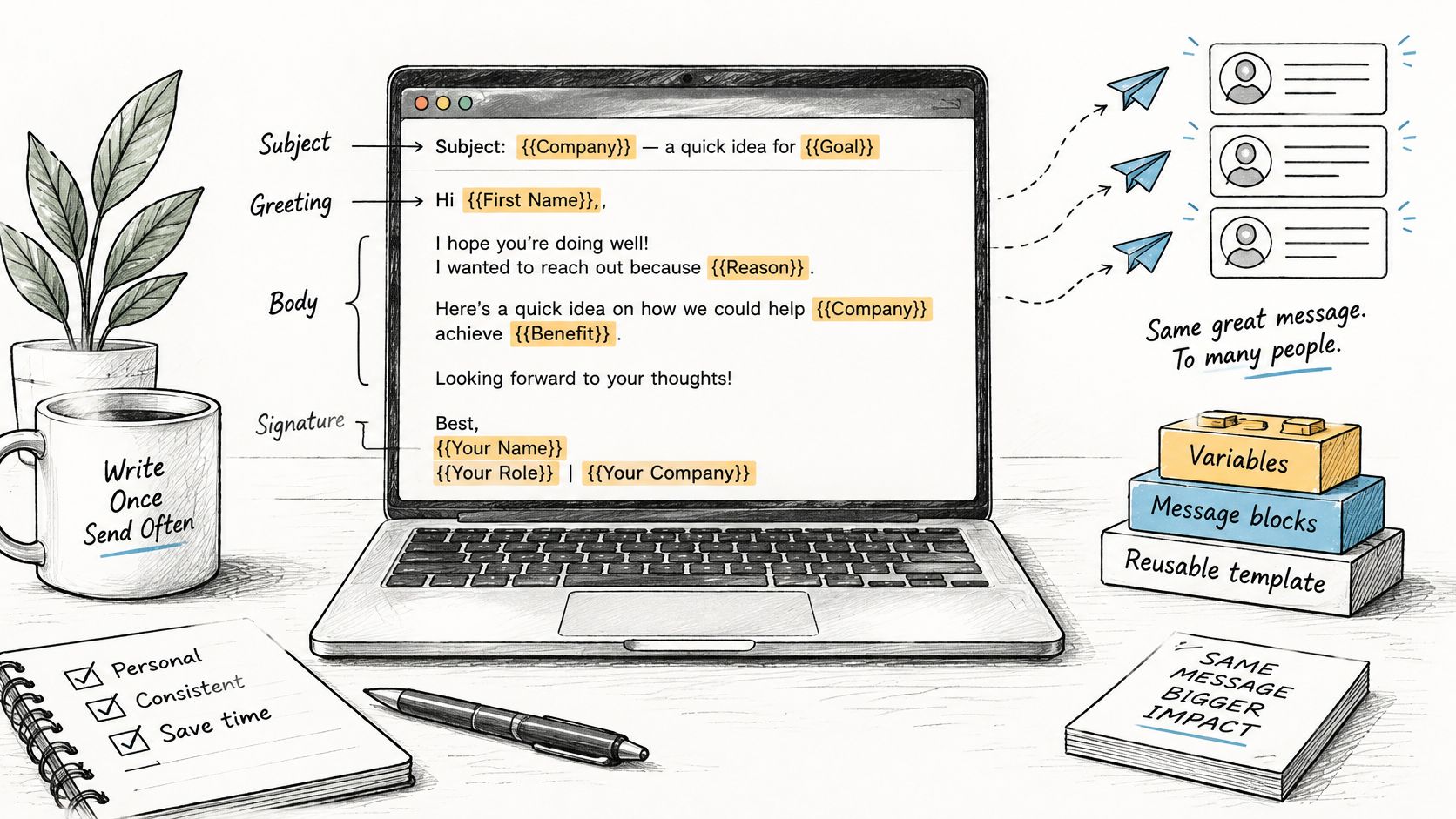
Core elements of an email template
| Element | Purpose | Example |
|---|---|---|
| Logo and header | Brand recognition at a glance | Company logo above the greeting |
| Greeting | Sets tone and personal entry point | Hi [first name], |
| Body block | Carries the main message | Order summary paragraph |
| Variable field | Changes for each recipient | [order number] or [appointment time] |
| Call-to-action button | Tells the reader the next action | Confirm your appointment |
| Signature | Identifies the sender | Name, title and phone number |
| Legal or footer notice | Compliance and opt-out | Unsubscribe link and company address |
Not every message needs every element. An internal project update probably doesn't need a logo or unsubscribe link, while a marketing email needs footer content appropriate to its purpose and applicable requirements.
Also, a placeholder isn't necessarily an automatic merge field. If you type [first name] into a saved Gmail template, you normally replace it yourself. Automatic replacement requires a sending tool configured to recognize a field and retrieve its value.
Plain text, rich text and HTML
A plain-text template contains words, punctuation and text links without visual styling. It's a sensible starting point for individual correspondence because the message doesn't depend on a designed layout.
Rich text adds formatting such as bold text, lists and linked words. HTML gives the sender more control over presentation, including colors, images, spacing and buttons.
Technically, an HTML template can combine markup, inline CSS, image references, hyperlinks and replaceable fields. Benchmark Email's HTML email guidance recommends conservative techniques such as table-based layouts and inline styles because email clients don't render code consistently.
That's why an email isn't just a small web page. A layout that works in a browser can display differently in Outlook or Gmail, so essential information must remain understandable when styling fails or images don't load.
Practical rule: Design the message so the reader can understand the purpose and next action without seeing a single image.
Templates also provide a boundary for editing. A support agent can change the explanation of a problem without accidentally changing approved refund wording, provided those editable and protected areas are clearly distinguished.
To identify your own template, print a recurring email and circle everything that changes for each recipient. The uncircled wording is your starting structure. Then ask whether each fixed sentence applies every time, rather than preserving it just because it appeared in the original email.
Template Examples for Each Audience
Say a sales lead saves a greeting, value proposition, next-step request and sign-off. For the next follow-up, they replace the prospect's name and meeting date, then check whether the proposed next step still matches the conversation.
That final check separates a useful template from a mechanical copy-and-paste response. Different recipients need different information, even when the underlying saving-and-reusing process is identical.
Match the structure to the task
Email template examples by audience
| Audience | Template type | Variable fields | Fixed content |
|---|---|---|---|
| Customer support | Ticket reply | Ticket ID, product name | Apology and next steps |
| Healthcare clinic | Appointment reminder | Date, time, clinic location | Privacy notice, no visit reason |
| Recruiter | Interview invitation | Candidate name, slot, role | Process summary |
| Product manager | Stakeholder update | Sprint name, release date, owner | Status summary format |
| Sales | Follow-up email | Prospect name, meeting date | Value proposition |
| Billing | Payment receipt | Invoice number, amount | Transaction terms |
For customer support, a consistent acknowledgment helps, but the agent must select next steps that address the actual problem. This guide to customer support emails offers a useful starting point for the wording.
A clinic reminder should help someone attend their appointment without including the reason for the visit. An interview invitation needs a clear slot, role and explanation of what the candidate should expect.
For a product manager, the reusable part is often the reporting structure: status, decisions needed and named owners. In sales, the value proposition must remain relevant to the prospect, while billing requires transaction-specific values within consistent receipt wording.
Choose a starting point without copying blindly
Template builders are an established option. 36.8% of surveyed respondents said they depended on template creators to design their emails in Mailmodo's State of Email 2025 report. Separately, 53.4% of respondents reported using email-template creators as their preferred way to build emails in Mailmodo's 2024 report.
For examples across communication channels, Class A Media's email and SMS template library can help you compare message structures. Treat any library example as a draft to adapt, not wording that automatically fits your audience.
Dictation can complement that reusable structure. Sergey Vysotsky, CMO of Writingmate.ai, uses AI dictation to respond to 20+ customer emails in the time it used to take him to write 5. That's an individual example, not a promised result for every workflow.
The deciding rule is simple: match the recipient's expectation, not just the sender's convenience.
Where Templates Fail and How Much Personalization Is Enough
More personalization doesn't always make an email more helpful. A familiar greeting can't rescue irrelevant content, and a sensitive detail can make an otherwise routine message inappropriate.
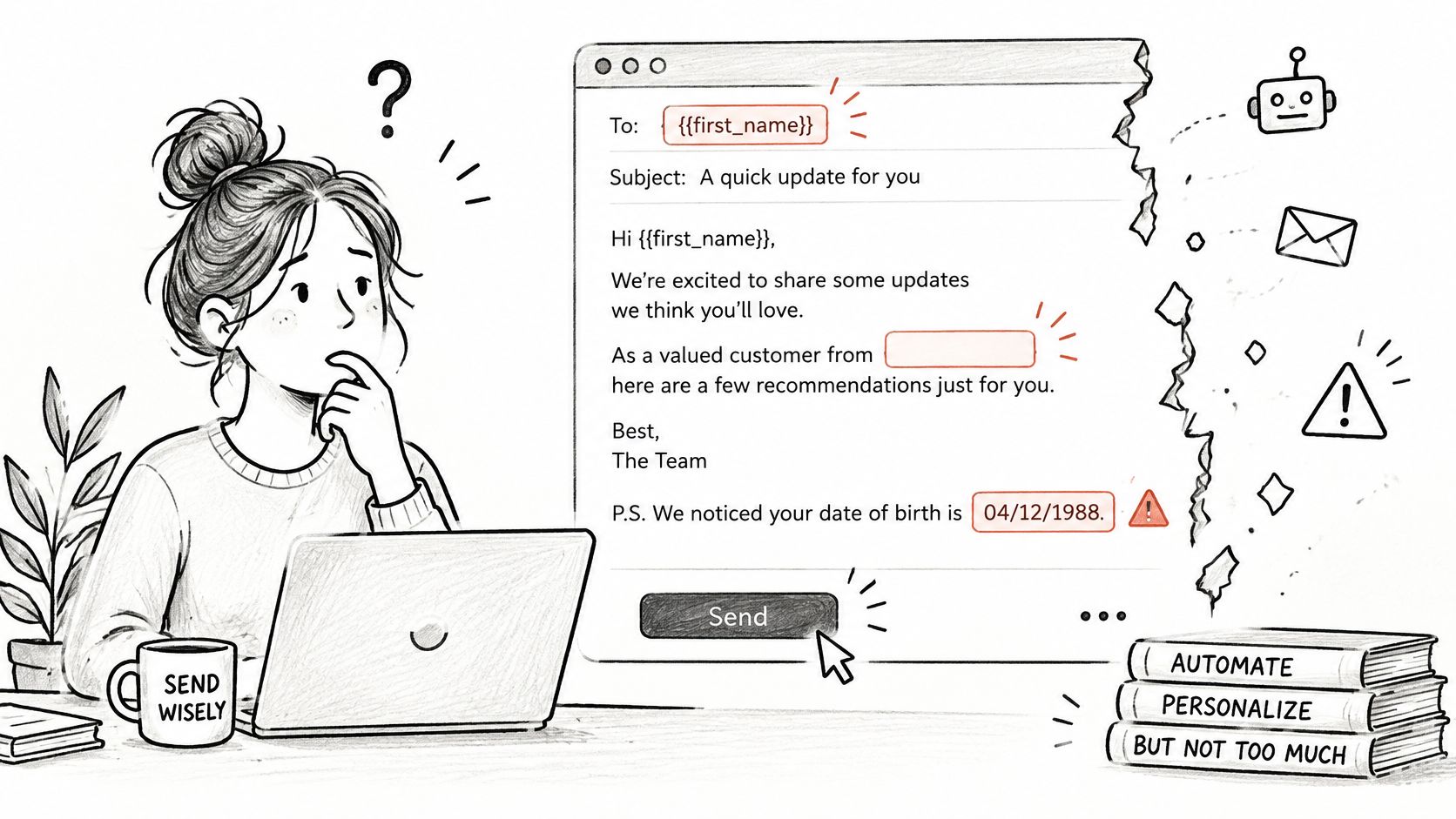
The risk becomes clear when personal information is treated like another harmless blank to fill.
In a 2025 survey of 1,000 U.S. consumers, 46% said irrelevant or non-personalized content drives unsubscribes, while 58% prioritized transparency about data collection, according to Litmus's analysis of consumer expectations. Relevance and transparency need to work together.
Set boundaries before adding fields
Templates fail when the body sounds automated, a missing field leaves an awkward gap, confidential information reaches the wrong recipient, or standard wording doesn't fit an unusual case.
Use these decision rules:
- Use helpful context. A stated language preference or requested appointment location serves a practical purpose.
- Avoid sensitive inferences. Don't personalize around assumed health status or inferred identity.
- Define missing-data behavior. Replace an unavailable first name with a neutral greeting, not an empty space.
- Compare simpler wording. Check whether a generic version helps the reader just as well.
For example, a clinic reminder can provide the clinic name and appointment time without naming the reason for the visit. For the prose itself, these professional email writing tips can help keep the message direct rather than artificially familiar.
Keep those boundaries in mind when considering automated email workflows.
Personalize only where it helps the recipient understand or act.
Building a Template That Works for Every Reader
A master template is also an accessibility and governance control. If its links are unclear or its content order is confusing, everyone who reuses it sends those same problems to another recipient.
Build accessibility into the reusable structure rather than expecting each sender to repair it.
Build in a readable order
- Use semantic headings. Keep a logical heading sequence so assistive technology can identify the hierarchy.
- Write real paragraphs and lists. Don't replace important instructions with an image of text.
- Make links descriptive. Use wording such as “Review your appointment details” rather than “Click here.”
- Add meaningful image alternatives. Describe information-bearing images so their meaning remains available when images are blocked.
- Declare the document language. This helps screen readers apply appropriate pronunciation.
- Check text contrast. User.com's email accessibility guidance recommends a minimum contrast ratio of 4.5:1 for normal text, with higher contrast supporting stronger readability.
Use readable type, keep links usable by keyboard and avoid relying on color alone to communicate status. A delayed project should say “Delayed,” not merely display an orange dot.
Validate content as well as appearance
Before sending, validate required dates, destination links, action owners and any identifiers necessary for the workflow. If a required value is missing, stop the send rather than inserting text that disguises the omission.
Send a test message to an inbox and open it in different clients, such as Gmail and Outlook. Check dark mode, move through the links by keyboard and retain a plain-text or content-preserving fallback.
For outreach, Fypion Marketing's guide to write cold emails that get replies can provide a separate wording reference. Keep persuasive writing decisions separate from accessibility checks: a compelling request still needs a descriptive link and a readable layout.
Before saving: Check both what the template says and what it permits someone to insert.
A technical check isn't proof that an email is easy to understand, nor is it a blanket guarantee of legal compliance. Read the message on a phone, simplify unfamiliar language and confirm that every personal-data field passes the low-risk test, with appropriate fallback behavior for optional values.
How to Create and Use Templates in Gmail, Outlook and Apple Mail
Write one good message first, then save it. Start with wording you've reviewed for purpose, tone and completeness rather than saving an unfinished draft and hoping to fix it during reuse.
Use obvious placeholders such as [recipient name], [appointment date] and [next action]. Avoid realistic sample details that someone could mistake for actual recipient information.
The process starts with the message, not the software.
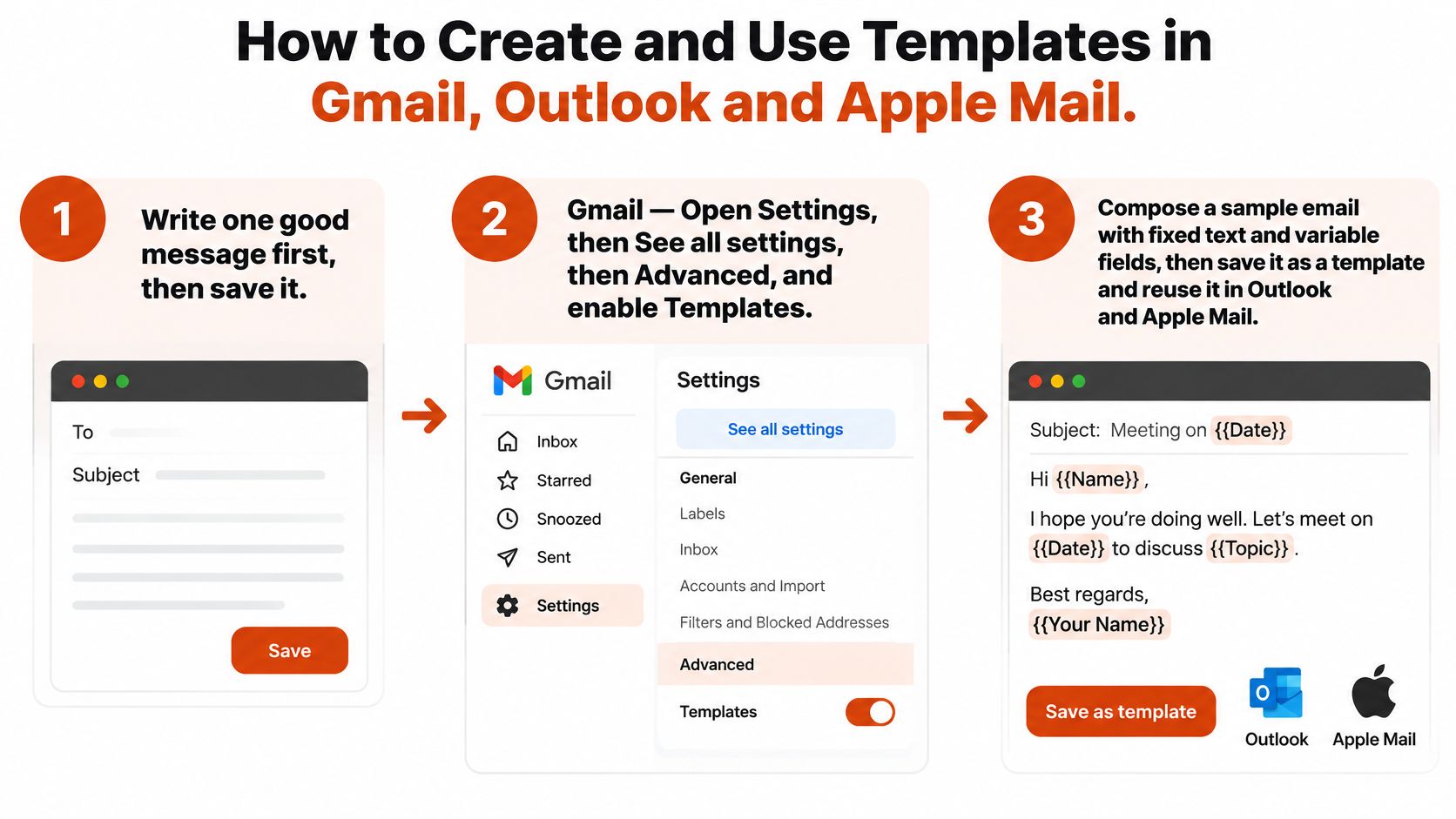
Gmail
Use Gmail in a desktop browser.
- Open Settings, then See all settings.
- Select Advanced.
- Enable Templates.
- Save your settings.
- Compose the reusable message.
- Open the compose window's More options menu.
- Select Templates, then Save draft as template.
- Save it under a purpose-based name.
To reuse it, open Compose and select the saved name through More options > Templates. Replace every bracketed placeholder before sending.
Outlook desktop
These steps apply to classic Outlook for Windows. New Outlook and Outlook for Mac use different interfaces, so don't assume the same menu path exists.
- Compose the message with its placeholders.
- Select File, then Save As.
- Choose Outlook Template as the file type.
- Save the template.
To reuse it:
- Open New Items.
- Select More Items, then Choose Form.
- Select User Templates in File System.
- Open the saved template.
Apple Mail
Apple Mail doesn't provide the same built-in template workflow.
- Compose your reusable message.
- Save it as a draft.
- Keep a master copy in a dedicated mailbox.
- Copy its contents into a new message when needed.
Alternatively, open System Settings > Keyboard > Text Replacements and create a short trigger for the reusable wording. Test expansion in your compose window before relying on it.
Dictation note: Position the cursor in a placeholder and speak its replacement, then dictate any custom closing sentence. Review names, dates and numbers because speech recognition can mishear them.
Template steps by email app
| App | Create the template | Reuse the template | Notes |
|---|---|---|---|
| Gmail | Enable Templates under Advanced; save through compose options | Compose, Templates, pick the name | Replace each bracketed placeholder |
| Outlook desktop | File, Save As, Outlook Template | New Items, More Items, Choose Form, User Templates in File System | Classic Outlook for Windows |
| Apple Mail | Save a master draft in a dedicated mailbox | Copy into a new message or use a text trigger | Text replacements are under Keyboard in System Settings |
If you're comparing inbox tools, Sickle's mail app for Gmail and Outlook is another option to evaluate against your workflow. Confirm how any alternative app handles reusable content before moving your master copies.
For broader composition habits, use this guide on how to write emails faster. Finish setup by sending yourself a test message and checking the received version, not just the compose window.
Confirm Your First Template Before You Send
Pick a message you send regularly and build its template today. Choose something predictable, such as a meeting follow-up or support acknowledgment, rather than a sensitive exception that needs individual judgment.
Name it by purpose, such as Interview invitation or Project status request. A clear name helps the next person choose the right message without opening several similar drafts.
Make the first test deliberate
- Confirm the purpose. The recipient should understand why you're writing and what to do next.
- Inspect the fields. Mark editable content clearly and remove unnecessary sensitive information.
- Try missing values. Confirm that optional fields have useful fallbacks and required fields can't be overlooked.
- Check the received message. View your test in different clients and inspect it on a phone.
- Review dictated details. Check proper names, dates and numbers against the original information.
If you dictate the draft, speak the stable sentences first and enter variable details separately. This makes it easier to inspect each replacement instead of reviewing an uninterrupted block of speech-generated text.
Decide whether it deserves reuse
Save the approved version as the master and keep recipient-specific details out of it. When someone changes the shared wording, repeat the test rather than assuming the original approval still applies.
Keep the template if it saves time without making the message less personal or less accurate, and retire it if recipients reply asking for clarification.
AIDictation turns spoken drafts into clean writing you can place into your email templates. Its free trial includes meeting recording and transcription, unlimited use of small voice models, custom prompt control, and email support from a person within 24 hours. Visit AIDictation and try dictating a routine email, then review its variable fields before saving your reusable version.
Frequently Asked Questions
What does What Is Email Template? Definition, Examples and Setup cover?
An email template is a reusable message structure with fixed parts and variable fields that change for each recipient. Teams use it to avoid rewriting routine messages while keeping their wording, formatting and required information consistent.
Who should read What Is Email Template? Definition, Examples and Setup?
What Is Email Template? Definition, Examples and Setup is most useful for readers who want clear, practical guidance and a faster path to the main takeaways without guessing what matters most.
What are the main takeaways from What Is Email Template? Definition, Examples and Setup?
Key topics include Table of Contents, What an Email Template Is and Its Parts, The fixed layer and the variable layer.
Ready to try AI Dictation?
Experience fast voice-to-text on your device. Free to download.
Download Free