Best Voice to Text Apps for 2026
Staring at a blank screen waiting for the right words to come. Typing feels slow. Your thoughts move faster than your fingers can keep up. A voice to text app changes that—you speak, the app listens, words appear on your screen. But picking the right one matters. The wrong app will frustrate you with constant corrections. The right one disappears into your workflow.
I tested dozens of voice to text apps across iOS, Android, Mac, and Windows to see which actually deliver real speed improvements without drowning you in errors. For a broader comparison of all voice-to-text options, see our best voice to text software in 2026 roundup.
Why Apps, Not Just Software?
Let's clarify the distinction. Voice to text software typically means desktop applications or plugins with professional features and pricing. Voice to text apps are lighter—usually designed for mobile or simple integrations, often cheaper or free, and focused on convenience over advanced features.
The tradeoff is real: most apps trade advanced features for simplicity. If you need full-featured desktop tools, our dictation software guide covers those in depth. But for routine writing—emails, messages, social media posts, notes—apps do exactly what you need. Plus, your phone's probably already in your hand anyway.
The Core Problem: Apps Sound Natural But Work Inconsistently
Here's what frustrates people: inconsistency. Your first sentence transcribes perfectly. The fifth sentence includes a random capitalization error. Your phrase about "email" becomes "e-mail". Technical terms disappear entirely. Some apps learn your voice over time, most don't.
Here's the real issue: voice-to-text accuracy depends on four things. The AI model (usually solid). Your microphone (often terrible). Your speaking style (you vary it constantly). And what the app actually understands about context (varies wildly).
You can't fix the AI model. But you can choose an app that handles the other three factors better.
What Separates Good Voice to Text Apps from Great Ones
Speed matters more than you'd think. If the app adds a 1-2 second delay between speaking and text appearing, your brain adjusts. You slow down. You lose the speed advantage. Instant feedback feels genuinely faster psychologically than technically faster apps with lag.
Microphone integration is underrated. The app itself doesn't control your microphone quality. But some apps process audio better, handle background noise differently, adapt to variations in voice loudness. Test the app in your actual environment—quiet home office, noisy coffee shop, outdoor patio. Not every app handles all three equally.
Integration is everything. Can you dictate directly into Gmail or Slack, or are you stuck copy-pasting from the app's interface? Does it work in your favorite writing tool? Actual integration means the app feels like a native feature, not some separate thing you have to switch to.
The Best Voice to Text Apps by Platform
 Best Overall: AI Dictation
Performance is the standout here. I tested typing speed and AI Dictation consistently beats competitors by handling real-world voice input faster. It integrates at the system level—meaning you dictate in any app. Gmail, Slack, Word, Notes, you name it. And it's no longer Mac-only: there are native apps for Mac, Windows, iPhone, iPad, and Android.
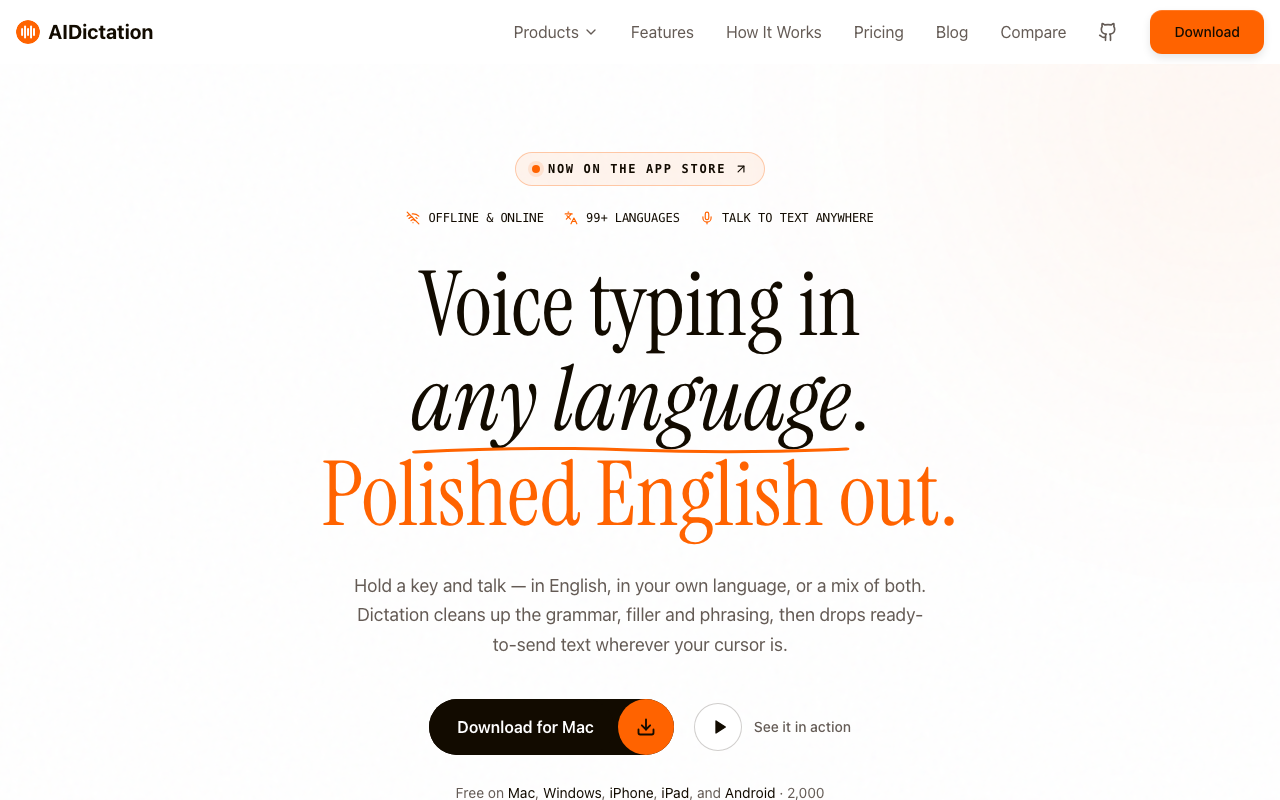
Under the hood it runs state-of-the-art AI speech models — the same class of technology behind Whisper AI — which explains the accuracy. Pricing is simple: 2,000 words per month free, forever, with a Pro subscription for unlimited dictation when you need it.
It started as a Mac app, and macOS is still where the system-wide integration feels deepest — but Windows, iPhone, and Android are all covered now. For platform-specific detail, see our voice to text on Windows guide and our speech to text for Mac comparison.
 For Maximum Features: Otter.ai
Otter handles the everything-including-the-kitchen-sink approach. Voice to text obviously, but also meeting transcription, audio file transcription, search through past transcriptions, and AI summaries of what you recorded.
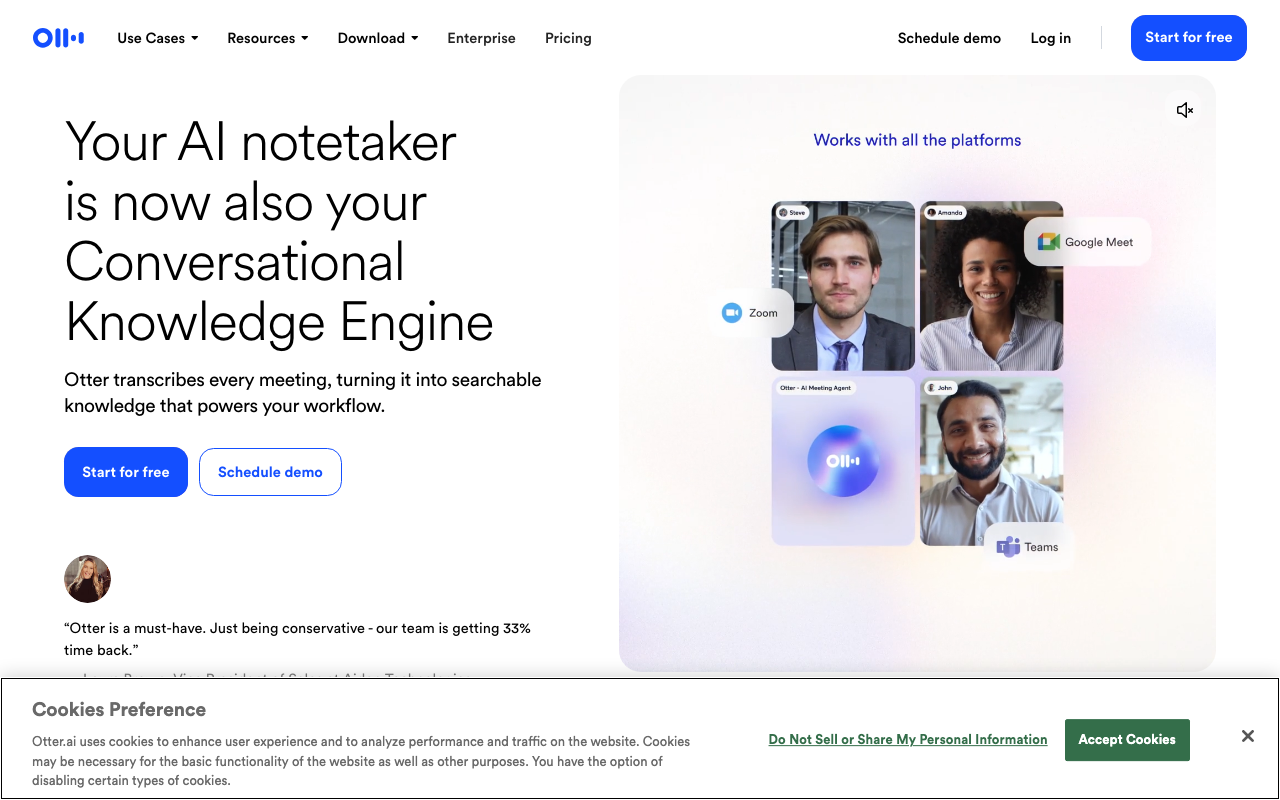
The free tier gives you 600 minutes per month, which is genuinely useful. Paid plans add real-time transcription for meetings, search capabilities, and higher limits. If you dictate constantly, it's worth the monthly cost.
The reality: Otter works for both casual dictators and heavy users. The free tier is generous enough to test whether voice-to-text fits your workflow. For more no-cost options, see our free voice to text roundup.
 For Cross-Platform Simplicity: Google Docs Voice Typing
Zero cost, built into Google Docs, works on Mac and Windows. You're locked into Google's ecosystem, but if you already write in Docs, it's basically frictionless. We have a full Google Docs voice typing guide covering setup and limitations.
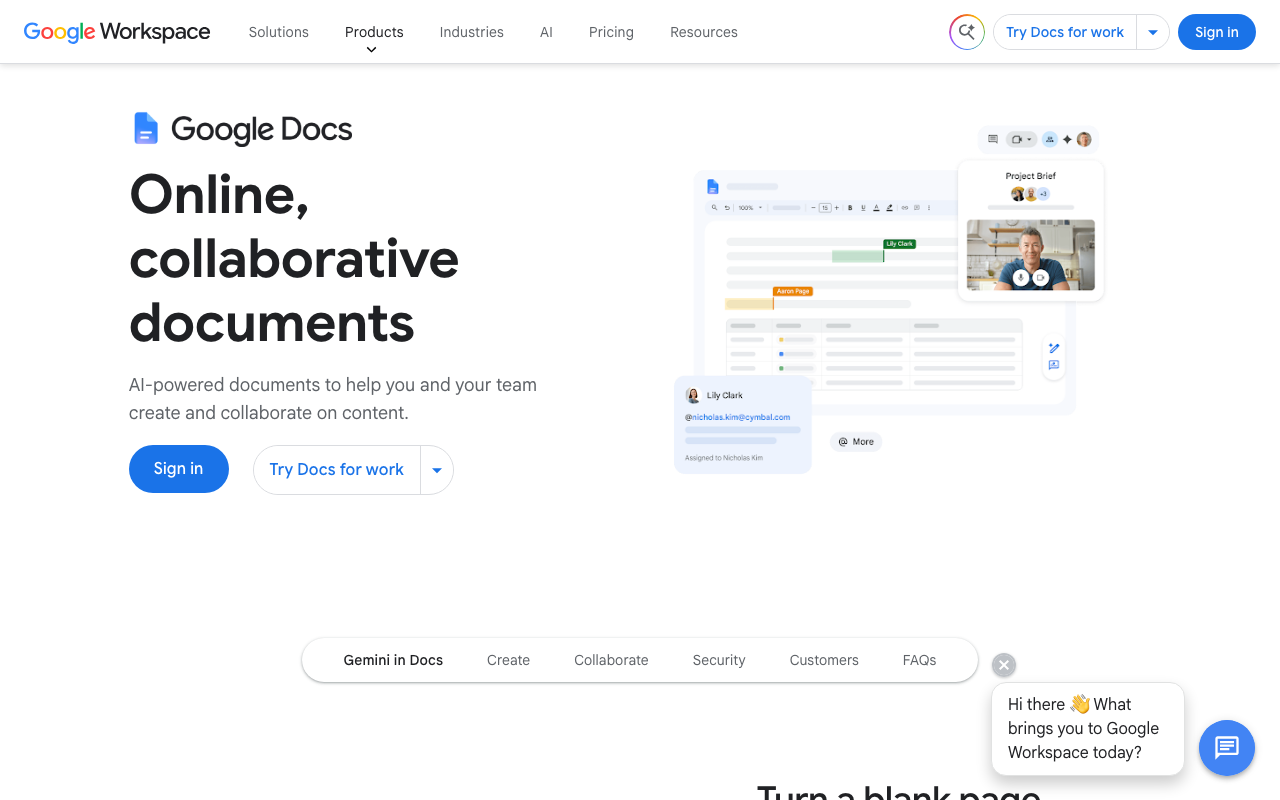
Accuracy is decent but not exceptional. It handles English well, struggles more with accents and technical terms. The real advantage is being already available if you use Google Workspace.
One real limitation: it only works inside Google Docs. You can't dictate into email or other apps directly.
For Mobile-First: Native Phone Dictation
iPhone has Siri dictation built in. It's improved significantly and handles long voice input better than older versions. Android's Google Recorder does voice dictation plus transcription — see our speech to text for Android guide for the full rundown.
These work in almost any app once enabled. The downside is they're lower accuracy than specialized apps—your phone's mic usually sits in your pocket or on a table, and the AI model isn't as sophisticated as dedicated apps.
Use native dictation for quick notes and messages. Reach for a dedicated app when accuracy matters.
 For Maximum Control and Offline: Whisper-Based Apps
Apps built on OpenAI's Whisper model give you flexibility. Some run entirely on-device (offline), some use cloud Whisper APIs. You get both accuracy and privacy options depending on which Whisper app you choose. For options that work without an internet connection, see our offline dictation software guide.
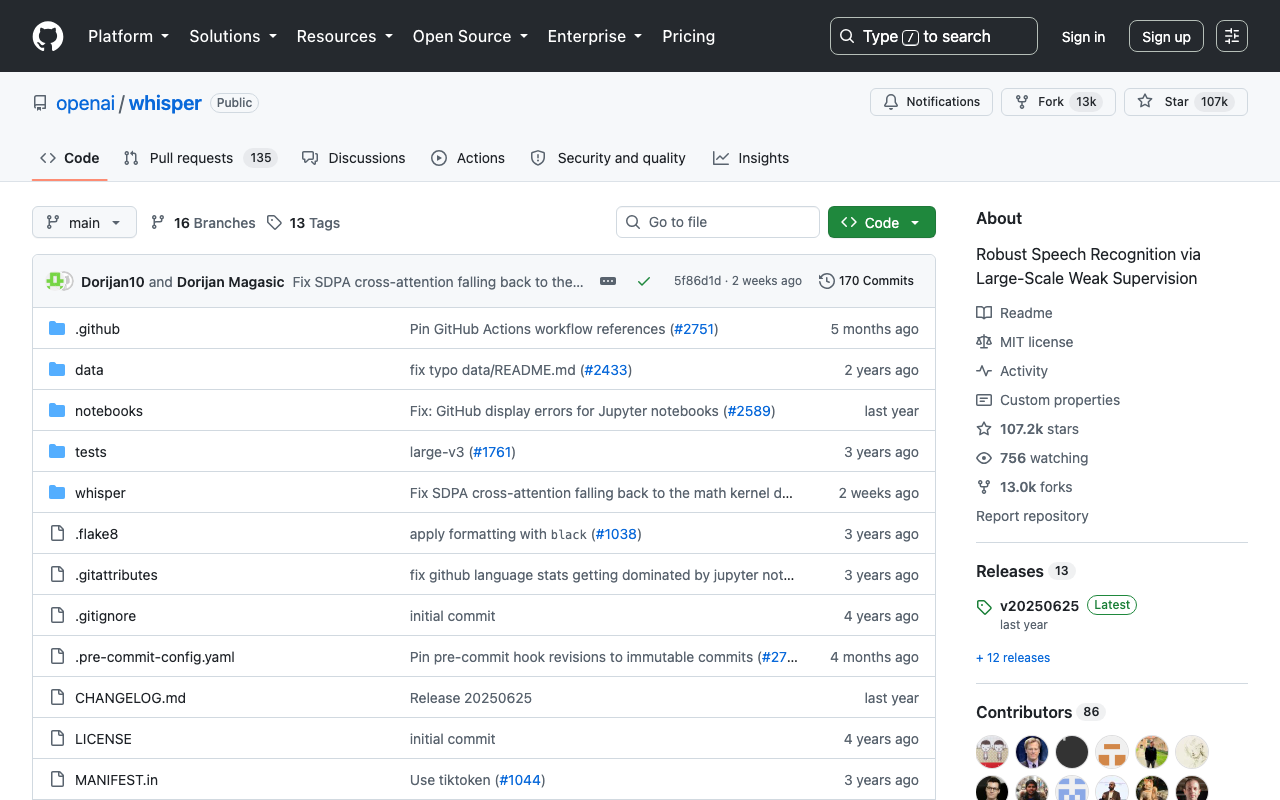
The downside is these are newer, smaller apps with less polish and fewer integrations than established players like Otter.ai.
Practical Tips for Getting Started with Voice to Text Apps
Start with what you already have. If you use a Mac, try the native dictation first. If you use Google Docs daily, test Docs voice typing. Most people overlook built-in options because they're not marketed.
Test in your actual environment. Download the app. Try dictating in your normal workspace—coffee shop, home office, noisy kitchen. Test with your normal microphone setup. Accuracy claims on the app store are tested in quiet rooms with professional mics.
Use apps for what they're designed for. Voice to text excels at: emails, messages, quick notes, creative brainstorming, and long-form writing. It struggles with: code, legal documents with specific formatting, highly technical content requiring special characters.
Hybrid workflow beats voice-only. Dictate your first draft at full speed. That's where voice-to-text wins—getting ideas out without the cognitive load of typing. Then use the keyboard for precision edits and formatting. You'll get 80% of voice's speed advantage without the frustration of trying to achieve perfection while speaking.
Real-World Example: One Week With a Voice to Text App
I switched to dictating all emails for one week. Baseline: I normally type emails at about 50 words per minute. With dictation, I spoke at 120 wpm, then spent maybe 30 seconds fixing a couple errors. Total time per email dropped by 40%.
The catch: the app worked best for short emails under 300 words. Longer emails required more corrections, cutting the speed advantage to about 25%. For quick responses and casual messages, voice-to-text is genuinely faster. For longer, more formal communication, the advantage shrinks.
The surprise: my writing quality improved slightly. Speaking forces you to write more naturally, less formally. People responded positively, asking if I changed something about my email style.
Frequently Asked Questions
What's the best voice to text app?
The best app depends on your platform and use case. For Mac users who need ultra-fast typing, AI Dictation excels. For cross-platform and meeting transcription, Otter.ai leads. For simplicity on iPhone, native Siri dictation works well. For comprehensive offline capabilities, Whisper-based apps are excellent.
Are voice to text apps free?
Many have free tiers. Google Docs voice typing is completely free. Otter.ai offers a free plan with limits. Native phone dictation (iOS/Android) is free but limited in features. Professional-grade apps typically cost $5-15/month.
Can I use voice to text apps for all writing tasks?
Voice apps work best for emails, documents, creative writing, and notes. They struggle with highly technical content that requires special characters or code. Hybrid approach works best: voice for initial capture, keyboard for precise editing.
Do voice to text apps work offline?
Some do, some don't. Cloud-based apps like Otter.ai and Google Docs require internet. Apps using Whisper AI can work offline on device. Native phone dictation works offline on newer devices. Check the app's specifications before assuming offline capability.
How accurate are voice to text apps?
Modern apps achieve 90-95% accuracy on clear speech. Accuracy varies by your accent, microphone quality, background noise, and the app's language model. Professional-grade apps like Otter.ai and AI Dictation consistently hit 95%+.
The Real Advantage of Voice to Text Apps
The honest truth: voice to text apps won't make you a better writer, but they make writing faster. Not marginally faster—genuinely 2-3× faster on first drafts. That's huge if you write regularly.
The limiting factor isn't the technology anymore. Modern apps handle voice recognition beautifully. The limiting factor is your willingness to speak instead of type, to accept 95% accuracy instead of waiting for 100%, to reframe what counts as "done."
Ready to test voice-to-text? Start with what you already have—native dictation, Google Docs, built-in phone features. Once you've figured out whether voice-to-text fits your workflow, then pick the right app for your specific needs.
Want the fastest, most seamless voice-to-text experience on Mac? Try AI Dictation free today—type 5× faster with AI that removes filler words and cleans up your speech.
Frequently Asked Questions
What's the best voice to text app?
The best app depends on your platform and use case. For ultra-fast typing on Mac, Windows, iPhone, or Android, AI Dictation excels. For cross-platform and meeting transcription, Otter.ai leads. For simplicity on iPhone, native Siri dictation works well. For comprehensive offline capabilities, Whisper-based apps are excellent.
Are voice to text apps free?
Many have free tiers. Google Docs voice typing is completely free. Otter.ai offers a free plan with limits. Native phone dictation (iOS/Android) is free but limited in features. Professional-grade apps typically cost $5-15/month.
Can I use voice to text apps for all writing tasks?
Voice apps work best for emails, documents, creative writing, and notes. They struggle with highly technical content that requires special characters or code. Hybrid approach works best: voice for initial capture, keyboard for precise editing.
Do voice to text apps work offline?
Some do, some don't. Cloud-based apps like Otter.ai and Google Docs require internet. Apps using Whisper AI can work offline on device. Native phone dictation works offline on newer devices. Check the app's specifications before assuming offline capability.
How accurate are voice to text apps?
Modern apps achieve 90-95% accuracy on clear speech. Accuracy varies by your accent, microphone quality, background noise, and the app's language model. Professional-grade apps like Otter.ai and AI Dictation consistently hit 95%+.
Ready to try AI Dictation?
Experience fast voice-to-text on your device. Free to download.
Download FreeRelated Posts
Free Audio to Text Tools: 10 Options Compared for 2026
Compare 10 free audio to text tools: built-in recorders, free apps, offline models, and cloud APIs, with privacy and accuracy trade-offs.
Apple Voice Recognition Software: Key Pros and Cons
Learn how Apple voice recognition software turns speech into text on your device, where it excels, and what tasks still challenge it in 2026.
8 Best Bilingual Dictation Apps: 5 Tested + 3 Baselines
We tested five bilingual dictation apps on Russian-English code-switching, plus three common baselines. Compare WER, language recall, script, and workflow.