8 Slack Keyboard Shortcuts for Mac, Windows, and Linux
Standup wraps at 9:32. You have four blockers to post, each with an owner and a due date, and by the time you open the composer you've spotted three unread threads that weren't there when the call started. You reach for the mouse, click through six channels, lose your draft once, and a two-minute routine stretches into twelve.
The difference between those two mornings is rarely talent. It's how often your hand leaves the keyboard. Slack treats shortcuts as a cross-platform navigation and action layer rather than a handful of text tricks, and covers message composition, search, navigation, files, formatting, calls, and window management in its own reference, with separate combinations for macOS and Windows/Linux. Learn eight of those commands and you stop hunting for channels and start moving through them.
The eight below are grouped by task. Three handle where you are: the quick switcher, the shortcut menu, and back and forward navigation. Two handle what you send: line breaks and lists. The rest handle the small recoveries that eat the most time, editing your last message, bolding a deadline, and clearing unread counts after a meeting block. Each one comes with a workflow that chains it to the others, plus a note on where the Mac and Windows versions part company, so you can verify the command in your own build before you depend on it.
Table of Contents
- 1. Quick Switcher (Cmd/Ctrl + K)
- 2. Keyboard Shortcuts Menu (Cmd/Ctrl + /)
- 3. Edit Last Message (Up Arrow)
- 4. New Line Without Sending (Shift + Enter)
- 5. Bold and Italic Formatting (Cmd/Ctrl + B and Cmd/Ctrl + I)
- 6. Bulleted and Numbered Lists (Cmd/Ctrl + Shift + 8 and Cmd/Ctrl + Shift + 7)
- 7. All Unreads View (Cmd/Ctrl + Shift + A)
- 8. Back and Forward Navigation (Cmd/Ctrl + [ and Cmd/Ctrl + ])
- Slack keyboard shortcuts at a glance
- Build a Slack Routine You Can Repeat Every Day
1. Quick Switcher (Cmd/Ctrl + K)
If I had to keep one shortcut from this list, it would be this one. Press Cmd + K on Mac or Ctrl + K on Windows and Linux and a search field opens over whatever you were reading. Type three or four letters of a channel or a person's name, check the highlighted match, press Enter, and you're there.
The reason it beats clicking is scale. Past a few dozen channels, the sidebar becomes a scrolling exercise, and the channels you need shift week to week. The quick switcher doesn't care about order or favorites. It searches.

A workflow that uses it properly
Say you're a clinician on a shift change. You need to post handoff notes in the shift-handoff channel, send a private follow-up to the patient-logistics coordinator, then check staffing. That's three destinations and about fifteen seconds if you type prefixes instead of hunting the sidebar.
- Lead with the prefix, not the full name. "shift" plus Enter lands in shift-handoff before the results finish rendering.
- Read the highlighted row before you commit. Similar channel names will happily send you to the wrong team.
- Switch first, dictate second. If you send dictated Slack messages instead of typing them, land in the right channel or DM before you hit the hotkey, so nothing posts in the wrong thread.
- Use it for people too. A colleague's name jumps to your DM with them, which is faster than opening the sidebar list.
Practical rule: if you're moving between more than two channels, use the switcher. The mouse only wins for a single hop.
One trade-off worth knowing: the switcher searches people as well as channels, so a short prefix can surface a colleague before the channel you wanted. Two more letters fixes it.
2. Keyboard Shortcuts Menu (Cmd/Ctrl + /)
Every Slack build ships its own shortcut reference, and it's more current than anything you'll find online. The Slack keyboard shortcuts reference documents Command + comma on Mac and Control + comma on Windows and Linux for opening the complete list inside the desktop app. Cmd + / (Ctrl + /) also brings up the panel while you're working in the composer.
That list is long because Slack treats shortcuts as a full interaction layer. It covers composing a message (Command + N or Command + Shift + K on Mac), searching the current conversation (Command + F), starting, joining, or leaving a huddle (Command + Shift + H), toggling huddle mute (Command + Shift + Space), and window management (Command + W to close, Command + Shift + W to reopen the last closed window, Command + Q to quit). Windows and Linux generally swap Control or Alt for Command or Option.
Why you check instead of memorize
Say a new hire at a software team finds a 2019 shortcut list in a blog post. It says one thing, their build does another, and they conclude shortcuts are broken. Ten seconds in the built-in list settles it.
- Recheck after major updates. Combinations move between releases.
- Pin your top five. A note in your notes app beats a fresh web search every time.
- Account for your layout. Slack warns that some shortcuts vary on non-English keyboard layouts, and customized Slack shortcuts aren't currently supported, so you adapt to the shortcut rather than remapping it.
- Treat the panel as onboarding material. Walk a new teammate through it in their first week and they'll stop asking where channel search lives.
If you dictate part of your day, keep that side in one reference too. This list of Mac dictation commands pairs well with the Slack panel.
3. Edit Last Message (Up Arrow)
Click into an empty composer and press the Up arrow. Slack reopens your most recent message in edit mode with the cursor live. No menu, no hovering over the message, no deleted-and-reposted version with a typo trail.
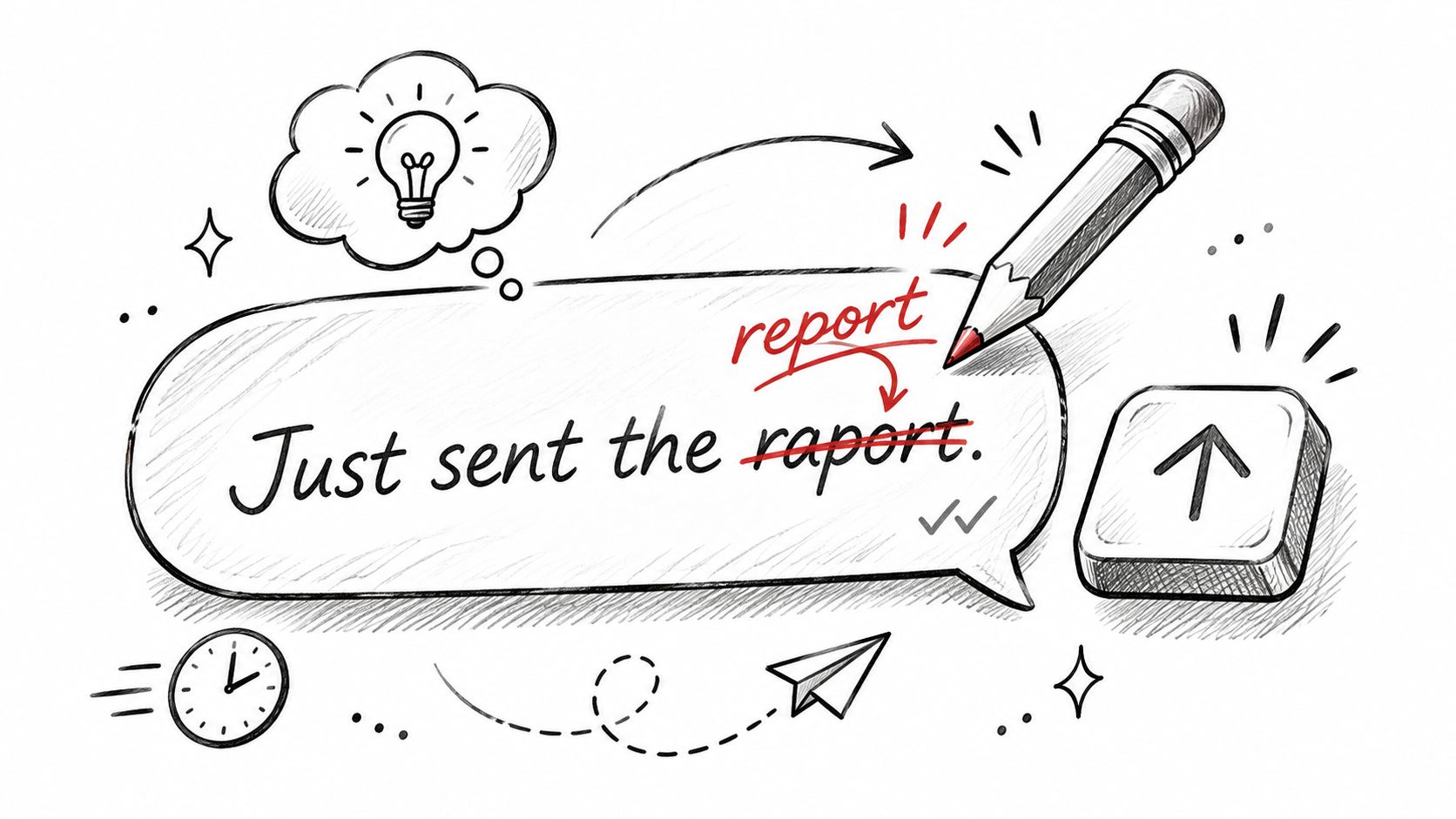
Consider a product manager who posts a sprint date to a stakeholder channel and sees it's wrong the instant it appears. The old habit is three clicks into the message menu. The arrow takes two seconds. In a channel where a dozen people read the date as a commitment, those two seconds matter more than they sound.
The correction pass after dictation
This is the shortcut that makes voice input practical in Slack. Recognition gets most words right and fumbles names, ticket IDs, and figures. Press Up, arrow to the bad word, retype it, press Enter.
- Correct inside the first minute. The arrow only reaches your last message, so the window is short.
- Edit rather than follow up. A silent fix beats a second message reading "correction, the date is the 14th" that pings everyone twice.
- Retype the word, not the message. Select the single token and replace it.
- Mind the edited marker. Slack labels edited messages, so readers can tell something changed. That's an argument for fixing fast, not for leaving errors in place.
If the correction is structural rather than a single word, rewrite the message and repost it as a clear replacement, then delete the original on quiet channels.
4. New Line Without Sending (Shift + Enter)
Enter sends. Shift + Enter inserts a line break instead, so you can build a multi-paragraph message, a list, or a short code block in one pass instead of four separate posts.
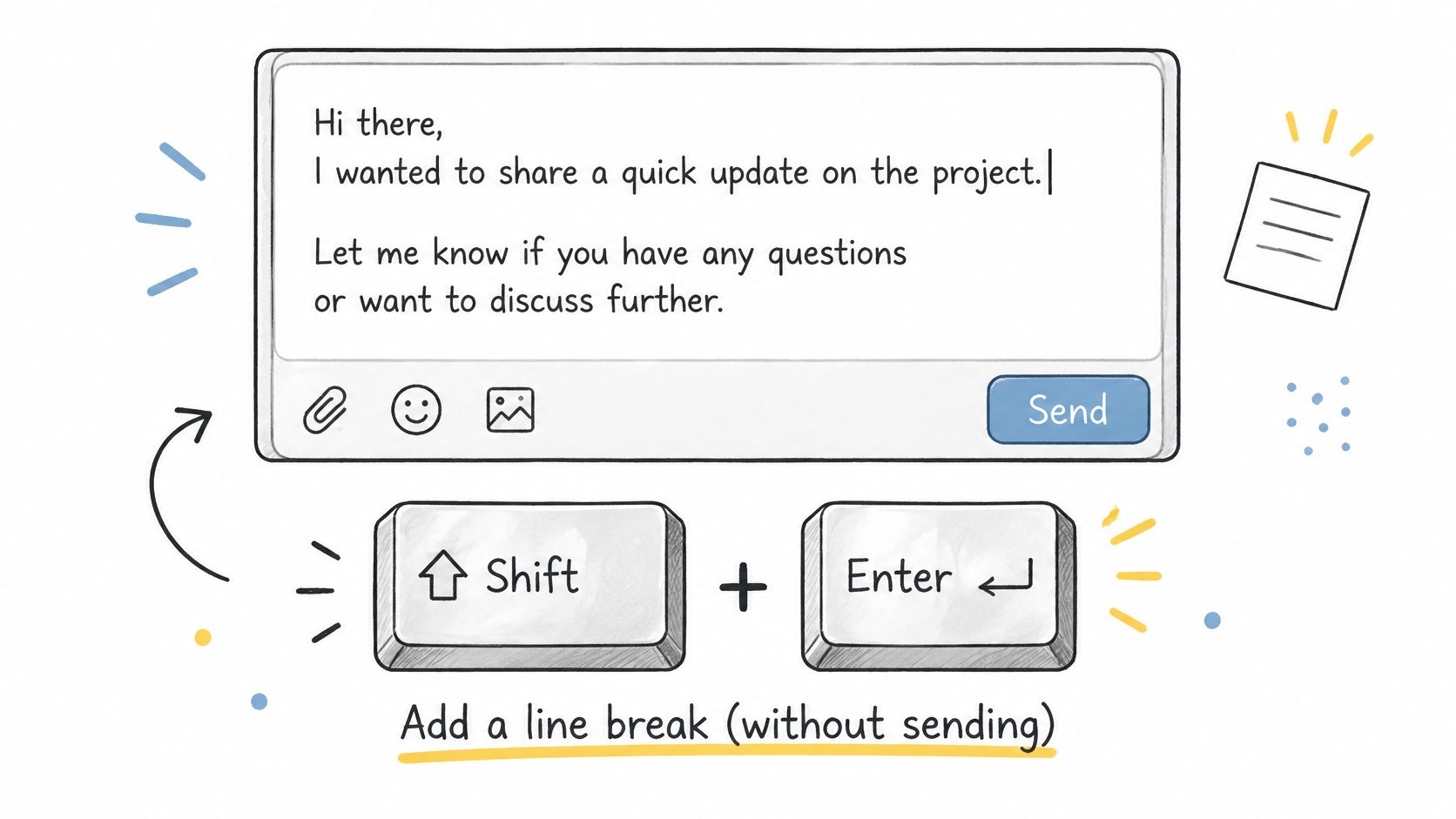
Take a researcher summarizing an interview. The useful version is one message: a context line, three findings, the next step. The version that annoys the channel is five notifications in eight seconds, each one a fragment of the same thought.
Write the whole message, then send it once. Four notifications for one idea is a habit, not a format.
Dictate in blocks, then assemble
If you're dictating, don't try to speak a formatted message in one breath. Say one block, press Shift + Enter, say the next. Speech engines punctuate more reliably at sentence boundaries, and you keep the shape of the message under your own control rather than the transcriber's.
- One paragraph per idea. Break the line between blocks, not mid-sentence.
- Review before you press Enter. Read once for misheard words and once for tone.
- Drafts survive a detour. Slack keeps unsent composer text when you switch channels, so you can jump out, verify a figure, and come back to finish.
- Keep code and quotes on their own lines. A command or a quoted sentence that shares a line with prose gets mangled by wrapping.
The habit that pays off is one well-structured message per topic. People can read it once, quote it once, and find it again later.
5. Bold and Italic Formatting (Cmd/Ctrl + B and Cmd/Ctrl + I)
Select text and press Cmd + B for bold or Cmd + I for italic. On Windows and Linux, Ctrl does the work. It's the same muscle memory as a word processor, applied inside the Slack composer without leaving the keyboard.
Where it earns its keep is emphasis under time pressure. A healthcare team posting a ten-line shift update needs the medication change to stand out from the equipment notes and the staffing line, because a flat wall of text is where critical details go to hide.
- Bold owners and deadlines. "Priya owns the migration by Thursday" reads faster when the two facts carry weight.
- Reserve italic for caveats and document titles. Use it sparingly or the emphasis evaporates.
- Never bold a whole paragraph. If everything is highlighted, nothing is.
- Asterisks still work. Typing text or text and sending applies the same formatting when the shortcut slips on an unusual keyboard layout.
Add hierarchy after dictation
Dictation hands you clean sentences with no visual hierarchy. Read the message once and bold the decision, the deadline, or the person's name. Two seconds of formatting prevents five replies asking which item changed.
Select the phrase first, then apply the shortcut. Formatting behaviour with no selection varies between Slack clients and between the desktop app and the browser, so the reliable pattern is select, then format.
6. Bulleted and Numbered Lists (Cmd/Ctrl + Shift + 8 and Cmd/Ctrl + Shift + 7)
Cmd + Shift + 8 starts a bulleted list. Cmd + Shift + 7 starts a numbered one. Ctrl replaces Cmd on Windows and Linux.
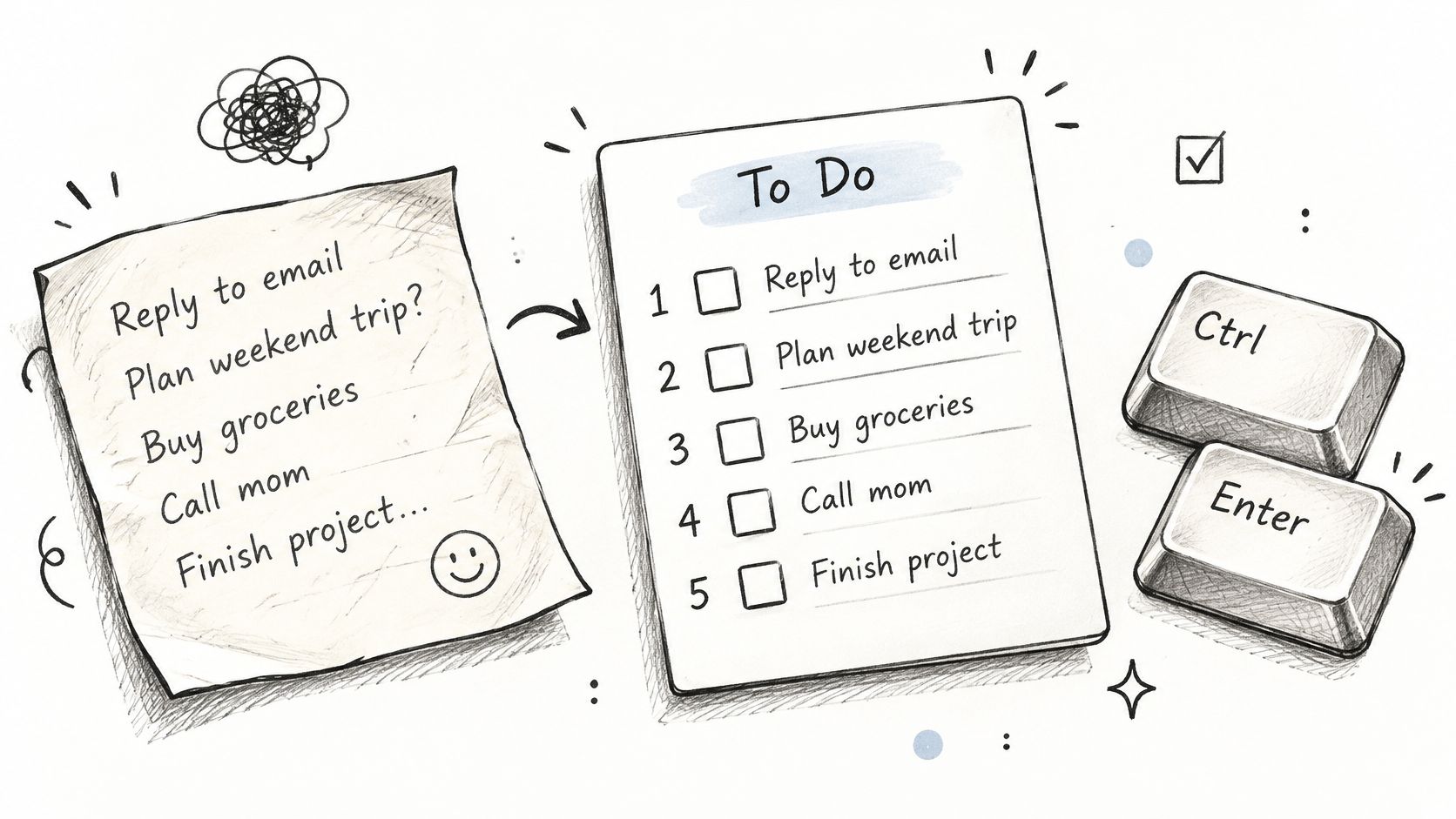
This is the shortcut that closes the loop on the standup scenario. After the call, the project manager posts the blockers as a numbered list, one line per blocker, each with an owner and a due date. Numbered, because the order is the priority. Bullets instead when the items are options rather than a sequence.
Format after transcription, not during
Speaking list markers aloud ("bullet point one, bullet point two") produces a mess no transcriber can rescue. Dictate the items as plain sentences, then select them and apply the list shortcut.
- Number when sequence matters. Blockers, steps, escalation order.
- Bullet when it doesn't. Options, notes, references, open questions.
- Check nesting before sending. Nested lists render inconsistently across clients and platforms, so keep messages one level deep and move anything longer into a canvas.
- Keep lines parallel. Start each item with a verb when the list is a set of actions.
For the mechanics outside Slack, this walkthrough of typing bullet points on a Mac covers the keyboard-level alternatives when a shortcut doesn't take.
7. All Unreads View (Cmd/Ctrl + Shift + A)
Cmd + Shift + A (Ctrl + Shift + A on Windows and Linux) opens a single view of every channel and direct message with unread activity. After a meeting block or a shift, this is your triage screen instead of a sidebar you scroll and guess at.
Picture a journalist back from three interviews. Editors have replied in five channels, one of them twice, and the most recent message is the least urgent. Opening the consolidated view sorts the work by conversation rather than by guesswork.
Slack's navigation documentation maps the keyboard path through that backlog with unusual precision: Command + J on Mac and Control + J on Windows and Linux move focus to the first unread message, Home jumps to the oldest message in a conversation while End goes to the most recent, and F6 with Shift + F6 cycles focus between interface sections (Slack keyboard navigation guide).
Triage order: clear the channels where someone is blocked on you, then the ones where you're waiting on a reply, then the announcements you can skim and archive.
- Confirm the key in the panel if nothing happens. Shortcut assignments differ by platform and client.
- Clear low-priority channels first. Knocking out the noise makes the urgent items obvious.
- Reply in the conversation, not the unread view. Jump in with a single click or the arrow keys and the thread context comes with you.
The point of the view isn't to read everything. It's to decide quickly what deserves a reply now.
8. Back and Forward Navigation (Cmd/Ctrl + [ and Cmd/Ctrl + ])
Cmd + [ goes back. Cmd + ] goes forward. It behaves exactly like browser history, which is why it sticks after a day of use.
A developer jumps to a bug report with the quick switcher, answers a question there, switches to the deployment channel to check whether the fix shipped, then presses Cmd + [ twice to land back in the bug thread without re-searching for it.
Slack's desktop navigation guide describes the app as a predictable focus graph rather than a pile of commands. F6 moves focus between major interface sections, Tab and Shift + Tab move within the active section, arrow keys move among items such as messages and channels, and Home and End jump to the oldest and newest message. Browser builds use their own combinations for section traversal, including Command + F6 on Mac and Ctrl + F6 on Windows and Linux (navigating Slack with your keyboard).
- Pair it with the switcher. Jump with Cmd + K, return with Cmd + [. The two together replace sidebar scrolling entirely.
- Test navigation keys before relying on them. Navigation combinations differ on Windows and Linux builds, and some vary with non-English layouts.
- Windows screen-reader users, note this. Slack says the virtual cursor may need to be disabled for its navigation shortcuts to work reliably.
- Mac users who like key-driven apps will recognize the pattern from the system level. These Finder shortcuts every Mac user needs follow the same logic of staying on the keyboard.
Slack keyboard shortcuts at a glance
| Shortcut | Mac | Windows / Linux | Best for |
|---|---|---|---|
| Quick Switcher | Cmd + K | Ctrl + K | Jump to channels, DMs, or people |
| Keyboard Shortcuts Menu | Cmd + / | Ctrl + / | Check and discover Slack shortcuts |
| Edit Last Message | Up Arrow | Up Arrow | Quickly correct your latest message |
| New Line Without Sending | Shift + Enter | Shift + Enter | Write multi-paragraph messages |
| Bold and Italic Formatting | Cmd + B; Cmd + I | Ctrl + B; Ctrl + I | Emphasize key text |
| Bulleted and Numbered Lists | Cmd + Shift + 8; Cmd + Shift + 7 | Ctrl + Shift + 8; Ctrl + Shift + 7 | Format tasks, agendas, and steps |
| All Unreads View | Cmd + Shift + A | Ctrl + Shift + A | Catch up on unread messages |
| Back and Forward Navigation | Cmd + [; Cmd + ] | Ctrl + [; Ctrl + ] | Return to recently viewed conversations |
Build a Slack Routine You Can Repeat Every Day
Eight shortcuts is too many to add at once. Pick three from different groups and run them for a week before you touch the rest. My own recommendation: the quick switcher for getting anywhere, Shift + Enter for keeping a message readable, and the Up arrow for fixing what you already sent. Those three cover where you are, what you send, and what you got wrong, which is most of the friction in a normal day.
Week two, add the shortcut menu and one formatting command, either bold or numbered lists. Week three, take the all unreads view and back navigation. By then the keys are muscle memory and you can stop thinking about them.
A full morning then looks like this. Cmd + K into the project channel. Post the blockers as a numbered list with bold owner names. Shift + Enter between sections so it's one message instead of four. Enter to send. Up arrow if a date is off. Then Cmd + Shift + A to sweep the backlog and Cmd + [ to return to whatever you were reading before the notifications arrived.
The drafting half of that routine is where dictation earns its place. AIDictation works through a hotkey: you hold it, talk in any text field including Slack, and punctuated text appears at the cursor. Pair that with the Up arrow for corrections and the formatting shortcuts for structure, and a recap that took five minutes of typing becomes ninety seconds of talking plus a short review pass. That pairing is the productivity gain, not the dictation alone.
It isn't the right tool for every team. AIDictation isn't built for groups that need admin controls, and it isn't for work that cannot send text to the cloud. If your messages can't leave the machine, or your IT team requires centralized policy management, keep the keyboard routine and skip the voice layer.
One rule matters more than any shortcut: fix the habit before you add the command. If you already re-read before you send, the Up arrow just makes it faster. If you don't, no shortcut will.
AIDictation turns the drafting half of this routine into talking instead of typing: hold a hotkey, speak, and clean punctuated text lands in the Slack composer for you to correct with the Up arrow and format with the shortcuts above. It includes a one-time 5,000-word free trial with no card required, plus Pro options for unlimited cloud and local models when you want on-device dictation for sensitive text. Visit AIDictation to set a hotkey and try it on your next standup recap.
Frequently Asked Questions
What does 8 Slack Keyboard Shortcuts for Mac, Windows, and Linux cover?
Standup wraps at 9:32. You have four blockers to post, each with an owner and a due date, and by the time you open the composer you've spotted three unread threads that weren't there when the call started.
Who should read 8 Slack Keyboard Shortcuts for Mac, Windows, and Linux?
8 Slack Keyboard Shortcuts for Mac, Windows, and Linux is most useful for readers who want clear, practical guidance and a faster path to the main takeaways without guessing what matters most.
What are the main takeaways from 8 Slack Keyboard Shortcuts for Mac, Windows, and Linux?
Key topics include Table of Contents, 1. Quick Switcher (Cmd/Ctrl + K), A workflow that uses it properly.
Ready to try AI Dictation?
Experience fast voice-to-text on your device. Free to download.
Download Free