How to Text to an iPhone from a Computer: 2026 Guide
You’re at your desk, halfway through a spec, support reply, or patient note, and then a text needs to go out now. It isn’t a one-line “on my way” message either. It’s a detailed follow-up, a scheduling clarification, a quick client answer, or a note that needs names, dates, and links to be right the first time.
That’s the moment when the phone becomes a productivity trap. You stop typing, pick it up, access it, switch context, and thumb out something that would’ve taken half the effort on a real keyboard. For professionals, the question isn’t whether you can text to an iPhone from a computer. It’s which method fits your workflow without creating new friction.
There’s also a deeper reason this works at all. iPhone text messages are stored in a SQLite database within backups, a capability that became standardized around 2008 to 2010. Computer access to those messages became even more important after iMessage launched in 2011 and shifted Apple-to-Apple messaging to data, cutting carrier SMS revenue by an estimated 20 to 30% by 2013, while courts now handle millions of message exports annually for digital evidence, as summarized in Sean Dolinar’s text message analytics overview. Texting from a computer isn’t a hack anymore. It’s part of how modern messaging works.
Table of Contents
- Beyond the Small Screen Why Texting from Your Computer is a Game-Changer
- The Seamless Solution for Mac Users Native Messages Setup
- Bridging the Gap Texting iPhones from a Windows PC
- Universal Workarounds Web Apps and Email Gateways
- Optimizing Your Workflow with Dictation and Best Practices
- Choosing Your Path and Final Recommendations
Beyond the Small Screen Why Texting from Your Computer is a Game-Changer
A lot of people treat desktop texting as a convenience feature. In practice, it’s a focus protection tool.
If you already live in Slack, email, docs, ticketing systems, or an EHR for most of the day, your keyboard is your main work surface. Every time you jump to the phone for a nontrivial message, you introduce delay and error. Names get mistyped. You skip details because mobile typing is annoying. You put off the reply because it feels like a separate task.
That friction gets worse when the message has to be professional. A customer success manager might need to confirm a meeting change. A developer might need to text a teammate a test result and screenshot. A clinician may need to send a brief operational update while keeping the rest of their workflow on the computer. In those moments, the value isn’t novelty. It’s continuity.
Why this matters in real work
The best computer-to-iPhone setup does three things well:
- Keeps you in one context: You stay inside the machine where you’re already writing and referencing documents.
- Improves message quality: A full keyboard makes longer texts clearer, cleaner, and less rushed.
- Fits existing tools: Copying from notes, docs, ticket threads, or a dictation app becomes simple.
Texting from a computer pays off most when the message is longer than a sentence, needs precision, or has to be sent while you’re actively working in another app.
There’s also a security angle. Native Apple syncing, local-network bridges, and local backups all keep messaging closer to your own devices than many people assume. That matters if your texts include scheduling details, internal project notes, or other business communication that shouldn’t bounce through random services.
The wall you’re trying to remove
The challenge is fragmentation. Apple’s own tools work best inside Apple’s ecosystem. Windows needs a bridge. Locked-down corporate machines often block installers. Cross-platform conversations get messy fast, especially when some contacts are on iPhone and others aren’t.
That’s why there isn’t one universal answer. There are native methods, bridge apps, and workarounds. The right choice depends less on technical possibility and more on how you work all day.
The Seamless Solution for Mac Users Native Messages Setup
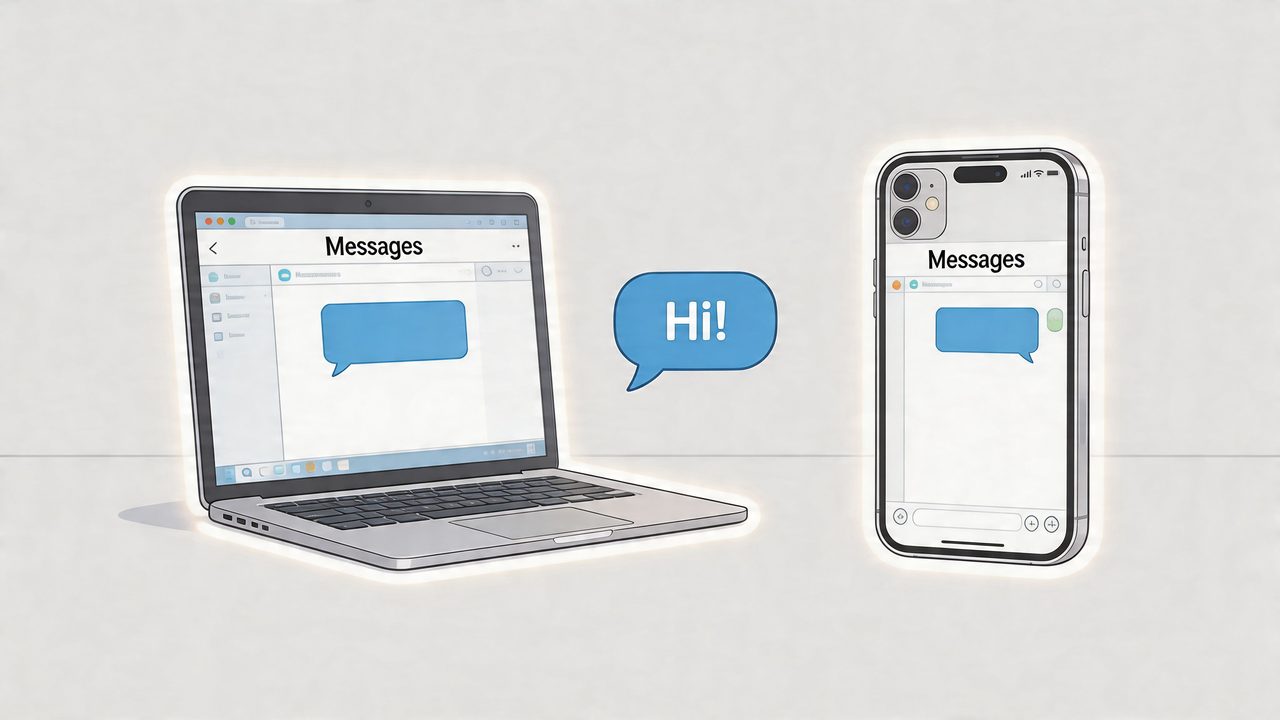
For Mac users, the native Messages app is still the cleanest way to text to an iPhone from a computer. It’s built into the platform, it syncs through your Apple account, and once it’s working properly, it feels like part of the OS rather than an add-on.
Know what your Mac can send
A Mac can handle iMessages directly when you’re signed into the same Apple ID. For regular SMS and MMS, the Mac relies on your iPhone through Text Message Forwarding. That distinction matters.
If you only sign into Messages on the Mac, blue-bubble conversations may work while green-bubble conversations don’t. That’s the setup mistake I see most often. People think “Messages is on” equals “all texting is on.” It doesn’t.
Set it up in the right order
Use this sequence, because the order reduces sync headaches:
-
Sign into the same Apple ID on both devices
On the iPhone, check Settings and your Apple account. On the Mac, check System Settings and Apple ID. -
Turn on iMessage on the iPhone
Go to Settings, then Messages, then enable iMessage if it isn’t already on. -
Enable Text Message Forwarding on the iPhone
In Settings, open Messages, then Text Message Forwarding, then select your Mac. -
Enter the pairing code
A 6-digit code appears on the Mac. Enter it on the iPhone to complete pairing. This step matters more than people realize. Code mismatches caused by network lag account for 20 to 30% of initial setup failures reported in user forums, and the same Apple-synced setup can deliver less than 1-second latency on Apple Silicon Macs, according to the workflow described by Popular Science’s Mac-to-iPhone texting guide. -
Verify your send and receive settings on the Mac
In Messages settings, confirm your phone number and relevant email addresses are checked correctly.
What tends to break
Most Mac setups fail for boring reasons, not exotic ones.
| Problem | What it usually means | Fix |
|---|---|---|
| iMessages work, SMS doesn’t | Forwarding isn’t enabled | Revisit Text Message Forwarding on iPhone |
| Mac never shows up as an option | Apple ID mismatch | Sign out and back in on both devices |
| Pairing code fails | Devices aren’t syncing cleanly | Wait a moment, retry, and keep both devices on stable Wi-Fi |
| Messages send from email instead of number | Send/receive settings are off | Recheck your reachable addresses in Messages settings |
Practical rule: If setup feels half-working, don’t keep tweaking random settings. Confirm Apple ID, iMessage, forwarding, then the code. In that order.
For professionals, the native route wins on three fronts:
- Speed: It’s fast enough to feel conversational.
- Privacy: Apple’s synced approach is positioned as end-to-end encrypted and suited to privacy-sensitive workflows.
- Integration: You can drag files in, copy from a browser or note app, and work with normal desktop shortcuts.
The downside is just as real. This is a great Mac-to-iPhone system. It’s not a universal messaging hub. If your communication spans Android contacts, mixed-device teams, or a Windows workstation, the native Mac setup stops being the whole answer.
Bridging the Gap Texting iPhones from a Windows PC
If you carry an iPhone but spend your day on Windows, you need a bridge. There isn’t a native Apple equivalent for Windows that feels as baked in as Messages on macOS, so your decision comes down to reliability versus convenience.
A lot of guides lump every Windows option together. That’s a mistake. Some are built for actual message handling. Others are better viewed as workaround layers.
Intel Unison is the practical first choice
When trying to text to an iPhone from a computer on Windows, Intel Unison is often the strongest starting point.
The setup is straightforward. Install the app on the iPhone and Windows PC, open Unison on the PC, generate a QR code, then scan it from the phone. That optical pairing has a 95% first-try success rate, and the app uses the local network rather than the internet after pairing, which is one reason it feels more private than cloud-routed alternatives. Benchmarks cited by XDA’s Intel Unison walkthrough put its message delivery at 92%, ahead of Microsoft’s Phone Link.
One practical detail matters here. Unison doesn’t pull in full historical messaging the way people often expect. It’s better for ongoing communication than for turning your PC into a complete archive of your phone.
A good companion setup on Windows is a voice workflow that lets you draft quickly before pasting into your bridge app. If that’s part of your workday, these voice-to-text options for Windows are worth reviewing.
To see the broader view, this walkthrough is useful:
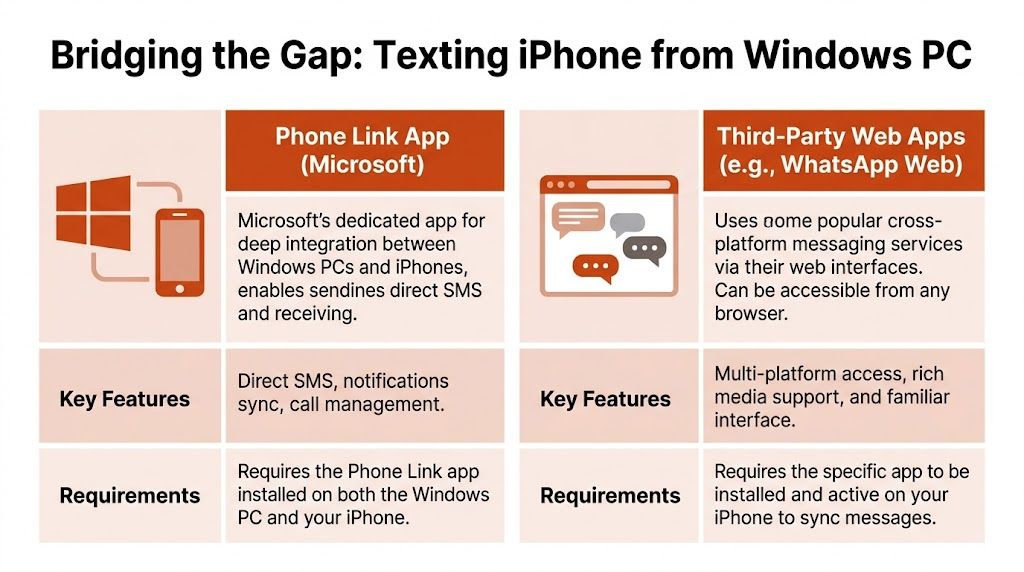
Phone Link versus web-based messaging
The infographic above highlights two broad categories Windows users usually end up comparing:
- Phone Link: Better if you want Microsoft-native integration and are already invested in Windows features like notifications and call handling.
- Third-party web apps such as WhatsApp Web: Better if your contacts already live in those platforms and you don’t need traditional SMS as the core channel.
These aren’t equal substitutes. Phone Link tries to connect your PC to your phone workflow. Web apps sidestep the issue by moving the conversation into a service that already lives on every device.
What matters in daily use
Here’s the practical comparison that tends to matter most:
| Factor | Intel Unison | Phone Link | Web messaging apps |
|---|---|---|---|
| Setup feel | Usually clean | Can be uneven | Usually simple |
| iPhone integration | Purpose-built bridge | More limited in practice | Depends on app, not iPhone |
| History visibility | Limited | Varies | Usually good inside the app |
| Best use case | New messages from Windows | Basic cross-device convenience | Cross-platform team messaging |
If you need texting on Windows for client replies, scheduling, or support work, favor the option that fails less often, not the one with the longer feature list.
Unison’s weak spots are also practical. Firewalls can block it. Bluetooth range still matters during setup and use. Enterprise IT policies can make a good consumer tool look flaky. If you’re on a tightly managed work laptop, web-based messaging may be less elegant but easier to keep running.
Universal Workarounds Web Apps and Email Gateways
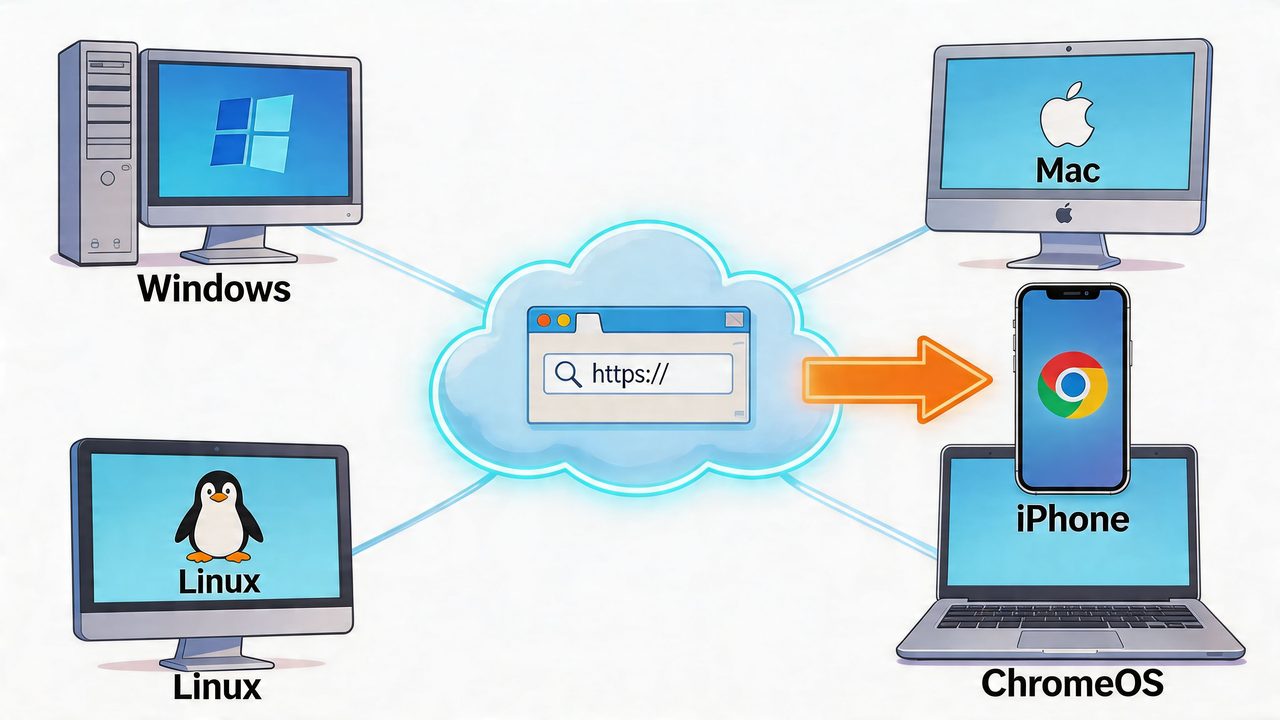
Some environments make native apps impossible. Maybe you’re on Linux. Maybe you’re using ChromeOS. Maybe corporate policy blocks local installs. In those cases, the question shifts from “What’s best?” to “What can I trust enough to use consistently?”
Web apps work best when the conversation lives outside SMS
If the other person already uses WhatsApp, Telegram, Slack, or another cross-platform messaging app, the browser becomes your easiest route. Open the web client, authenticate once, and work from any machine with a keyboard.
This solves the hardware problem, but it changes the communication channel. You’re no longer texting their iPhone number in the traditional sense. You’re messaging them inside a service they happen to use on their iPhone.
That trade-off is often worth it for teams. It’s especially useful when your drafting process already happens in documents. For example, many people use browser-based voice input to draft longer notes, then paste them into the messaging app. If that’s your style, Google Docs voice typing workflows fit naturally into this setup.
Carrier portals can help, but they add dependency
Some carriers offer their own desktop or web messaging layers. These can be useful if you need number-based messaging and your organization already standardizes on a carrier ecosystem.
The downside is lock-in. Carrier tools tend to be narrower, less polished, and more dependent on account status and device pairing than mainstream chat apps. They can work for operational messaging, but I wouldn’t build an important professional workflow around one unless you have no better option.
Web messaging is strongest when everyone agrees on the app. It’s weakest when you need universal reach and don’t control what the recipient uses.
Email gateways are blunt instruments
Email-to-SMS gateways still exist in many contexts, and they’re handy for one-off alerts, reminders, or machine-generated notifications. They are not a pleasant way to hold a conversation.
Use them when the goal is delivery, not dialogue. If you need formatting, attachments, or threaded context, this method gets awkward fast. It’s a fallback, not a mainline workflow.
A simple way to think about universal methods:
- Choose web apps when your contacts already use a cross-platform messenger.
- Choose carrier tools when your phone service offers a workable desktop layer and policy requires it.
- Choose email gateways for simple outbound notices, not back-and-forth discussion.
These methods aren’t as integrated as native Apple messaging or a solid Windows bridge. What they offer is reach. When your device mix is messy, reach can matter more than elegance.
Optimizing Your Workflow with Dictation and Best Practices
Once the connection problem is solved, the bigger opportunity is composition speed. That’s where many users still leave time on the table.
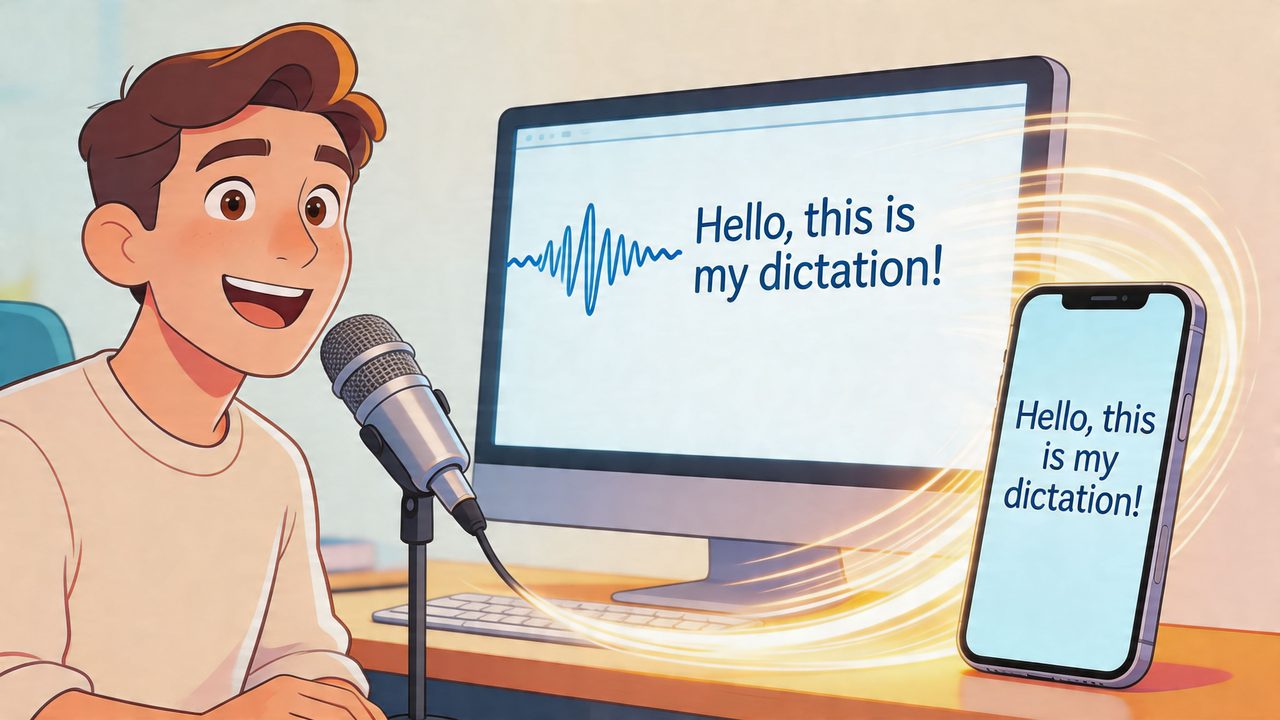
The recurring bottleneck isn’t opening Messages or Unison. It’s writing thoughtful text quickly enough that using the computer still feels faster than grabbing the phone. If you send short reactive replies all day, keyboarding is fine. If you send longer updates, explanations, or carefully worded responses, dictation changes the equation.
Compose once then choose the channel
The hidden workflow problem is cross-platform fragmentation. Many guides show how to message iPhone users from a Mac, but they don’t address the fact that Macs can’t natively send SMS to Android phones, which forces people to switch devices or juggle apps. That gap is the central issue highlighted in Zapier’s discussion of computer texting limitations.
That’s why the best professional workflow is often:
- Draft the message once
- Polish it on the computer
- Send it through the right channel for that recipient
This matters for mixed-contact lists. A product manager may text one stakeholder through iMessage, another through WhatsApp, and a third through a standard phone number. Rewriting the same message in three places is wasted effort.
If you work primarily on macOS, improving your drafting layer matters more than obsessing over yet another messaging app. Tools built for speech-to-text on Mac can make that drafting step much faster.
Privacy and focus are part of the workflow
Not every message deserves the same transport.
Use a native Apple path when privacy and low-friction syncing are your top priorities. Use a local-network bridge on Windows when you need desktop access without pushing everything through a random cloud inbox. Use web apps when the team already collaborates there and the conversation isn’t tied to a phone number.
The best practices are simple but easy to ignore:
- Draft before opening the chat: Write the message first, then paste or send. That reduces reactive, sloppy replies.
- Tame notifications: Let desktop texting support your work, not constantly interrupt it.
- Match the tool to the recipient: iMessage for Apple contacts, a bridge app for Windows access, and cross-platform messengers for mixed-device groups.
- Keep sensitive workflows local when possible: If the content is operationally sensitive, favor native or local-device methods over extra intermediaries.
The fastest setup isn’t always the best one. The best workflow is the one that lets you write once, send confidently, and stay at your desk.
That’s the practical goal. Fewer context switches. Cleaner messages. Less device juggling.
Choosing Your Path and Final Recommendations
The best method depends less on what’s technically possible and more on what kind of workday you’re trying to support.
A simple decision framework
If you use a Mac and iPhone, start with the native Messages setup. It’s the closest thing to a no-compromise answer for Apple users. It’s fast, integrated, and doesn’t feel bolted on.
If you use Windows with an iPhone, start with Intel Unison. It’s the most practical bridge for everyday messaging, especially if your job involves responding to texts while you’re already inside Windows apps.
If you work on shared machines, restricted laptops, Linux, or ChromeOS, use a web-based messaging service when the recipient is already on that platform. It won’t replace SMS universally, but it’s often the most stable option in controlled environments.
If your contacts span iPhone and Android, don’t force everything through one desktop app and expect elegance. Mixed-device communication is still fragmented. Build a workflow around drafting efficiently, then sending through the right channel.
Recommended starting points
Mac-first professional: Native Messages
Windows-first professional: Intel Unison
Locked-down or browser-only setup: Web messaging apps
Mixed-device contact list: Channel-flexible workflow with strong desktop drafting
What to expect next
Messaging is inching toward better interoperability, especially with Apple supporting RCS on iOS 18+ in the Mac-to-iPhone workflow context described earlier. That helps, but it doesn’t erase platform boundaries overnight. Native Apple messaging still works best inside Apple’s own ecosystem. Cross-platform communication still asks you to compromise somewhere.
So the right long-term mindset is practical, not ideological. Use native tools where they shine. Use bridge apps where they’re good enough. Use workarounds when policy or hardware leaves you no choice.
Optimize the part you control. Your computer is already where you think, write, and organize information. Your texting setup should support that, not pull you away from it.
If you want the writing part of this workflow to feel faster and cleaner on macOS, AIDictation is built for exactly that. It turns speech into ready-to-send text, supports private local dictation on Apple Silicon, and helps you draft polished messages before you drop them into Messages, web apps, or any other channel.
Frequently Asked Questions
What does How to Text to an iPhone from a Computer: 2026 Guide cover?
You’re at your desk, halfway through a spec, support reply, or patient note, and then a text needs to go out now. It isn’t a one-line “on my way” message either.
Who should read How to Text to an iPhone from a Computer: 2026 Guide?
How to Text to an iPhone from a Computer: 2026 Guide is most useful for readers who want clear, practical guidance and a faster path to the main takeaways without guessing what matters most.
What are the main takeaways from How to Text to an iPhone from a Computer: 2026 Guide?
Key topics include Table of Contents, Beyond the Small Screen Why Texting from Your Computer is a Game-Changer, Why this matters in real work.
Ready to try AI Dictation?
Experience fast voice-to-text on your device. Free to download.
Download FreeRelated Posts
10 Technical Writing Best Practices for 2026
Master technical writing best practices with actionable guidance on clarity, structure, code, reviews, accessibility, localization, metrics, and dictation.
Voice Message to Email: A Practical How-To Guide
Turn any voice message to email with this practical how-to guide. Platform methods, transcription tools, formatting tips, and privacy fixes included.
How to Read the Emails Using Voice on macOS
Learn how to read the emails hands-free on macOS using AIDictation. Set up voice workflows to summarize, draft, and manage your inbox with privacy-first tools.