How to Use Dictation on the iPad: A Complete Guide
You’re probably reading this on an iPad with a half-written email, meeting note, or outline sitting open in Notes, Pages, or Gmail. You started typing on the glass keyboard, got through a few sentences, and remembered why long-form writing on a tablet feels slower than it should.
That’s the moment dictation on the iPad starts to make sense. Not as a novelty. Not as an accessibility feature you only turn on once. As a practical input method that lets you capture ideas quickly, keep your hands off the screen, and draft when typing feels cramped or disruptive.
The catch is that most guides stop at “tap the microphone and talk.” That’s enough for a grocery list. It’s not enough for stakeholder updates, technical notes, client emails, or classwork you need to clean up and use later.
Table of Contents
- Why You Should Master iPad Dictation
- Enabling and Using Built-in iPad Dictation
- Choosing the Right Dictation Method
- Advanced Commands for Formatting and Editing
- Troubleshooting Common Dictation Problems
- Syncing Dictation with Your Mac Workflow
Why You Should Master iPad Dictation
Typing a long message on an iPad usually starts fine and gets annoying fast. A quick reply is easy. A project brief, case note, lecture summary, or detailed status update is where the virtual keyboard starts costing you attention.
That’s why dictation on the iPad is worth learning properly. It lets you stay in the flow of your thoughts instead of pecking at glass, fixing missed taps, and stopping every few words to move the cursor. For many people, the iPad becomes much more useful once speaking is part of the workflow.
It turns the iPad into a better drafting tool
The strongest use case for built-in dictation isn’t perfect final copy. It’s fast first drafts. If you already know what you want to say, speaking it usually feels more natural than thumb-typing it into Notes or Messages.
That changes common tasks:
- Email drafting: Talk through the core message first, then edit tone and detail.
- Meeting capture: Record action items into Notes while the discussion is fresh.
- Study workflow: Dictate summaries after reading instead of typing them from scratch.
- Field work: Add observations while standing, walking, or moving between tasks.
Practical rule: Use dictation for capture, structure, and momentum. Use editing for precision.
There’s also a mindset shift here. The people who get the most from dictation don’t wait for ideal conditions. They use it when typing is the bottleneck. That includes writing from the couch, adding notes in transit, or getting thoughts down between meetings.
It’s broader than accessibility
Apple’s voice tools are often introduced through accessibility, and that matters. But for everyday productivity, dictation is faster and less fatiguing than prolonged touch typing on a tablet.
If you want a broader view of how voice tools fit into daily work, this guide on voice-to-text accessibility in real workflows is useful because it frames voice input as a mainstream productivity method, not a niche feature.
The reason to master it is simple. Once you know how to trigger it quickly, speak with the right commands, and recover from its mistakes, the iPad stops being just a consumption device. It becomes a workable drafting machine.
Enabling and Using Built-in iPad Dictation
You open your iPad to capture a quick idea before it disappears, tap the keyboard mic, and nothing useful happens. In practice, that failure usually comes down to setup, permissions, or using dictation in the wrong kind of field. Once those basics are handled, built-in iPad dictation is fast enough for real drafting, at least for first passes.
Turn it on once, then use it where text entry works best
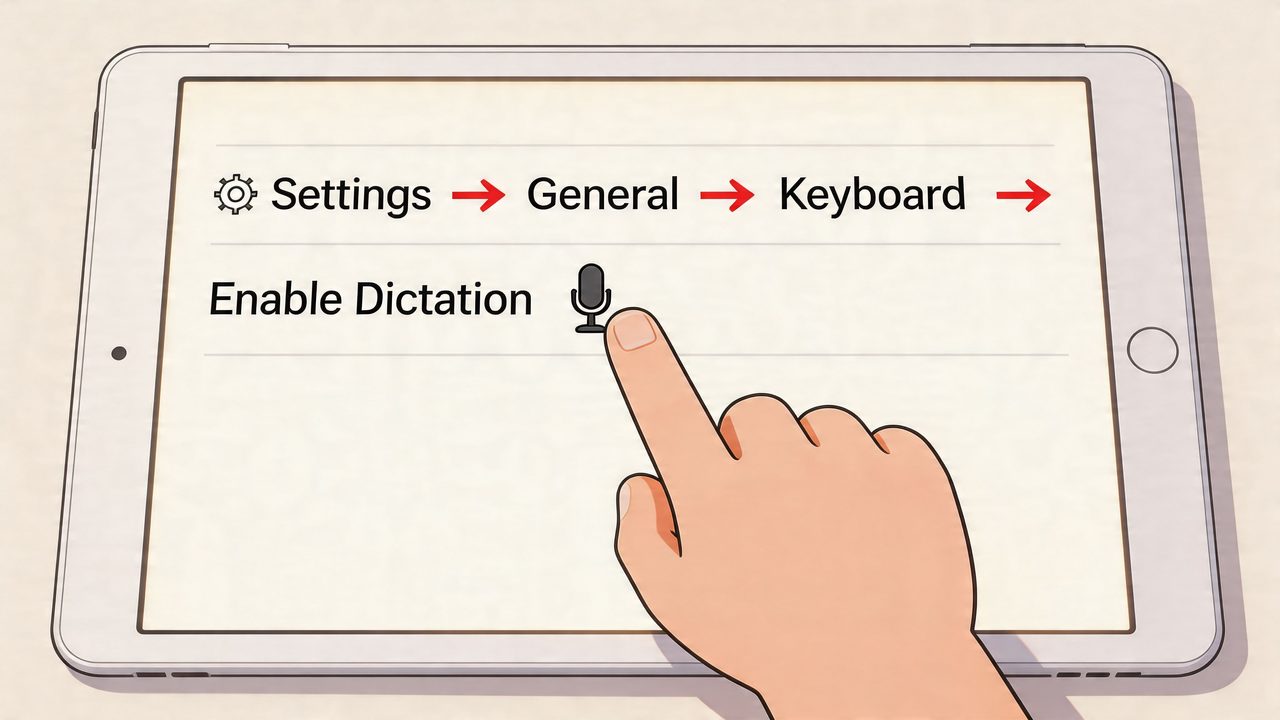
To enable dictation on the iPad:
- Open Settings.
- Go to General.
- Tap Keyboard.
- Turn on Enable Dictation.
The first setup may prompt for permissions and language downloads, so do it on a stable internet connection instead of waiting until you are rushing to capture something. After setup, dictation is available in the standard places you already type, including Notes, Messages, Pages, and many browser text fields.
Open any app with a text box and tap the microphone icon near the spacebar. Then speak in a normal voice. Clear pacing helps more than exaggerated pronunciation.
Start with a short test, not a full document
Use Notes or Messages for the first run. Both are forgiving, and both let you see quickly how the iPad handles your pacing, punctuation, and corrections.
A good starter prompt looks like this:
“Hi Sam comma I reviewed the draft and left comments in the second section period
New paragraph
Let’s discuss next steps tomorrow afternoon period”
That test teaches the habits that matter:
- Say punctuation out loud if structure matters.
- Pause between sentences so phrases do not blur together.
- Watch the transcript as you go and stop early if it starts drifting.
Apple improved the live drafting experience in iPadOS 16. As shown in Apple’s iPadOS 16 overview of the redesigned dictation experience, you can switch between dictation and keyboard input without stopping the session, tap into the text to make edits, and keep speaking while the iPad continues listening. Apple also added automatic punctuation and spoken emoji insertion. That matters because the built-in tool is now much better for drafting and mid-sentence corrections than older versions were.
Built-in dictation works best in a few predictable cases:
- Short emails: Dictate the body first, then type names, dates, and wording that needs precision.
- Messages: Fast for replies that would be annoying to thumb-type.
- Notes capture: Good for getting ideas out before you organize them.
- Search and simple forms: Fine for convenience, less reliable for anything with codes, addresses, or exact numbers.
The trade-off is straightforward. Built-in dictation is excellent for capture and decent for drafting, but it still needs supervision. If the text has to be polished, consistent across devices, or cleaned up in a desktop workflow, the iPad is often the place to start the draft, not the place to finish it.
Keep the first few sessions short. One clean paragraph teaches better habits than struggling through a full page of bad transcription.
Choosing the Right Dictation Method
Not every voice tool on the iPad does the same job. People often lump them together, then get frustrated because they used the wrong method for the task.
When the keyboard microphone is the right tool
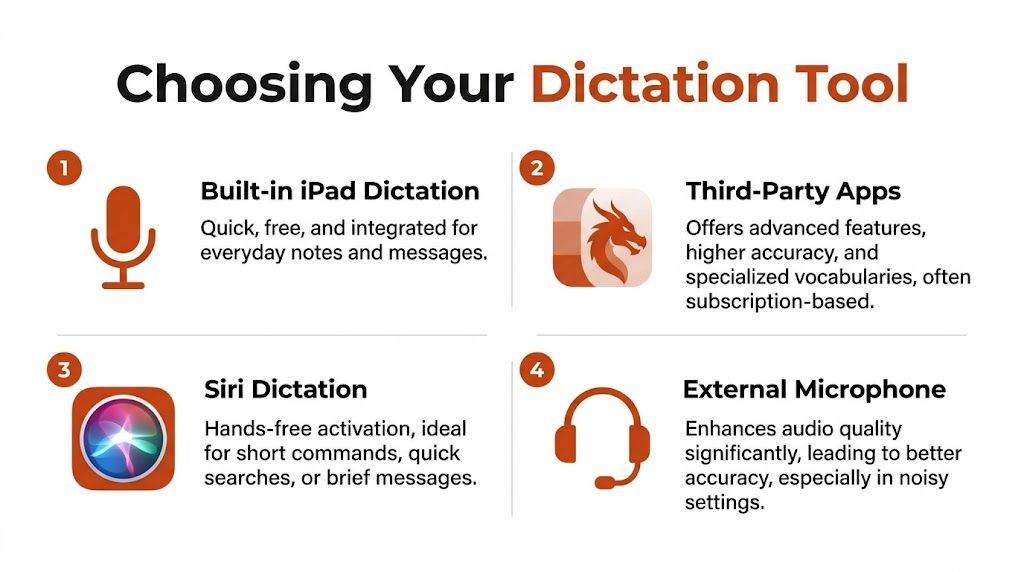
The standard keyboard microphone is a highly practical default. It’s built in, quick to trigger, and available almost anywhere you can type.
Use it for:
- notes
- email drafts
- messages
- search fields
- document drafting in Pages or Docs
Its biggest advantage is speed to start. You tap once and talk. If your workflow is “capture this thought now,” this is the tool.
Its downside is that it still behaves like a text-entry helper, not a full voice operating system.
When Siri helps and when it gets in the way
Siri is useful when your hands are busy and the request is short. Think commands, reminders, quick searches, or sending a brief message.
It’s less useful for sustained writing. Siri is optimized for intent and action, not for building a polished multi-paragraph document. If you try to use Siri as your main drafting tool, you’ll usually feel boxed in.
When Voice Control is worth the setup
Voice Control is the option for people who want deeper hands-free control. It’s more complex, but it opens up device navigation and more extensive spoken interaction with text.
Voice Control makes sense if you:
- want more control over selection and correction
- need broader hands-free use across the interface
- can tolerate a steeper setup curve
That’s also where more advanced workflows start to appear, especially if the standard dictation tool feels too limited for editing.
The privacy trade-off is real
Apple’s privacy settings around dictation are better understood when you separate default behavior from optional sharing. According to Apple’s Ask Siri, Dictation & Privacy documentation, audio and transcripts are sent to Apple servers for processing by default, but they are not retained unless you opt in to Improve Siri and Dictation. If you do opt in, Apple says it may retain and use dictation data for up to two years, tied to a random device-generated identifier rather than your Apple Account.
That leads to a practical decision table:
| Method | Best for | Main weakness |
|---|---|---|
| Built-in iPad Dictation | Everyday writing in apps | Limited control during longer or messier sessions |
| Siri | Hands-free commands and short requests | Not ideal for sustained drafting |
| Voice Control | Full voice-driven interaction | More setup and more complexity |
| External mic with any method | Better audio pickup | Extra gear to carry |
Choose based on the task, not on brand loyalty. Quick capture, use the keyboard mic. Device control, use Voice Control. Tiny requests, use Siri.
Advanced Commands for Formatting and Editing
The difference between casual dictation and useful dictation is structure. On the iPad, the built-in tool works best when you speak the punctuation and layout as you draft, instead of trying to repair a wall of text afterward.
Commands that make dictation usable for real work
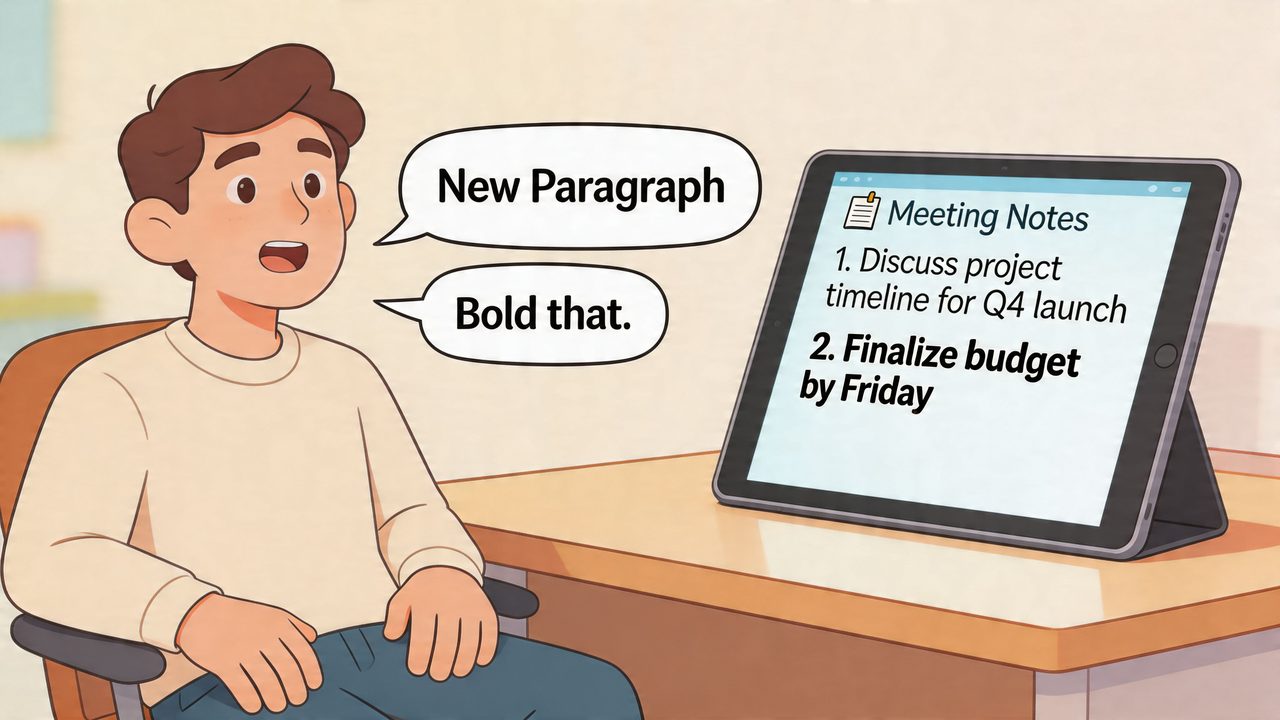
Start with the commands that shape the page:
Practice these first: “period,” “comma,” “question mark,” “new paragraph,” “new line.”
Then add commands that control emphasis:
“all caps,” “capitalize,” “bold that”
App support varies, and that detail matters. A notes app may handle spoken formatting one way, while a document editor may ignore part of it or apply it inconsistently. The practical approach is to learn a small command set that works reliably in your main writing apps, then build from there.
A meeting summary dictated with structure sounds more like this:
“Project update period new paragraph
Budget review is complete period new paragraph
Action items colon finalize scope comma confirm timeline comma send revised draft by Friday period”
That usually gets you a workable first draft fast. It does not guarantee polished copy.
The trade-off is simple. Built-in iPad dictation is good at turning speech into a draft, but it is less capable once you need precise editing commands, repeatable cleanup, or fine control over revisions. As noted earlier, short session limits and inconsistent correction behavior are part of the built-in experience, especially during longer writing sessions.
Editing without fighting the keyboard
Use dictation in passes.
Trying to draft, revise, rephrase, and correct every small error while you are still speaking slows the whole process. On the iPad, it is faster to separate content creation from precision editing.
A reliable pattern looks like this:
- Draft the full thought: Speak a sentence, list item, or paragraph with punctuation.
- Stop briefly: Check for names, dates, and obvious recognition mistakes.
- Correct the high-value errors: Fix anything that changes meaning.
- Keep moving: Leave minor wording polish for the end.
- Type the exceptions: Acronyms, technical terms, code, and uncommon names are often faster by hand.
That workflow is what keeps iPad dictation productive instead of frustrating. The built-in tool is strongest at momentum.
If you want tighter control over spoken shortcuts and recurring terminology, this guide to custom voice commands and vocabulary design shows how more advanced voice workflows are structured.
Here’s a quick demo of spoken formatting in practice:
The power-user mindset
Experienced users aim for clean enough, then polish later.
That mindset becomes more important as your workflow expands beyond the iPad. Built-in dictation is excellent for capturing notes, outlines, email drafts, and meeting summaries on the go. Final polishing is often better handled on a Mac, where you have more screen space, better revision tools, and room for a more advanced dictation layer if your work depends on voice input every day.
That is usually the point where basic dictation stops being the whole system and becomes the capture step in a cross-device workflow.
Troubleshooting Common Dictation Problems
A lot of dictation failures on the iPad aren’t user mistakes. They’re limitations of the system, mic conditions, or software bugs that show up inconsistently.
When dictation stops, disappears, or mishears you
Three problems come up most often.
The microphone icon isn’t available. Check that Dictation is still enabled in Settings and that the current app has an active text field. Some people also run into temporary failures after updates or after changing Siri-related settings.
Accuracy suddenly gets worse.
Background noise, distance from the microphone, and specialized vocabulary all matter. If you’re dictating technical terms, names, or acronyms, the built-in tool often guesses wrong in ways that look random but aren’t.
The session cuts off mid-thought.
This is one of the most common frustrations in real use. If you’re trying to dictate long paragraphs continuously, the stop-start rhythm can break concentration.
A few practical fixes usually help:
- Move closer to the iPad: Don’t dictate across the desk.
- Reduce ambient sound: Fans, traffic, and meeting-room chatter matter.
- Use shorter bursts: Treat each spoken segment as a draft block, not a full page.
- Type the hard words once: Proper nouns and niche terms are often faster to correct manually.
What to do when the problem is the system, not you
There are also situations where the software itself appears unstable. As summarized in this discussion of user-reported iPad dictation reliability issues, user forums have described “wicked bizarre” dictation bugs that persisted even after toggling settings, with recurring complaints from people dealing with accents, noisy environments, or technical terminology.
That’s worth saying plainly because it changes expectations. If dictation performs badly in one environment and reasonably well in another, that doesn’t mean you’re using it wrong. It often means the built-in tool has hit one of its weak spots.
Some dictation problems aren’t fixable from the keyboard. The best workaround is often workflow design: quieter room, shorter bursts, or moving the final cleanup to another device.
If you rely on dictation daily, treat the iPad as a fast capture device first. That mindset removes a lot of frustration.
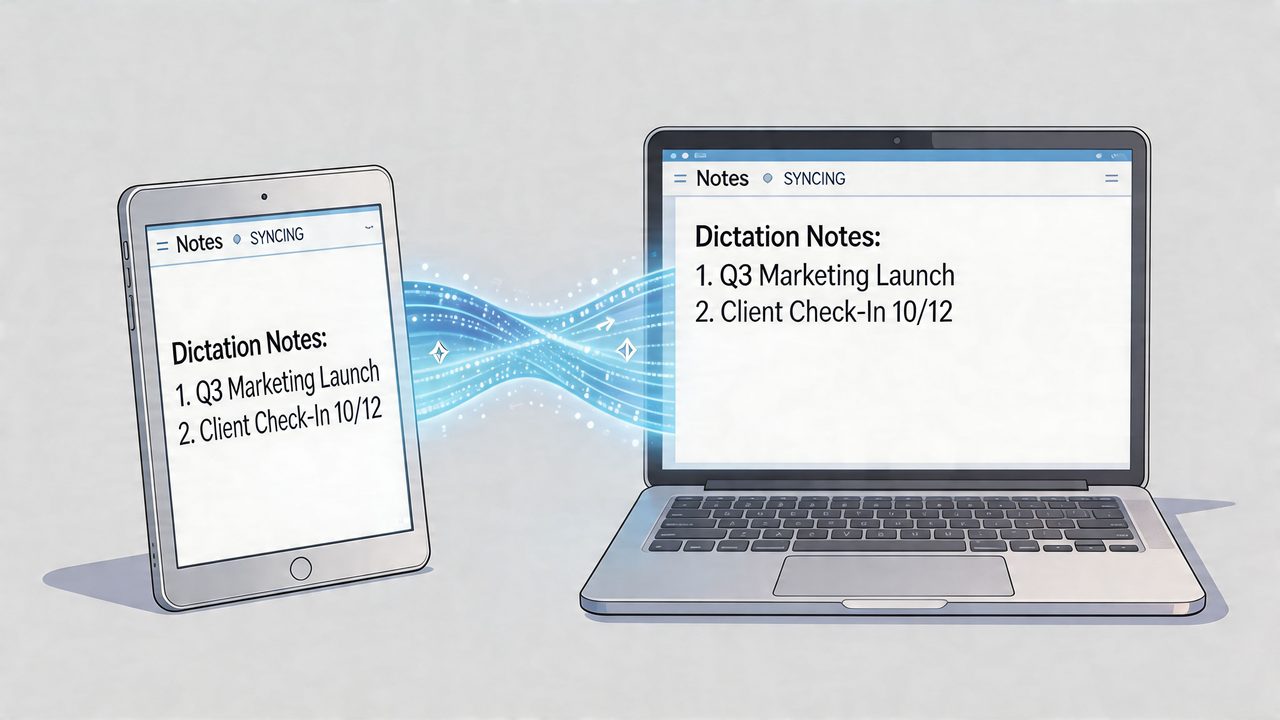
Syncing Dictation with Your Mac Workflow
For casual use, built-in dictation on the iPad is enough. For professional use, many people eventually hit the ceiling.
That usually happens when the work gets more specific. Product managers need cleaner specs and stakeholder updates. Developers need technical terms to land correctly. Healthcare professionals need privacy-conscious workflows and more reliable handling of specialized language. The iPad is still useful here, but mostly as the place where the first draft starts.
Where iPad dictation starts to hit a ceiling
The main issue isn’t that Apple’s built-in tool is bad. It’s that professional workflows need things the native experience doesn’t really solve.
The gap is especially obvious around:
- privacy-focused offline work
- context-specific formatting
- cleanup of filler words and self-corrections
- specialized vocabulary
- sensitive documentation requirements
That gap is described clearly in this analysis of dictation limitations for power users and privacy-focused workflows, which notes that there’s little guidance for context rules, filler-word removal, or HIPAA-ready privacy in built-in workflows, leaving room for third-party tools that offer on-device models and stronger security postures.
A workflow that keeps the iPad for capture and the Mac for polish
This is the workflow I recommend to colleagues who want the speed of dictation without getting stuck doing all the cleanup on a tablet:
-
Capture on the iPad.
Use Notes, Drafts, Pages, or your preferred text field to speak the rough draft while the ideas are fresh. -
Sync naturally through your existing Apple setup.
iCloud Notes, shared documents, or your normal app stack are enough. The point is not fancy automation. The point is getting the rough material onto your Mac quickly. -
Polish on the Mac.
That’s where longer editing sessions, app-specific formatting, and more deliberate revisions feel easier and faster. -
Reserve the iPad for mobility.
Use it in hallways, on calls, between appointments, or whenever typing would slow you down.
This is also where a dedicated Mac dictation tool starts to make sense. If your work involves repeated terminology, privacy constraints, or different writing modes across apps, you’ll want more than raw transcription.
For readers exploring that next step, this guide to speech-to-text workflows on Mac is a practical place to start because it addresses the gap between basic dictation and final-ready writing.
The reverse direction helps too: once you've dictated a draft on the iPad, have the tablet read it back so you catch the errors your eyes skip. This guide to text to speech on iPhone & iPad covers Speak Screen and the listening side of the workflow.
The bigger point is simple. Dictation on the iPad is excellent for capture. It’s much less convincing as the entire end-to-end writing system for demanding work. Once you accept that, the workflow gets easier. Speak on the iPad. Refine on the Mac. Ship cleaner writing with less friction.
If you like the speed of dictation on the iPad but want cleaner final text on your Mac, AIDictation is built for that last-mile polish. It can handle private local dictation on Apple Silicon, or use cloud-based cleanup for formatting, filler-word removal, grammar fixes, and app-aware tone. That makes it a good fit when your iPad is the capture device and your Mac is where the draft becomes something you can send.
Frequently Asked Questions
What does How to Use Dictation on the iPad: A Complete Guide cover?
You’re probably reading this on an iPad with a half-written email, meeting note, or outline sitting open in Notes, Pages, or Gmail. You started typing on the glass keyboard, got through a few sentences, and remembered why long-form writing on a tablet feels slower than it should.
Who should read How to Use Dictation on the iPad: A Complete Guide?
How to Use Dictation on the iPad: A Complete Guide is most useful for readers who want clear, practical guidance and a faster path to the main takeaways without guessing what matters most.
What are the main takeaways from How to Use Dictation on the iPad: A Complete Guide?
Key topics include Table of Contents, Why You Should Master iPad Dictation, It turns the iPad into a better drafting tool.
Ready to try AI Dictation?
Experience fast voice-to-text on your device. Free to download.
Download FreeRelated Posts
Dictation on macOS: Setup, Apps, and Pro Tips
Master dictation on macOS with clear setup steps, app comparisons, privacy settings, and accuracy tips to turn your voice into clean text fast.
Audio to Text Converter on macOS: Complete Guide
Master the audio to text converter on macOS with AIDictation. Explore local and cloud modes, custom dictionaries, and privacy-first workflows.
Background Noise Reduction for Cleaner Dictation on Mac
Practical guide to background noise reduction for macOS dictation. Learn DSP and AI methods, key metrics, and pro settings to sharpen your dictation quality.